

Sync new FluentCRM contacts to HubSpot and notify sales in Slack
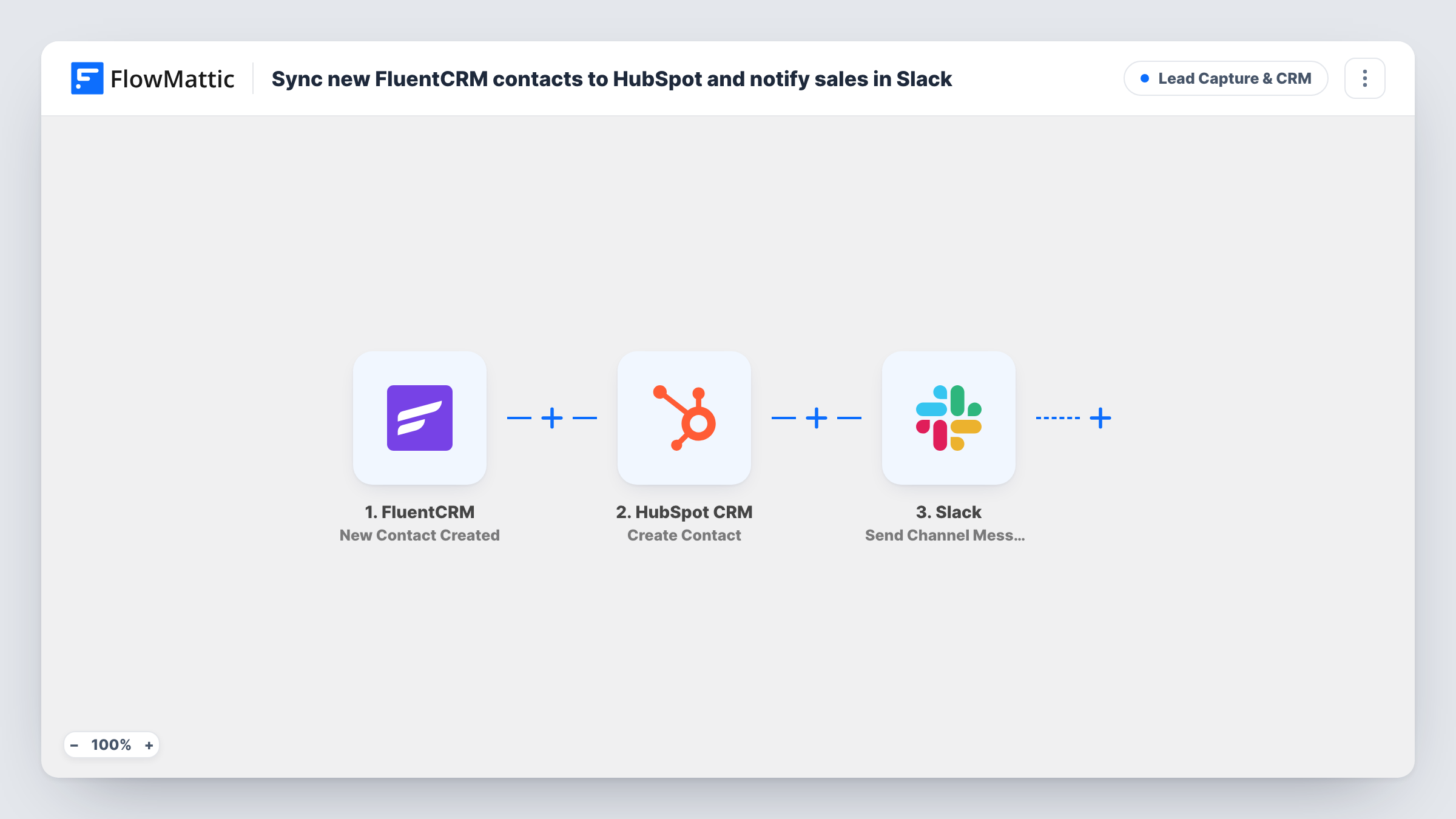
When a contact is created in FluentCRM, this workflow creates the same person in HubSpot with their email, first and last name, then posts the lead’s name and email in a Slack channel for your sales team.
 FluentCRM
 HubSpot CRM
 Slack
3 steps Setup ~5 min Used on 2.0k sites Growth Free to import
What this workflow does
Marketing may run on FluentCRM inside WordPress while sales works in HubSpot. When the two lists drift apart, sales misses new leads or chases them late. This workflow copies each new FluentCRM contact into HubSpot and tells sales about it in Slack.
The run begins as soon as FluentCRM records a new contact. FlowMattic passes the email, first name and last name to HubSpot CRM, where the Create Contact action adds a new contact with those three values. Then the Slack step posts a channel message reading "New lead added to CRM" with the person's full name and email in brackets, after a magnet emoji.
The sync goes one way and only at creation. Changes made later in FluentCRM are not copied to HubSpot, and nothing comes back from HubSpot to WordPress. The HubSpot step creates contacts rather than updating them, so if the email is already in HubSpot, check Task History for that run to see how HubSpot responded.
Website leads handed to a HubSpot sales team
People who sign up through your WordPress forms become FluentCRM contacts for newsletters, and the same people appear in HubSpot for the sales reps.
Moving to HubSpot gradually
Keep collecting contacts in FluentCRM while the sales team starts working in HubSpot, so new contacts land in both systems during the switch.
Sales channel in Slack
Reps who live in Slack see each new contact's name and email in their channel, then open HubSpot to pick it up.
How this workflow runs
What happens at each step once the workflow is on, and what you need before you import it.
 FluentCRM New Contact Created
Runs when a new contact is created in FluentCRM. The contact's email, first name and last name are made available to HubSpot and Slack.
- HubSpot CRM Create Contact
Creates a HubSpot contact with the FluentCRM email, first name and last name. You link HubSpot when importing. This action creates contacts and does not update existing ones.
- Slack Send Channel Message
Posts a message to a Slack channel saying a new lead was added, with the contact's full name and email. Connect Slack and confirm the channel with a test run.
What you need
- FlowMatticCore
- FluentCRM PluginPlugin
- HubSpot CRM AccountAccount
- Slack AccountAccount
After importing, map your own data. To keep the template universal, not every step is pre-filled. Open each step in the builder and connect your accounts and fields (channels, lists, sheets, recipients) before you switch the workflow on.
Make it yours
Changes worth making after you import it.
- Add a Filter after the trigger that continues only for contacts with a certain tag or list, if only some FluentCRM contacts are sales leads.
- Map more HubSpot properties in the Create Contact step, such as phone or company, if your FluentCRM contacts hold that data and the step shows those fields.
- Create a test contact in FluentCRM after import, then check that it appears in HubSpot and that the Slack message reached the right channel.
Questions about this workflow
Does this update HubSpot when a FluentCRM contact changes?
No. The trigger is New Contact Created, so only new contacts are sent. Later edits in FluentCRM stay in FluentCRM.
What happens when the FluentCRM contact's email is already a HubSpot contact?
The step uses Create Contact, not an update action. HubSpot may reject a second contact with the same email, so look at Task History for that run and switch to an update-style HubSpot action if one fits your setup.
Are existing FluentCRM contacts copied to HubSpot on import?
No. Only contacts created after the workflow is turned on are sent. Use HubSpot's own import tool for your existing list.
Can the Slack message mention a sales rep?
Yes. Edit the message text in the Slack step and add the rep's Slack mention, or post to a channel that only the sales team follows.
More Lead Capture & CRM workflows
Other ready-to-import templates from the same category.



Import this workflow into your WordPress site
Download the JSON, import it from the Workflows screen and connect your accounts. Every run stays on your server, with no per-task fees.
30-day money-back guarantee Unlimited workflows and runs Self-hosted