

Add new AffiliatePress affiliate commissions to Google Sheets for weekly revenue reports
Every commission AffiliatePress creates is written to a new Google Sheets row, giving you a running commission log you can total and group by week for your revenue reports.
 AffiliatePress
 Google Sheets
2 steps Setup ~5 min Used on 2.4k sites Free to import
What this workflow does
A weekly revenue report needs the week's affiliate commissions in one place. Pulling them out of WordPress each week and pasting them into a spreadsheet is slow and easy to get wrong. This workflow keeps the spreadsheet filled as commissions are created, so the raw data is there when you sit down to report.
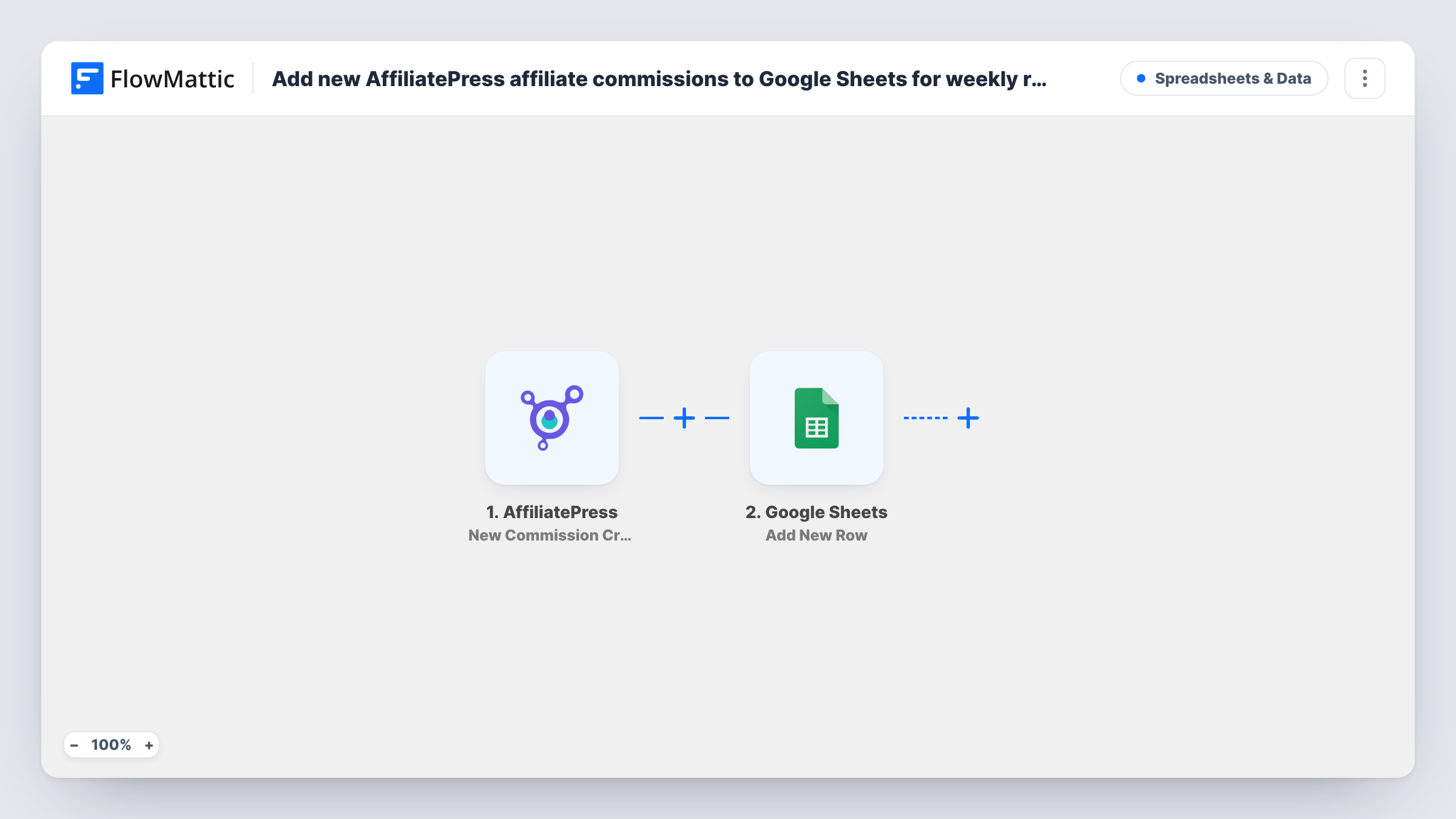
The AffiliatePress trigger runs on New Commission Created. FlowMattic then adds a row in Google Sheets. The template has no columns mapped, so after import you connect your Google account, choose the spreadsheet and map the commission details you need, for example the affiliate, the amount and the date.
The workflow logs commissions; it doesn't build the weekly report. Use a pivot table, SUMIFS or a chart in the sheet to group rows by week. It also doesn't update a row later if a commission's status changes in AffiliatePress, so treat the sheet as a record of commissions as they were created.
A Monday revenue summary
Each Monday you filter the sheet to last week's rows, total the commission amounts and paste the figure into your team update.
Sharing numbers with a finance partner
Your bookkeeper sees every commission in Google Sheets without needing access to your WordPress dashboard.
Comparing affiliates over time
A pivot table on the affiliate column shows which partners earned commissions each week, using rows the workflow has already added.
How this workflow runs
What happens at each step once the workflow is on, and what you need before you import it.
 AffiliatePress New Commission Created
Runs when AffiliatePress creates a new commission. The commission's details become available to map in the Google Sheets step. Generate a test commission to see the exact values.
- Google Sheets Add New Row
Writes one row per commission to the spreadsheet you select in Google Sheets. Connect your Google account and map each column to a commission value, such as affiliate, amount and date.
What you need
- FlowMatticCore
- AffiliatePress PluginPlugin
- Google Sheets AccountAccount
After importing, map your own data. To keep the template universal, not every step is pre-filled. Open each step in the builder and connect your accounts and fields (channels, lists, sheets, recipients) before you switch the workflow on.
Make it yours
Changes worth making after you import it.
- Map the commission date into its own column, then add a helper column with a week formula so pivot tables can group rows by week.
- Add a Filter after the trigger if you only want certain commissions in the sheet, for example ones above zero, once you have seen the amount value in a test run.
- Keep the header row fixed and avoid inserting columns in the middle of the sheet after mapping, so new rows keep landing in the right places.
Questions about this workflow
Does this build the weekly AffiliatePress revenue report for me?
No. It adds a row per commission. You build the weekly view in Google Sheets with a pivot table, formula or chart over those rows.
Are AffiliatePress commissions created before import added?
No. Only commissions created after the workflow is turned on are logged in the sheet.
What if a commission is later rejected or paid out?
The row stays as it was written. This workflow only reacts to new commissions, so status changes in AffiliatePress aren't copied to the sheet.
Which commission details can I log in Google Sheets?
Whatever the trigger provides. Create a test commission after import, then map the values you need to your sheet's columns.
More Spreadsheets & Data workflows
Other ready-to-import templates from the same category.



Import this workflow into your WordPress site
Download the JSON, import it from the Workflows screen and connect your accounts. Every run stays on your server, with no per-task fees.
30-day money-back guarantee Unlimited workflows and runs Self-hosted