

Log new Userpilot NPS responses in a Google Sheets spreadsheet
Each Userpilot NPS event, whether a score, a dismissal or written feedback, is added as a row in Google Sheets, giving you a running record of survey activity you can chart and share.
 Userpilot
 Google Sheets
2 steps Setup ~5 min Used on 2.4k sites Free to import
What this workflow does
Userpilot runs your in-app NPS survey, but you may want the raw results somewhere your whole team can work with them: a sheet to chart scores by month, compare segments or pass to someone without a Userpilot login. This workflow adds each NPS event to Google Sheets as it happens.
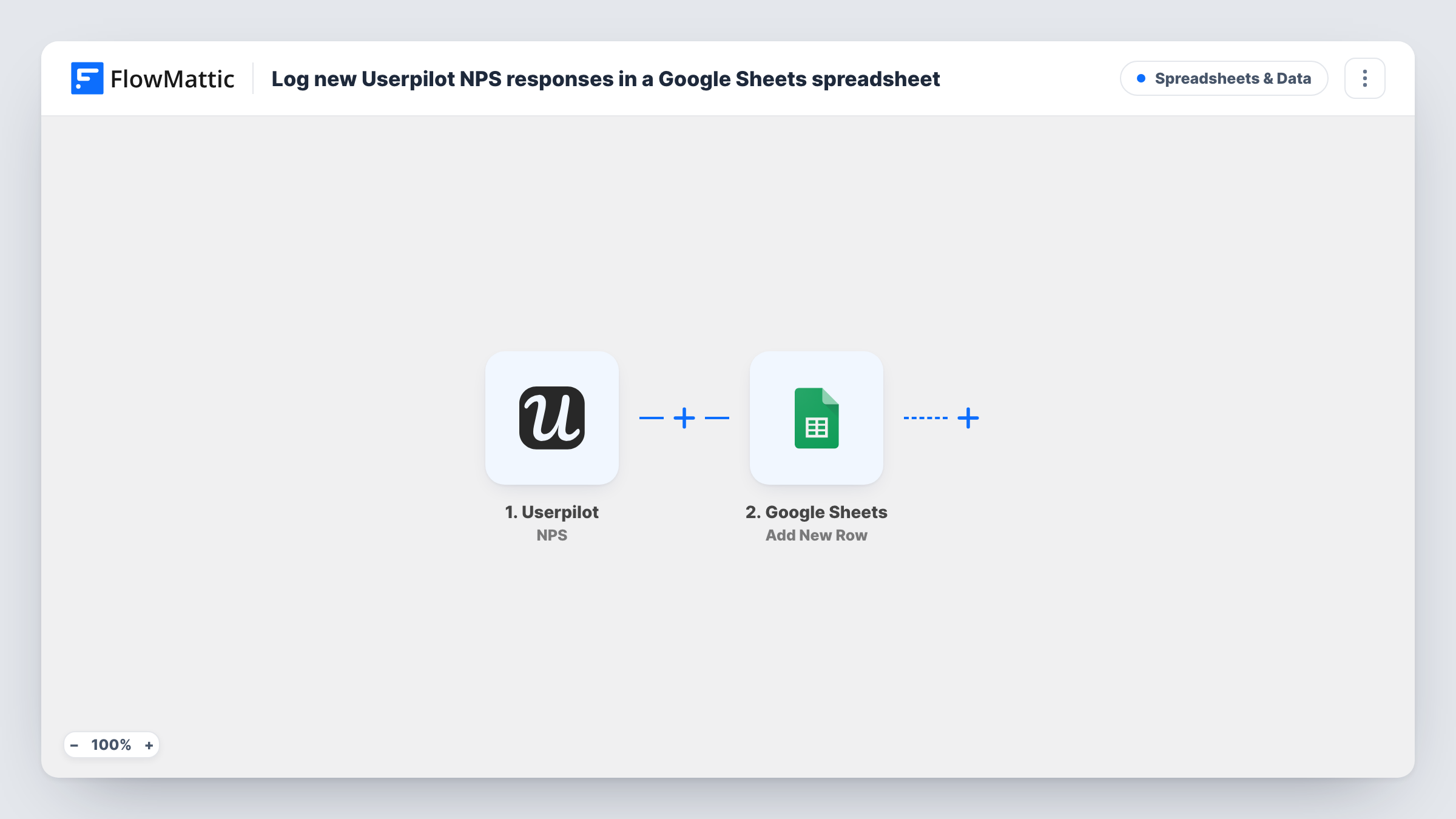
The Userpilot NPS trigger fires when a user scores the survey, dismisses it, or sends feedback. FlowMattic passes the event data on to Google Sheets, where Add New Row writes it to the spreadsheet you choose. The column each Userpilot detail lands in is up to you.
Be aware that all three kinds of event add a row. A dismissal still produces a row, and a user who scores and then writes feedback can appear twice. Map the event type into a column so you can tell rows apart, or add a Filter as the tips describe. Every NPS run is listed in Task History afterwards.
Monthly NPS reporting
A product manager charts each month's Userpilot scores in the sheet for the board pack, using a column for the event type to leave out dismissals.
Reading verbatim feedback together
Feedback events land in the same sheet, so the customer success team can read written comments in one place during their weekly review.
Share results outside Userpilot
Engineers and support staff who don't use Userpilot can open the shared Google Sheet to see how users rate the product.
How this workflow runs
What happens at each step once the workflow is on, and what you need before you import it.
 Userpilot NPS
Runs when a Userpilot NPS survey is scored, dismissed, or receives feedback. The event data is passed on. Run a test to see which fields Userpilot includes.
- Google Sheets Add New Row
Adds a row for the NPS event to the Google Sheets spreadsheet you pick. Map the Userpilot details, including the event type if sent, into your columns.
What you need
- FlowMatticCore
- Userpilot AccountAccount
- Google Sheets AccountAccount
After importing, map your own data. To keep the template universal, not every step is pre-filled. Open each step in the builder and connect your accounts and fields (channels, lists, sheets, recipients) before you switch the workflow on.
Make it yours
Changes worth making after you import it.
- Add a Filter after the trigger that lets through only scored events, using the event type field from a test run, if you want dismissals kept out of the sheet.
- Create the header row in your sheet before import, for example user, score, feedback and event type, so mapping is quick.
- Add a Slack Send Channel Message step after the sheet, behind a Filter on the score, if your team wants to hear about low scores straight away.
Questions about this workflow
Are dismissed Userpilot NPS surveys logged too?
Yes, as imported. The NPS trigger fires on scores, dismissals and feedback, and there is no Filter, so each of those adds a row.
Why might one user appear twice in the NPS sheet?
Scoring the survey and later sending written feedback are separate events. Each starts its own run, so each gets its own row.
Does the sheet include NPS responses from before I set this up?
No. Only NPS events that happen after the workflow is turned on are logged.
Can I calculate my NPS from the sheet?
Yes, with your own spreadsheet formulas over the score column. Exclude dismissal rows, and count each user's score once, before you calculate.
More Spreadsheets & Data workflows
Other ready-to-import templates from the same category.



Import this workflow into your WordPress site
Download the JSON, import it from the Workflows screen and connect your accounts. Every run stays on your server, with no per-task fees.
30-day money-back guarantee Unlimited workflows and runs Self-hosted