

Log Act-On form submissions in a Google Sheets spreadsheet
Each time an Act-On form is submitted, this workflow writes the answers to a new row in Google Sheets, giving people outside Act-On a plain list of form responses to sort and share.
 Act-On
 Google Sheets
2 steps Setup ~5 min Used on 2.9k sites Free to import
What this workflow does
Act-On holds form responses alongside your marketing data, which is where the marketing team wants them. Sales, events or finance colleagues often don't have an Act-On login, and a shared spreadsheet is the easiest thing to give them. This workflow copies every Act-On response into one for them.
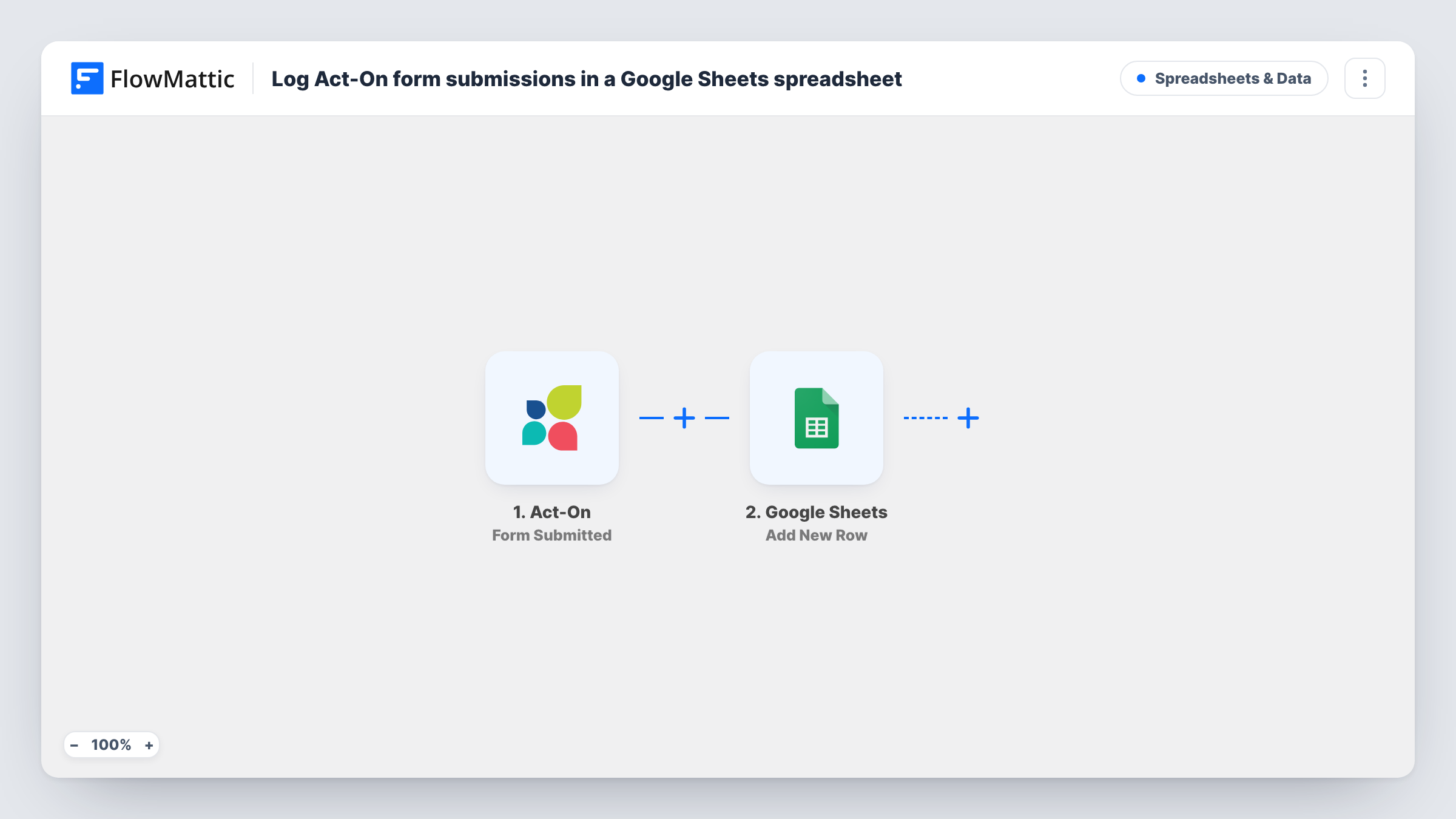
The Act-On trigger, Form Submitted, starts a run whenever someone submits one of your Act-On forms. FlowMattic takes the submitted values to Google Sheets, and Add New Row appends them to the sheet you choose. Your mapping decides which answer goes in which column.
Every submission gets its own row, including repeat submissions from the same person, because the sheet step only adds. If you collect several forms through Act-On, they all arrive here unless you narrow them with a Filter. Task History holds the details of each run.
Handing webinar sign-ups to the events team
The events coordinator works from a Google Sheet of everyone who registered through the Act-On webinar form, without needing Act-On access.
Sales follow-up list
Demo requests submitted through an Act-On form land in a sheet the sales team reviews each morning and marks off as they call.
Backup of form responses
A marketing manager keeps a copy of every Act-On form submission in Google Sheets as a simple record outside the platform.
How this workflow runs
What happens at each step once the workflow is on, and what you need before you import it.
 Act-On Form Submitted
Starts a run when a form is submitted in Act-On. The submitted answers and form details are handed to the Google Sheets step.
- Google Sheets Add New Row
Appends one row per Act-On submission to the Google Sheets spreadsheet you select. Map form answers to columns and connect your Google account at import.
What you need
- FlowMatticCore
- Act-On AccountAccount
- Google Sheets AccountAccount
After importing, map your own data. To keep the template universal, not every step is pre-filled. Open each step in the builder and connect your accounts and fields (channels, lists, sheets, recipients) before you switch the workflow on.
Make it yours
Changes worth making after you import it.
- Submit a test entry on your Act-On form after importing, so the trigger shows which fields arrive and you can set up matching column headers.
- If you run several Act-On forms, add a Filter after the trigger on the form name, using the value a test run shows, to log only the one you need.
- Add a column for the submission time if the trigger carries one, so the sheet can be sorted by when people filled in the form.
Questions about this workflow
Are earlier Act-On form submissions copied to the sheet?
No. The trigger only reacts to forms submitted after the workflow is on.
Does every Act-On form feed this sheet?
As imported, any form submission the trigger receives is logged. Use a Filter on the form name to limit it.
What if someone submits the Act-On form twice?
They get two rows. The Google Sheets step adds a row on every run and doesn't check for an existing one.
Can I log Act-On opt-outs too?
Act-On has separate triggers such as Contact Opt Global Out. Build another workflow on one of those and point it at a different tab.
More Spreadsheets & Data workflows
Other ready-to-import templates from the same category.





Import this workflow into your WordPress site
Download the JSON, import it from the Workflows screen and connect your accounts. Every run stays on your server, with no per-task fees.
30-day money-back guarantee Unlimited workflows and runs Self-hosted