

Send a Slack alert when Updown.io reports a new down alert
When Updown.io reports that one of your monitored sites is down, FlowMattic posts a message to the Slack channel you choose, so the people who fix outages see the alert in the place they work.
 Updown.io
 Slack
2 steps Setup ~5 min Used on 1.2k sites Free to import
What this workflow does
Uptime alerts that arrive by email can sit unread while a site is offline. If your team coordinates in Slack, the alert belongs there, where everyone can see it and reply in a thread. This workflow posts a message to a Slack channel for each down alert Updown.io raises.
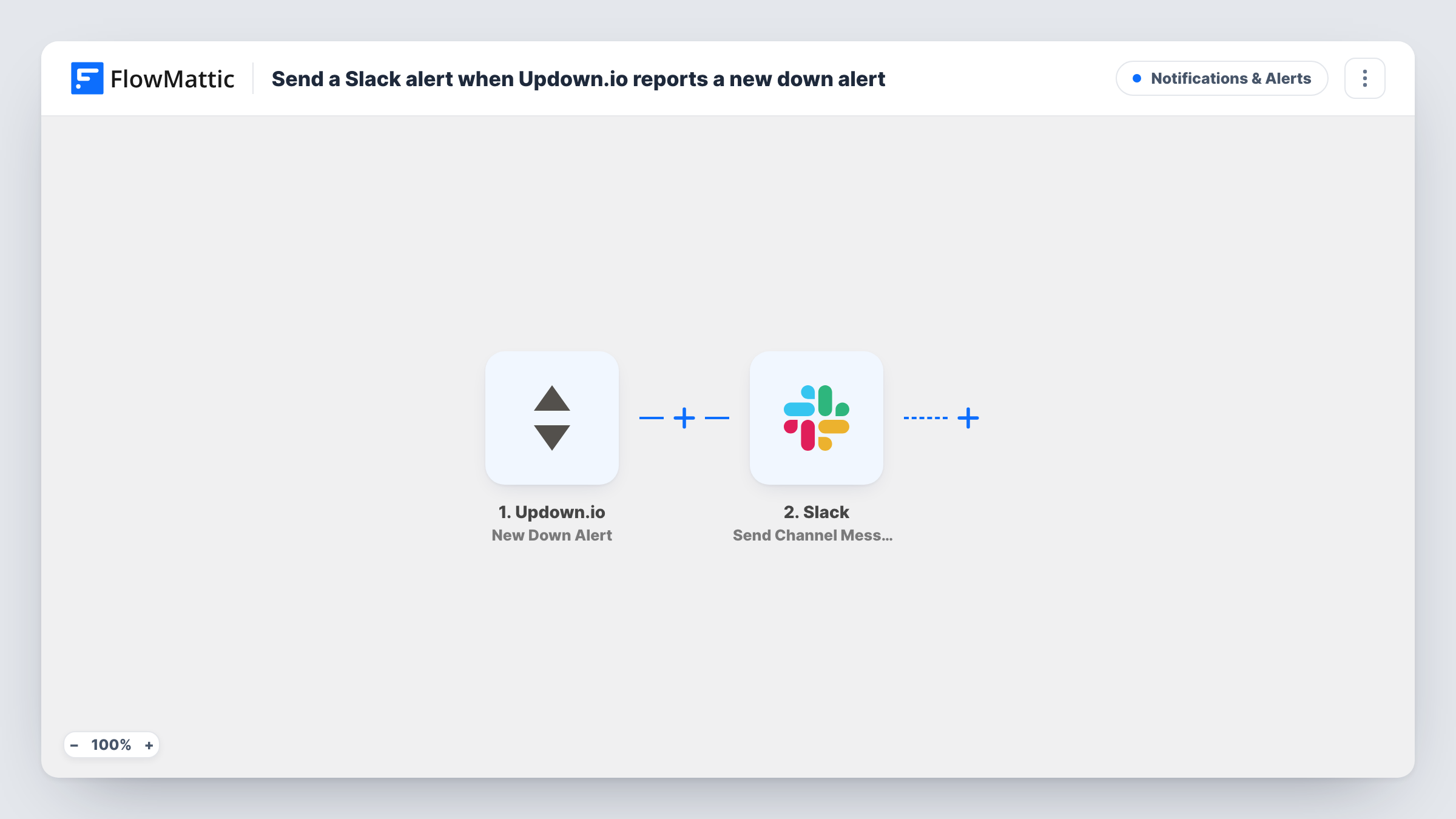
The Updown.io trigger listens for the New Down Alert event. When one arrives, FlowMattic runs Send Channel Message in Slack. The template has no message text yet, so after import you write it with values from the alert, for example the monitored URL and the error Updown.io reported.
This template covers down alerts only. Updown.io also reports when a site comes back up, and FlowMattic can act on that as a separate event, so you may want a second workflow that posts the recovery to the same channel. To test, add an Updown.io check for a URL you know returns an error, then look at Task History for the data the alert carried.
An agency watching client sites
Each client site is a check in Updown.io. When one goes down, the agency's ops channel in Slack gets a message naming the site, so the right developer picks it up.
A store owner with a small team
The shop's checkout page is monitored. A down alert lands in the team's Slack channel, where the owner and the developer can talk through the fix.
Keeping an incident record
A dedicated Slack channel for outages builds up a history of every down alert, which helps when you review how often a site has failed.
How this workflow runs
What happens at each step once the workflow is on, and what you need before you import it.
 Updown.io New Down Alert
Runs when Updown.io reports a new down alert for one of your checks. The alert details become available to the Slack step. Trigger a test alert after import to see which values arrive.
- Slack Send Channel Message
Posts a message to the Slack channel you pick. Write the text after import and include values from the Updown.io alert, such as the URL that is down and, if the alert includes it, the error.
What you need
- FlowMatticCore
- Updown.io AccountAccount
- Slack AccountAccount
After importing, map your own data. To keep the template universal, not every step is pre-filled. Open each step in the builder and connect your accounts and fields (channels, lists, sheets, recipients) before you switch the workflow on.
Make it yours
Changes worth making after you import it.
- Start the Slack message with the site's URL so the notification preview shows which site is down without opening it.
- Build a matching workflow on Updown.io's site-back-up event that posts to the same channel, so the team knows when the outage is over.
- Add a Filter after the trigger if only some of your checks should alert this channel, using the URL or check name from the alert data.
Questions about this workflow
Does this Updown.io workflow post when my site comes back up?
No. The trigger is New Down Alert only. Set up a second workflow with the recovery event if you want a back-up message in Slack.
What does the Slack alert say?
Nothing is written in the template. You compose the message after import using values from the Updown.io alert.
Will Updown.io stop sending its own email alerts?
No. This workflow doesn't change your Updown.io notification settings. Its own alerts carry on alongside the Slack message.
Can different Updown.io checks go to different Slack channels?
Yes, with a change. Add a Router after the trigger with a route per check, using conditions on the URL that can't overlap, and a Slack step on each route.
More Notifications & Alerts workflows
Other ready-to-import templates from the same category.




Import this workflow into your WordPress site
Download the JSON, import it from the Workflows screen and connect your accounts. Every run stays on your server, with no per-task fees.
30-day money-back guarantee Unlimited workflows and runs Self-hosted