

Send a Slack alert to the sales team for every new GrooveSell sale
Each time a product is purchased through GrooveSell, FlowMattic posts a message to your sales team’s Slack channel with the sale details you choose to include.
 GrooveSell
 Slack
2 steps Setup ~5 min Used on 2.2k sites Free to import
What this workflow does
Sales made through GrooveSell show up in its dashboard, but your team may not have it open. A post in Slack puts each sale in front of the people who follow up with buyers or track a launch. This workflow sends one for every purchase.
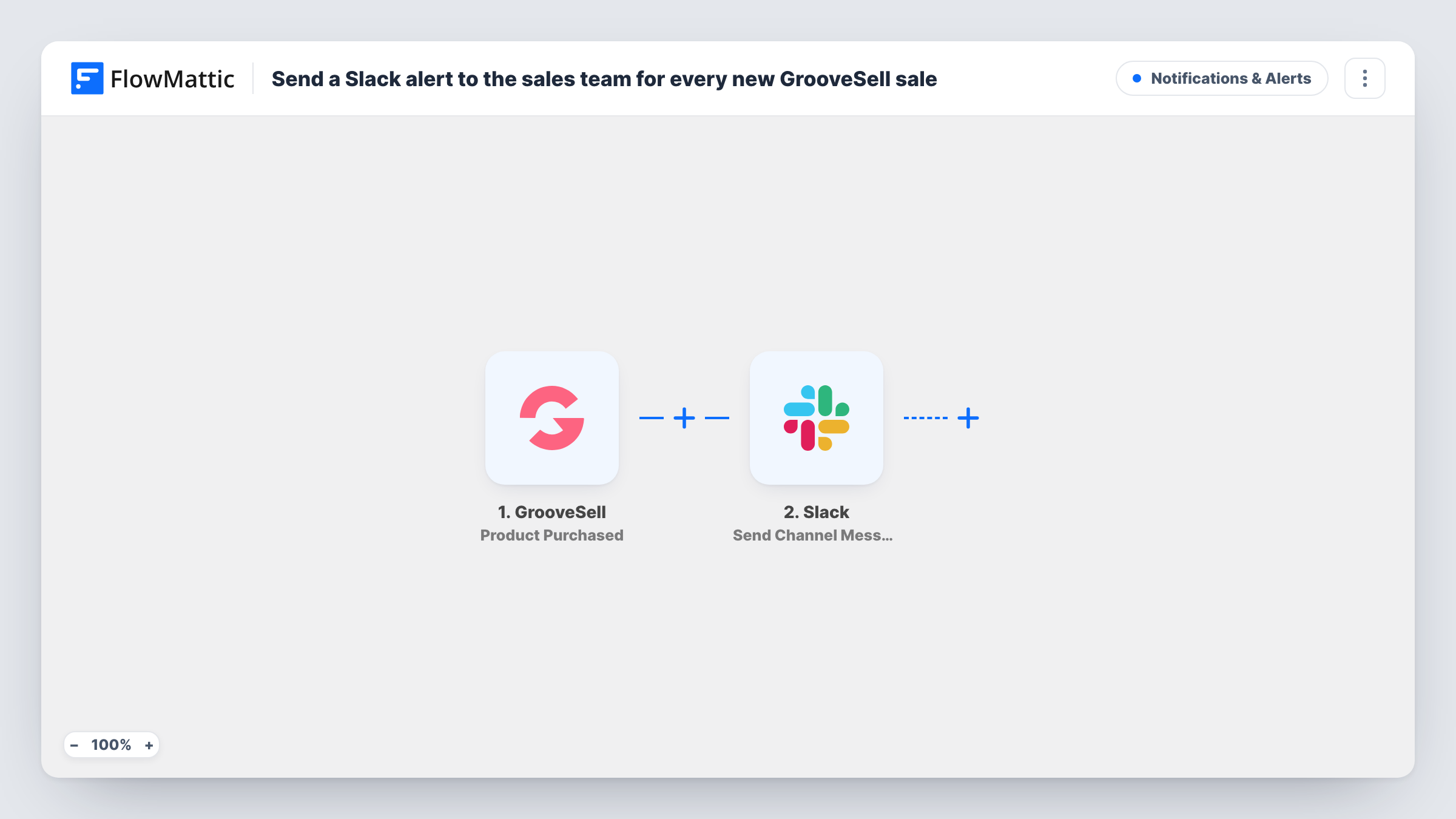
The GrooveSell trigger starts a run when a product is purchased. The purchase details are handed to FlowMattic. The next step uses Send Channel Message in Slack to post to a channel.
You write the Slack text yourself. After import, connect Slack, choose the channel, and write the text, mapping in details from the purchase such as the product name and the buyer. A test purchase, or the first real one, shows which details GrooveSell sends.
There is no condition in the flow, so every purchase produces a post. Task History lists each one, with any error Slack returned.
Launch day sales channel
During a product launch, the team watches a Slack channel where each GrooveSell sale is posted, so everyone sees the launch's progress in one place.
Affiliate manager follow-up
An affiliate manager reads the channel to see which products are selling and checks in with partners promoting them.
Upsell outreach
A sales rep sees each buyer's purchase in Slack and decides who to contact about a higher tier or a related product.
How this workflow runs
What happens at each step once the workflow is on, and what you need before you import it.
 GrooveSell Product Purchased
Fires when a product is purchased through GrooveSell. Connect your GrooveSell account on import; the purchase details are then available for the Slack message.
- Slack Send Channel Message
Posts a message to the Slack channel you pick. Write the text and map in the GrooveSell purchase details your team needs, such as product and buyer.
What you need
- FlowMatticCore
- GrooveSell AccountAccount
- Slack AccountAccount
After importing, map your own data. To keep the template universal, not every step is pre-filled. Open each step in the builder and connect your accounts and fields (channels, lists, sheets, recipients) before you switch the workflow on.
Make it yours
Changes worth making after you import it.
- Leave the buyer's email out of the message if the channel is large, and post only the product and buyer name.
- Add a Filter after the trigger to post sales of one product only, for example during a specific launch.
- Make a test purchase or wait for a real sale, then adjust the message wording once you see the details GrooveSell sends.
Questions about this workflow
What does the Slack message say about each GrooveSell sale?
What you write in the Slack step. The template has no message text, so you add it and map the purchase details after import.
Are refunds posted to Slack as well?
No. The trigger is Product Purchased, so only purchases start a run.
Will older GrooveSell sales be posted when I switch this on?
No. Only purchases made after the workflow is turned on are sent to Slack.
More Notifications & Alerts workflows
Other ready-to-import templates from the same category.




Import this workflow into your WordPress site
Download the JSON, import it from the Workflows screen and connect your accounts. Every run stays on your server, with no per-task fees.
30-day money-back guarantee Unlimited workflows and runs Self-hosted