

When an order is placed, send order details to Slack for team notifications
When your Dukaan store receives a new order, this workflow posts the order details to a Slack channel, so the people who pack, ship or answer customers know about it right away.
 Dukaan App
 Slack
2 steps Setup ~5 min Used on 2.3k sites Free to import
What this workflow does
Orders in a Dukaan store show up in the Dukaan dashboard, but your team may spend the day in Slack. If someone has to keep the dashboard open to notice new sales, orders sit longer than they should. This workflow posts each new order where your team already works.
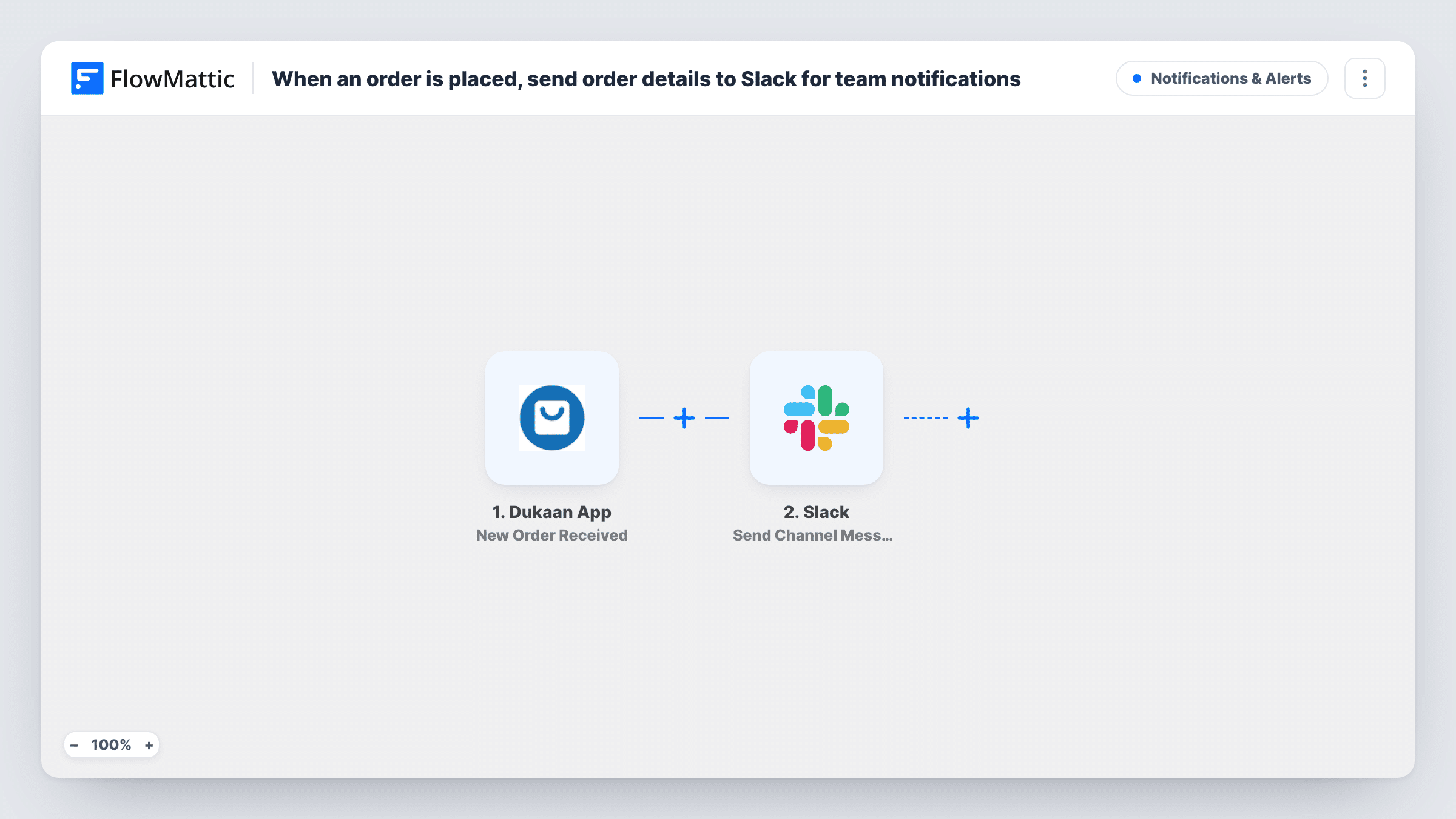
The Dukaan App trigger fires when your store receives a new order. FlowMattic receives the order data and makes it available for mapping. The second step sends a message to the Slack channel you choose, and you decide what it says, for example the order number, the customer's name, the items and the total, using the values Dukaan sends.
Every new order posts one message, so a busy store produces a steady stream in that channel. A dedicated orders channel keeps it apart from team chat. Run a test order after import to see the values you can use, and check Task History for each message sent.
Packing team in a small warehouse
The people who pack orders watch one Slack channel and start on each order as soon as its message appears, without logging in to Dukaan.
Owner keeping an eye on sales
A shop owner follows new orders from the Slack app on their phone during the day instead of refreshing the store dashboard.
Support staff preparing for questions
Customer support sees each order in Slack, so when a buyer writes in about their purchase, the details are already in the channel.
How this workflow runs
What happens at each step once the workflow is on, and what you need before you import it.
 Dukaan App New Order Received
Runs when your Dukaan store receives a new order. The order data Dukaan sends is passed on so you can put it in the Slack message.
- Slack Send Channel Message
Posts a message with the order details to the Slack channel you select. Write the text, insert the Dukaan order values you want, and connect your Slack workspace.
What you need
- FlowMatticCore
- Dukaan App AccountAccount
- Slack AccountAccount
After importing, map your own data. To keep the template universal, not every step is pre-filled. Open each step in the builder and connect your accounts and fields (channels, lists, sheets, recipients) before you switch the workflow on.
Make it yours
Changes worth making after you import it.
- Place a test order in your Dukaan store after import, so FlowMattic captures real order data before you build the Slack message.
- Add a Filter after the trigger if the channel only needs some orders, for example ones whose total is above a set amount.
- Put the order number at the start of the message, so your team can search Slack for a particular order later.
Questions about this workflow
Does every Dukaan order post to Slack?
Yes, as imported. There is no Filter, so each new order your store receives sends a message. Add a Filter after the trigger if you want only some.
Are Dukaan order status changes posted too?
No. The trigger is New Order Received, so later changes to an order do not run this workflow. A separate workflow with a Dukaan order update trigger can cover those.
Can I post Dukaan orders to more than one Slack channel?
Yes. Place a second Slack step below the first, choose the other channel there, and map the same Dukaan order values.
Does this change anything in my Dukaan store?
No. The workflow reads the new order and sends a Slack message. The order itself stays as it is in Dukaan.
More Notifications & Alerts workflows
Other ready-to-import templates from the same category.




Import this workflow into your WordPress site
Download the JSON, import it from the Workflows screen and connect your accounts. Every run stays on your server, with no per-task fees.
30-day money-back guarantee Unlimited workflows and runs Self-hosted