

When a new row is added in Google Sheets, remove background in BackgroundCut
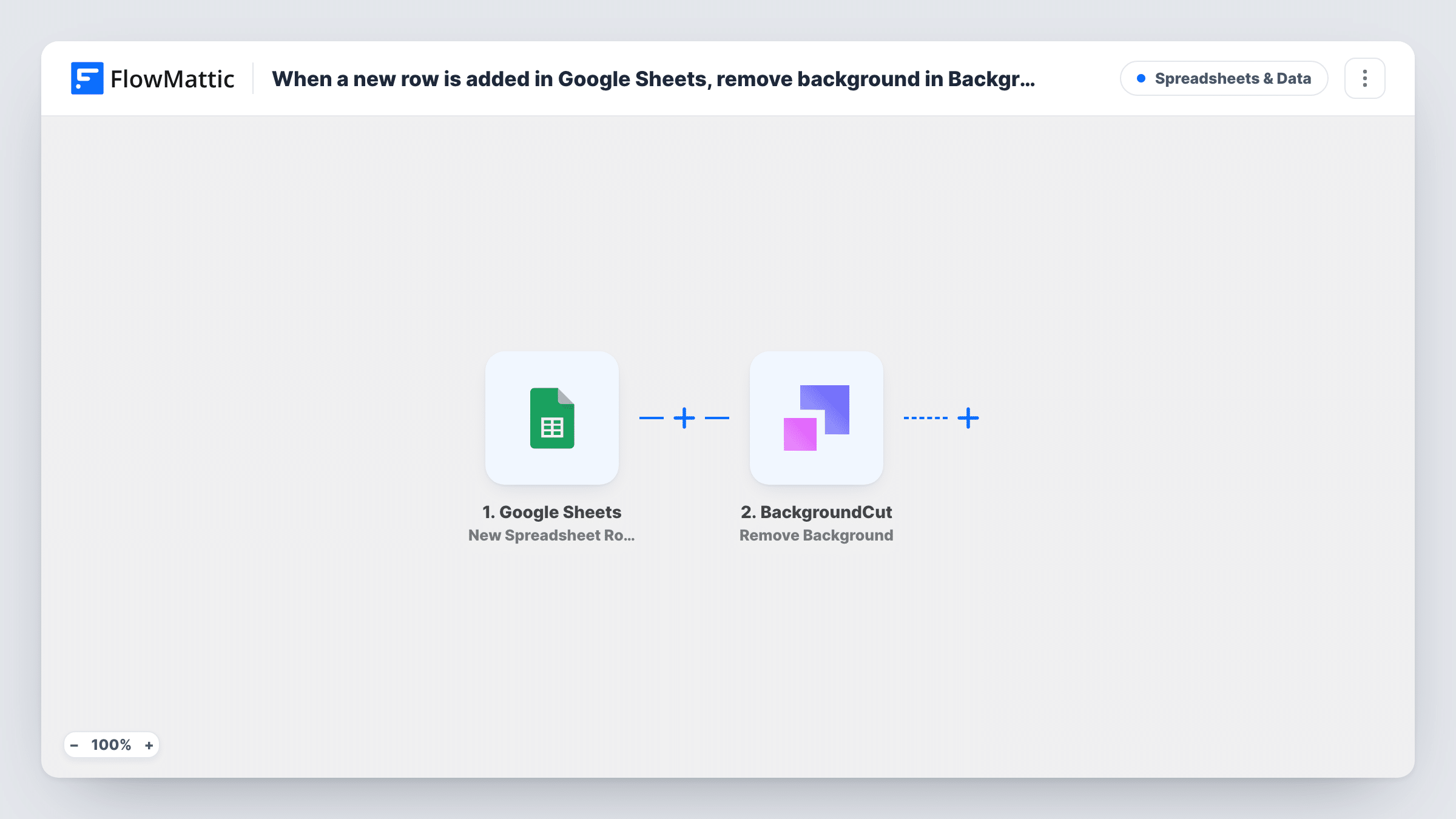
Add a row with an image to a Google Sheets spreadsheet and FlowMattic sends that image to BackgroundCut to remove its background. The template ends there, so you add a step to store the result where you need it.
 Google Sheets
 BackgroundCut
2 steps Setup ~5 min Used on 2.6k sites Free to import
What this workflow does
Product photos, profile pictures and listing images often need a clean background before they go on a site. Uploading them one by one to a background removal tool takes time when the images are already listed in a spreadsheet. This workflow uses the sheet as the queue: each new row sends its image to BackgroundCut.
The Google Sheets trigger watches the spreadsheet and sheet you pick and fires when a new row is added. FlowMattic reads the row's columns, and you map the column holding the image into the BackgroundCut step. BackgroundCut runs Remove Background on that image and returns its response to FlowMattic.
Know this before you import: the template has no step that saves the processed image or writes anything back to the sheet. The response is visible in Task History, and you can add a step after BackgroundCut to put it to use, such as updating the row or uploading the file to storage. Every new row runs the workflow once.
Store owner preparing product photos
Paste the image link for each new product into a sheet, and each row sends that photo to BackgroundCut for a plain cutout version.
Team directory headshots
HR adds a row per new hire with a photo link, and the headshot is sent for background removal before it goes on the team page.
Real estate or listing images
An assistant logs items for sale in a sheet, and each image is processed by BackgroundCut, ready for a step you add to save the result.
How this workflow runs
What happens at each step once the workflow is on, and what you need before you import it.
 Google Sheets New Spreadsheet Row
Runs when a new row is added to the Google Sheets spreadsheet and sheet you select. Connect your Google account, choose the sheet, and add a test row with an image so its columns can be mapped.
- BackgroundCut Remove Background
Sends the image from the new row to BackgroundCut, which removes its background. Connect BackgroundCut and map the image column into this step. Check the response in a test run to see what BackgroundCut returns.
What you need
- FlowMatticCore
- Google Sheets AccountAccount
- BackgroundCut AccountAccount
After importing, map your own data. To keep the template universal, not every step is pre-filled. Open each step in the builder and connect your accounts and fields (channels, lists, sheets, recipients) before you switch the workflow on.
Make it yours
Changes worth making after you import it.
- Add a Google Sheets update step after BackgroundCut that writes the returned result into a column on the same row, so the sheet shows each processed image next to the original.
- Add a Filter after the trigger that continues only when the image column is not empty, so rows added without an image do not call BackgroundCut.
- Make sure the image link in the sheet can be opened without a login. A private file link may not be reachable by BackgroundCut.
Questions about this workflow
Where does the image with the background removed end up?
As imported, only in the BackgroundCut response, which you can see in Task History. Add a step after BackgroundCut, such as a Google Sheets row update, to keep the result somewhere useful.
Will rows already in the Google Sheet be processed?
No. The trigger reacts to rows added after the workflow is turned on. Existing rows are left alone.
Is a BackgroundCut account required to process the sheet images?
Yes. The removal runs through your own BackgroundCut account, which you connect in the BackgroundCut step after import.
More Spreadsheets & Data workflows
Other ready-to-import templates from the same category.



Import this workflow into your WordPress site
Download the JSON, import it from the Workflows screen and connect your accounts. Every run stays on your server, with no per-task fees.
30-day money-back guarantee Unlimited workflows and runs Self-hosted