

When a new submission is received in WPForms, check if the email is valid with VerifyBee, and add details to Google Spreadsheet
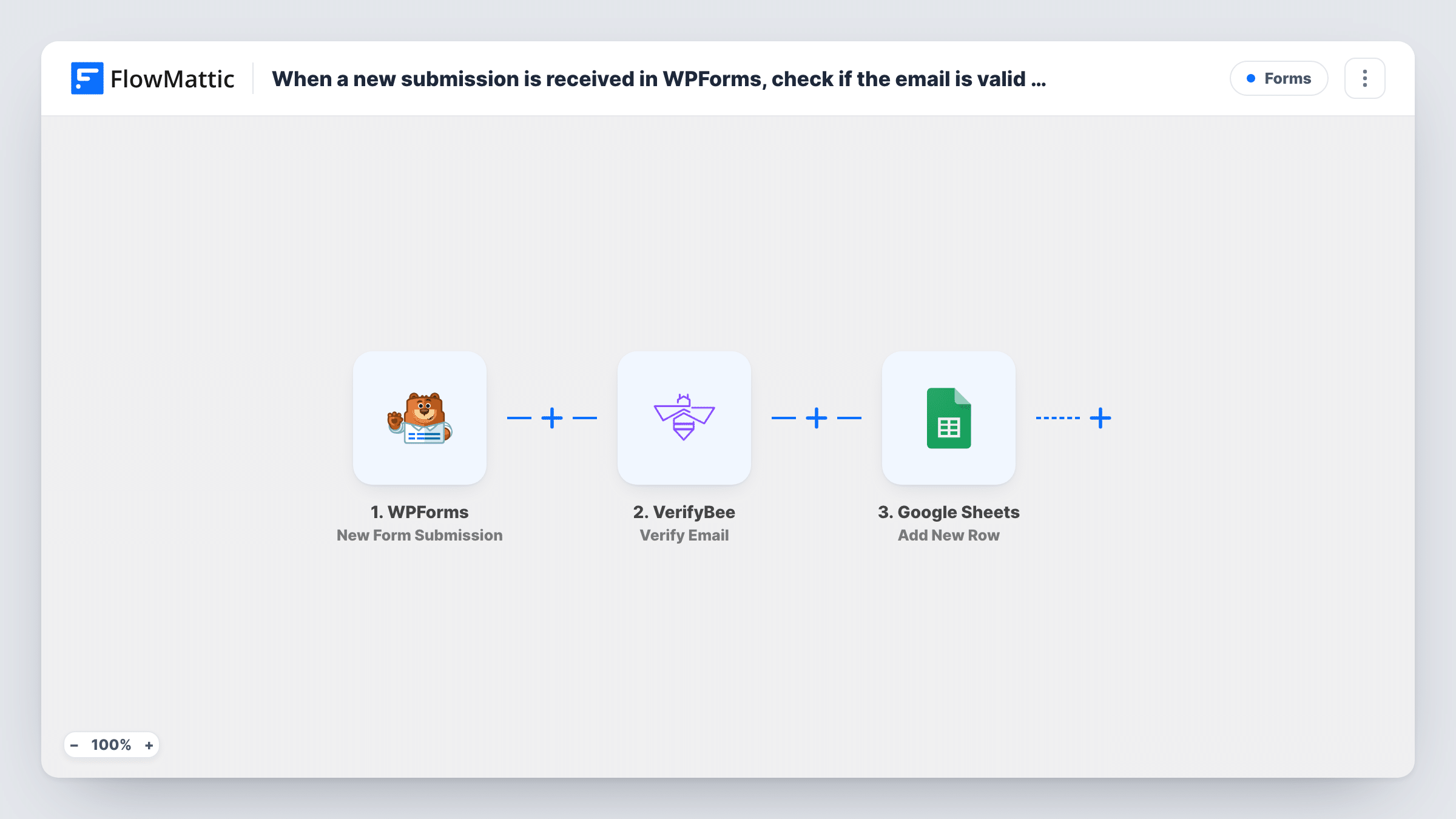
Every WPForms submission has its email address checked by VerifyBee, then the entry and the verification result go into a new Google Sheets row, giving you a lead sheet where each address is marked.
 WPForms
 VerifyBee
 Google Sheets
3 steps Setup ~5 min Used on 3.4k sites Free to import
What this workflow does
A WPForms lead form takes whatever address a visitor types, including typos and made-up ones. If those go straight into a spreadsheet, you find out they are bad only when your follow-up emails bounce. This workflow checks the address first and keeps the answer next to the lead.
When someone submits a WPForms form, FlowMattic passes the email field to VerifyBee with its Verify Email action. VerifyBee's response becomes data you can map. The final step adds a row to Google Sheets, where you place the form answers in some columns and the VerifyBee result in another.
The template does not drop any entries. Every submission reaches the sheet, valid or not, and the result column tells you which is which. If you only want verified addresses in the sheet, add a Filter between VerifyBee and Google Sheets that checks the result.
Qualifying demo requests
A WPForms demo request form feeds a sheet your sales team works from. The VerifyBee column shows which requests came with a working address before anyone spends time on a call.
Contest and giveaway entries
Entrants submit a WPForms form to join a draw. Checking each address lets you pass over entries with addresses that fail before you pick a winner.
Preparing a list for your email tool
Collect sign-ups in the sheet, then sort by the VerifyBee result and import only the passing addresses into your newsletter platform.
How this workflow runs
What happens at each step once the workflow is on, and what you need before you import it.
 WPForms New Form Submission
Fires on each new entry in the WPForms form you select. The email answer and the rest of the fields move on to VerifyBee and Google Sheets for mapping.
- VerifyBee Verify Email
Sends the submitted address to VerifyBee for checking. Map the WPForms email field into this step and connect your VerifyBee account. Its response can then be mapped into the sheet.
- Google Sheets Add New Row
Adds a new row to the Google Sheets spreadsheet you pick. Map the form answers to columns, and give the VerifyBee result its own column so every lead shows how its address checked out.
What you need
- FlowMatticCore
- WPForms PluginPlugin
- VerifyBee AccountAccount
- Google Sheets AccountAccount
After importing, map your own data. To keep the template universal, not every step is pre-filled. Open each step in the builder and connect your accounts and fields (channels, lists, sheets, recipients) before you switch the workflow on.
Make it yours
Changes worth making after you import it.
- To keep failing addresses out of the sheet, put a Filter between VerifyBee and Google Sheets that continues only when the result matches what VerifyBee returns for a good address.
- After import, submit the form once with a real address and once with an invented one, then look at both runs in Task History to see the values VerifyBee returns.
- Want a second record? Add a FluentCRM or Mailchimp step after the sheet so verified leads also land in your mailing list.
Questions about this workflow
Does this WPForms workflow block fake addresses from the Google Sheet?
Not as imported. Every entry gets a row, and the VerifyBee result sits beside it. Add a Filter after VerifyBee if you want rows only for addresses that pass.
Does the visitor see an error in WPForms if the email fails VerifyBee?
No. The check happens in FlowMattic after the form is submitted, so the visitor sees your normal confirmation and WPForms handles the entry as usual.
Do I need a VerifyBee account for this template?
Yes. The Verify Email step runs through your VerifyBee account, which you connect in FlowMattic. Check your VerifyBee plan for how many checks it includes.
Which Google Sheets spreadsheet do the rows go to?
The one you choose in the Google Sheets step after connecting your Google account. Set up the header row first so the columns are ready to map.
More Forms workflows
Other ready-to-import templates from the same category.







Import this workflow into your WordPress site
Download the JSON, import it from the Workflows screen and connect your accounts. Every run stays on your server, with no per-task fees.
30-day money-back guarantee Unlimited workflows and runs Self-hosted