

When a new response is received, send a notification to Slack
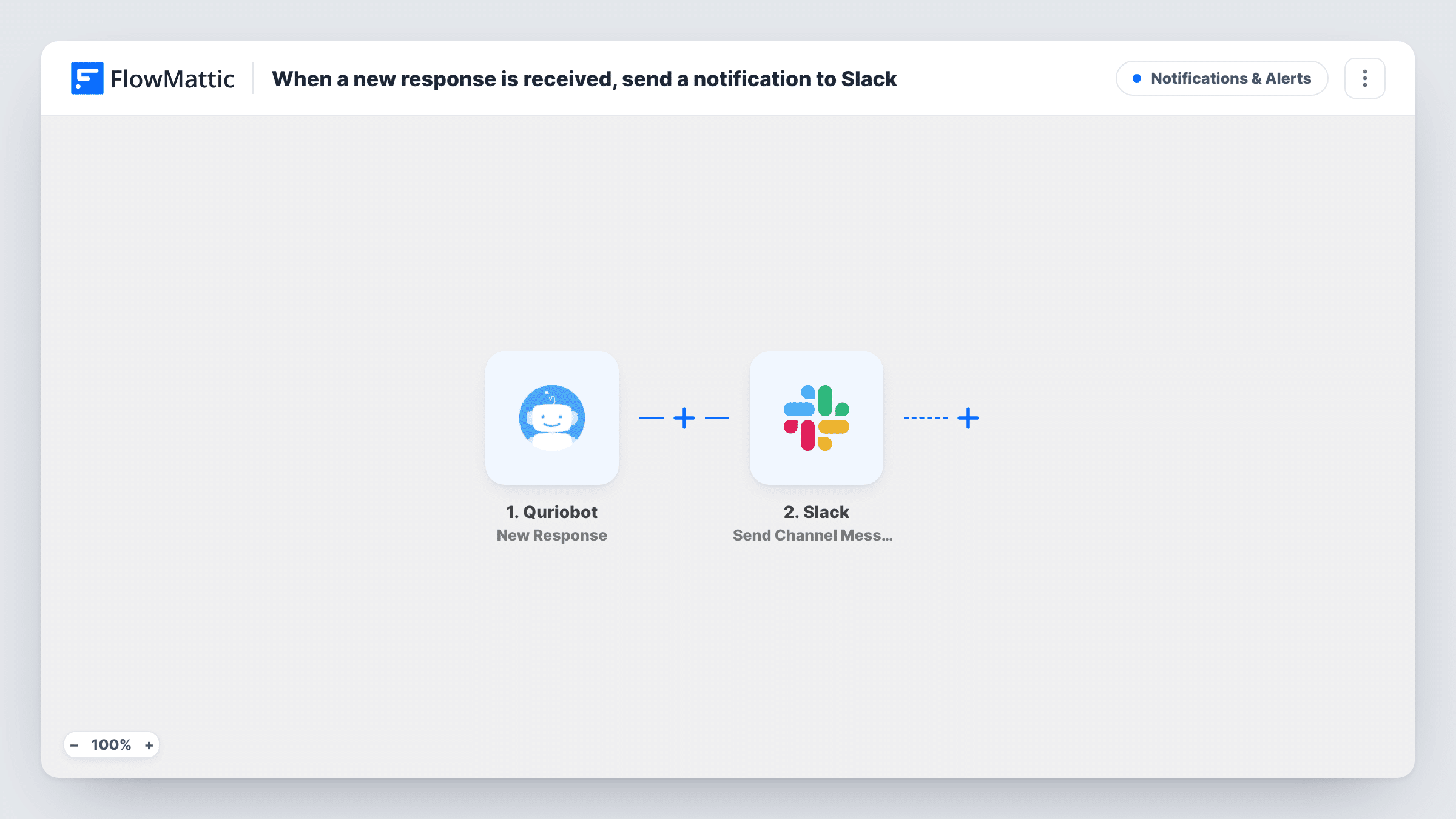
Each time Quriobot records a new response from a visitor’s chat, this workflow posts a message to a Slack channel, so your team reads the answers where they already talk instead of in the Quriobot dashboard.
 Quriobot
 Slack
2 steps Setup ~5 min Used on 965 sites Free to import
What this workflow does
A chatbot on your site can collect questions, leads and feedback around the clock, but those answers do little if nobody opens the dashboard to read them. This workflow brings each new Quriobot response into Slack, where your sales or support team is already working.
The Quriobot trigger runs when a new response is recorded for your bot. FlowMattic receives the answers Quriobot sends and makes each one available to map. The Slack step then posts a message to the channel you choose, built from the response values you place in it, such as the visitor's name and what they asked about.
As imported, every response produces one Slack message. If your bot handles several kinds of conversation, you can add a Filter so only some reach the channel, or a Router to send each kind to its own channel. A test chat with your own bot shows which answers come through and how they are labelled.
Lead capture bot on a pricing page
A Quriobot flow asks visitors about team size and needs. Each response appears in a #sales channel so someone can reply while the visitor is still interested.
Support triage outside office hours
Overnight chats collected by the bot are waiting in a #support channel the next morning, in the order they came in.
Feedback surveys after a purchase
A short Quriobot survey asks buyers how things went. Product and support staff read each response in a shared Slack channel and pick up issues.
How this workflow runs
What happens at each step once the workflow is on, and what you need before you import it.
 Quriobot New Response
Runs when Quriobot records a new response for your bot. The answers from that conversation become available to map into the Slack message.
- Slack Send Channel Message
Sends the alert into the Slack channel you pick after connecting your workspace. Build the text from Quriobot values so each post shows who chatted and what they said.
What you need
- FlowMatticCore
- Quriobot AccountAccount
- Slack AccountAccount
After importing, map your own data. To keep the template universal, not every step is pre-filled. Open each step in the builder and connect your accounts and fields (channels, lists, sheets, recipients) before you switch the workflow on.
Make it yours
Changes worth making after you import it.
- If one bot runs both sales and support conversations, add a Router after the trigger with a route per conversation type and a Slack step on each route pointing to its own channel.
- Want a record as well as an alert? Add a Google Sheets step after Slack so every Quriobot response is also kept as a row.
- Run through your bot once after import and look at the run in Task History, then map only the answers your team needs into the Slack message to keep posts short.
Questions about this workflow
Which Quriobot answers appear in the Slack message?
Only the ones you map. The trigger passes along the response data, and you decide which values go into the message text in the Slack step.
Will half-finished Quriobot chats post to Slack?
The workflow runs when Quriobot reports a new response. Test with a chat you leave part way through to see whether your bot sends a response in that case.
Do Quriobot responses from before I import this go to Slack?
No. Only responses recorded after the workflow is switched on start a run. Earlier answers stay in Quriobot.
Do I need to change my Quriobot setup to use this?
No change to the bot's questions is needed. You connect your Quriobot account in FlowMattic so the trigger can receive new responses.
More Notifications & Alerts workflows
Other ready-to-import templates from the same category.





Import this workflow into your WordPress site
Download the JSON, import it from the Workflows screen and connect your accounts. Every run stays on your server, with no per-task fees.
30-day money-back guarantee Unlimited workflows and runs Self-hosted