

Send a Slack alert when a Bloomreach webhook fires
Each time Bloomreach sends an event to FlowMattic’s webhook, this workflow posts a message to a Slack channel, so your team sees customer activity without opening the Bloomreach portal.
 Bloomreach
 Slack
2 steps Setup ~5 min Used on 1.5k sites Free to import
What this workflow does
Bloomreach records a lot about your customers, but the people who should react to it often live in Slack. Checking the portal for each event that matters isn't realistic for a busy team. This workflow turns Bloomreach events into channel messages.
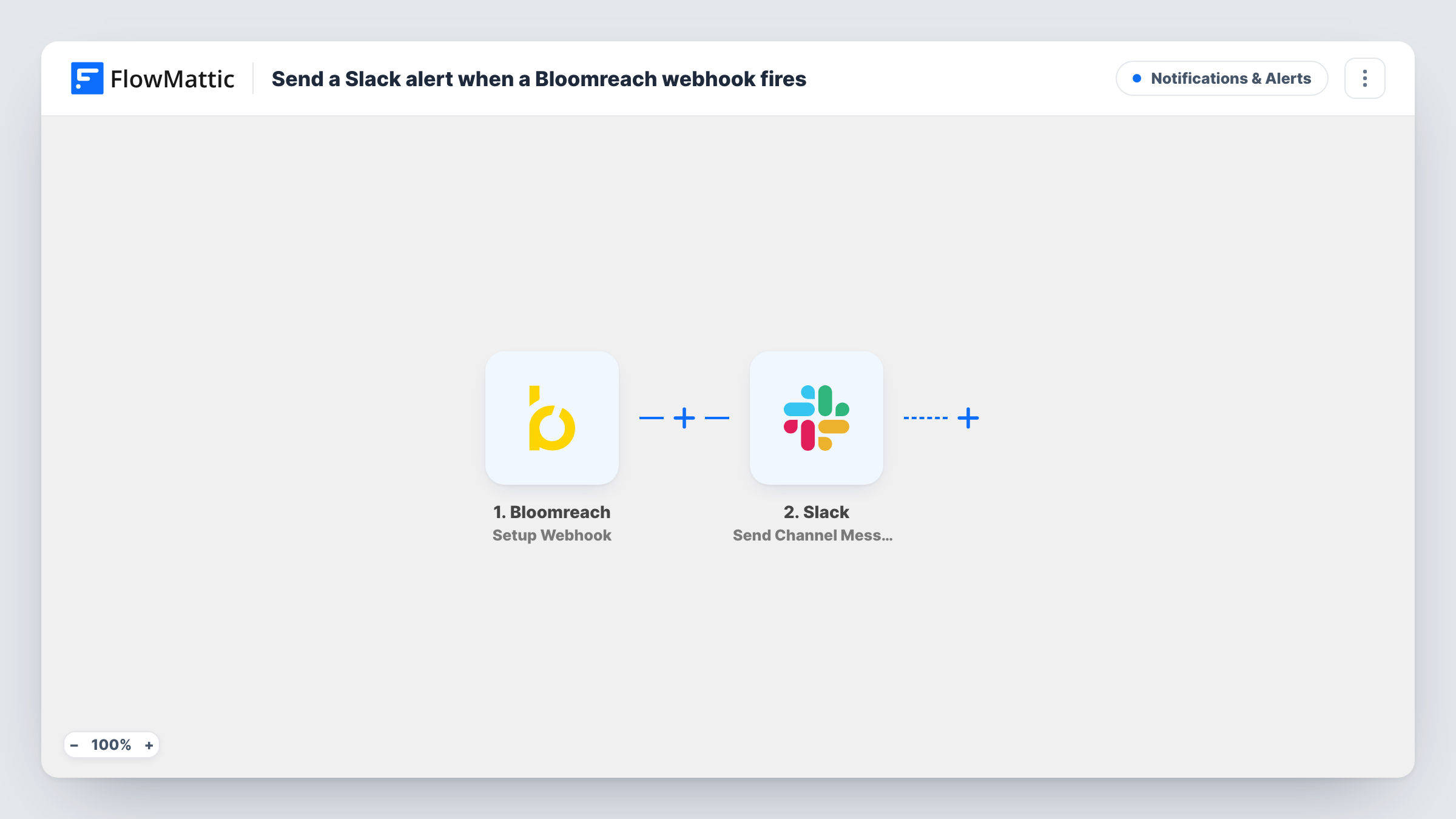
The Bloomreach trigger, Setup Webhook, fires for events that occur in your Bloomreach portal and are sent to FlowMattic. The event data is then passed to Slack, where Send Channel Message posts a message to the channel you pick. You write the message text and drop in values from the event, such as the customer or the event name you see in a test run.
Every event that reaches the webhook posts one message, so think about volume before you connect a busy event stream. A Filter after the trigger keeps quieter channels readable. For a private channel use Slack's Send Private Channel Message action, and for one person use Send Direct Message.
High-value activity for the sales channel
You point Bloomreach events about high-value customers at the webhook. A message in #sales lets an account manager follow up while the activity is fresh.
Campaign checks for marketers
When a Bloomreach campaign event fires, the marketing channel gets a note, so the team knows the event reached FlowMattic and what data came with it.
A shared feed during a launch
During a product launch, events from Bloomreach post to a temporary channel the whole team watches, giving everyone the same view.
How this workflow runs
What happens at each step once the workflow is on, and what you need before you import it.
 Bloomreach Setup Webhook
Fires when Bloomreach sends an event from your portal to the FlowMattic webhook. The event data that arrives is passed to the Slack step for mapping.
- Slack Send Channel Message
Sends one Slack message per Bloomreach event to a public #channel. Write the text and insert values from the Bloomreach event, then run a test to see how the message reads.
What you need
- FlowMatticCore
- Bloomreach AccountAccount
- Slack AccountAccount
After importing, map your own data. To keep the template universal, not every step is pre-filled. Open each step in the builder and connect your accounts and fields (channels, lists, sheets, recipients) before you switch the workflow on.
Make it yours
Changes worth making after you import it.
- Add a Filter after the trigger on an event name or property from a test run, so only the Bloomreach events your team cares about reach Slack.
- Use a Router to send different event types to different channels, giving each route a condition on a distinct event name.
- Swap Send Channel Message for Send Direct Message if a single person, such as the account owner, should get the alert.
Questions about this workflow
Which Bloomreach events will post to Slack?
Any event that Bloomreach sends to this workflow's webhook. The template has no Filter, so add one if only some events should produce a message.
Will Send Channel Message reach a private Slack channel with these Bloomreach alerts?
Not with Send Channel Message. Replace it with Slack's Send Private Channel Message action, which is the one meant for private channels.
Will a busy Bloomreach event stream flood my Slack channel?
It can, since each event posts one message. Narrow the events with a Filter, or point the workflow at a channel set aside for these alerts.
Does anything get written back to Bloomreach?
No. The workflow only reads the event that arrives and posts to Slack. Bloomreach data is not changed.
More Notifications & Alerts workflows
Other ready-to-import templates from the same category.




Import this workflow into your WordPress site
Download the JSON, import it from the Workflows screen and connect your accounts. Every run stays on your server, with no per-task fees.
30-day money-back guarantee Unlimited workflows and runs Self-hosted