

When a new form submission is received in Weblium, notify the sales team via Slack
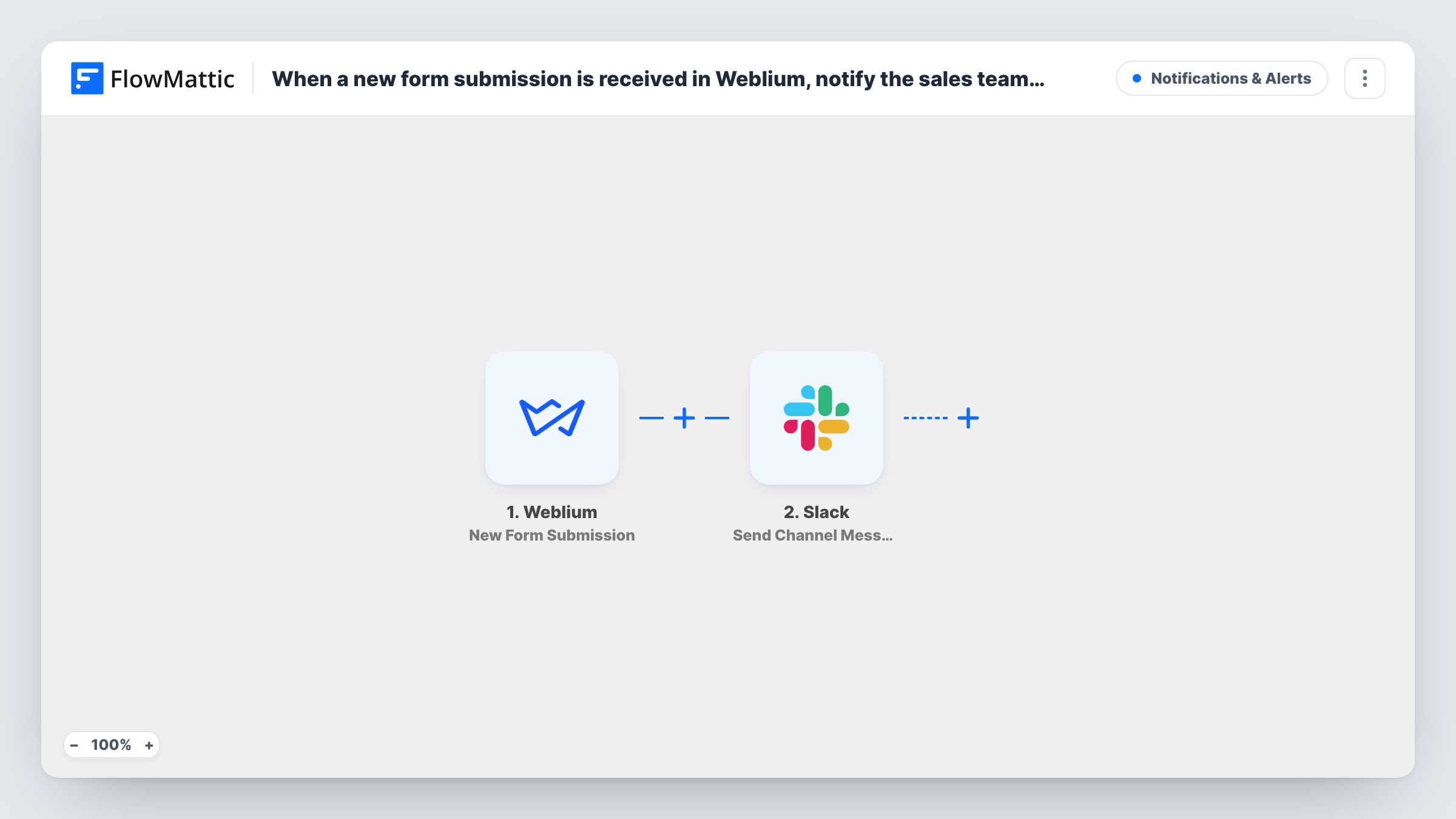
Each time someone submits a contact form on your Weblium site, this workflow posts the enquiry to a Slack channel your sales team watches, with the visitor’s answers in the message.
 Weblium
 Slack
2 steps Setup ~5 min Used on 786 sites Free to import
What this workflow does
Weblium sites often carry a contact or quote form, and the submissions usually arrive as emails to one inbox. When a sales team shares the work, a lead can wait while everyone assumes someone else has replied. Putting each enquiry in a shared Slack channel makes it visible to the whole team at once.
The Weblium trigger fires when a contact form on your Weblium site is submitted. FlowMattic receives the visitor's answers as separate fields. The Slack step then publishes a message to the sales channel you select. You build that message from the form fields, for instance the visitor's name, phone, email and what they asked about.
There's no condition in the template, so every submission becomes a Slack post. A Filter after the trigger can hold back entries you don't want the sales team to see, such as job applications sent through the same form.
Quote requests for a local service business
A plumbing company's Weblium site takes quote requests, and each one appears in #sales so the first free estimator can call back.
Agency new-business enquiries
A design agency's portfolio site on Weblium feeds its contact form into a Slack channel shared by the account managers.
Course or class sign-up interest
A training provider's Weblium page collects interest in upcoming classes, and the sales coordinator sees each name in Slack straight away.
How this workflow runs
What happens at each step once the workflow is on, and what you need before you import it.
 Weblium New Form Submission
Runs when a visitor submits a contact form on your Weblium site. The form's answers are handed to FlowMattic as fields for the Slack message.
- Slack Send Channel Message
Publishes the Weblium enquiry in the Slack channel your sales team uses. Write the message and slot in the form fields, such as the visitor's name, contact details and request.
What you need
- FlowMatticCore
- Weblium AccountAccount
- Slack AccountAccount
After importing, map your own data. To keep the template universal, not every step is pre-filled. Open each step in the builder and connect your accounts and fields (channels, lists, sheets, recipients) before you switch the workflow on.
Make it yours
Changes worth making after you import it.
- For a private sales channel, change this step to Slack's Send Private Channel Message action. To notify a single rep instead, use Send Direct Message.
- If the same Weblium form also takes support or job questions, add a Filter on a field that tells them apart so only sales enquiries reach the channel.
- Submit the Weblium form yourself after import so FlowMattic captures its field names, then compose the Slack message and check it in the channel.
Questions about this workflow
Will the Weblium form still email me submissions?
Yes. This workflow listens for submissions without changing your Weblium form, so any email notices you set up there keep arriving.
Can the Weblium alert go to a private Slack channel?
Not as imported. Swap the step for Slack's Send Private Channel Message action, which is the one meant for private channels.
Does every Weblium form on my site trigger the workflow?
The trigger reacts to contact form submissions on the connected Weblium site. If you have several forms, add a Filter on a field that shows which form was used, if your test run includes one.
Is the Weblium lead saved anywhere by this workflow?
No, it only posts to Slack. Add a step such as a Google Sheets row or a CRM contact if you want to keep a record.
More Notifications & Alerts workflows
Other ready-to-import templates from the same category.




Import this workflow into your WordPress site
Download the JSON, import it from the Workflows screen and connect your accounts. Every run stays on your server, with no per-task fees.
30-day money-back guarantee Unlimited workflows and runs Self-hosted