

Email the team an SMTP notification when Fluxguard detects a change
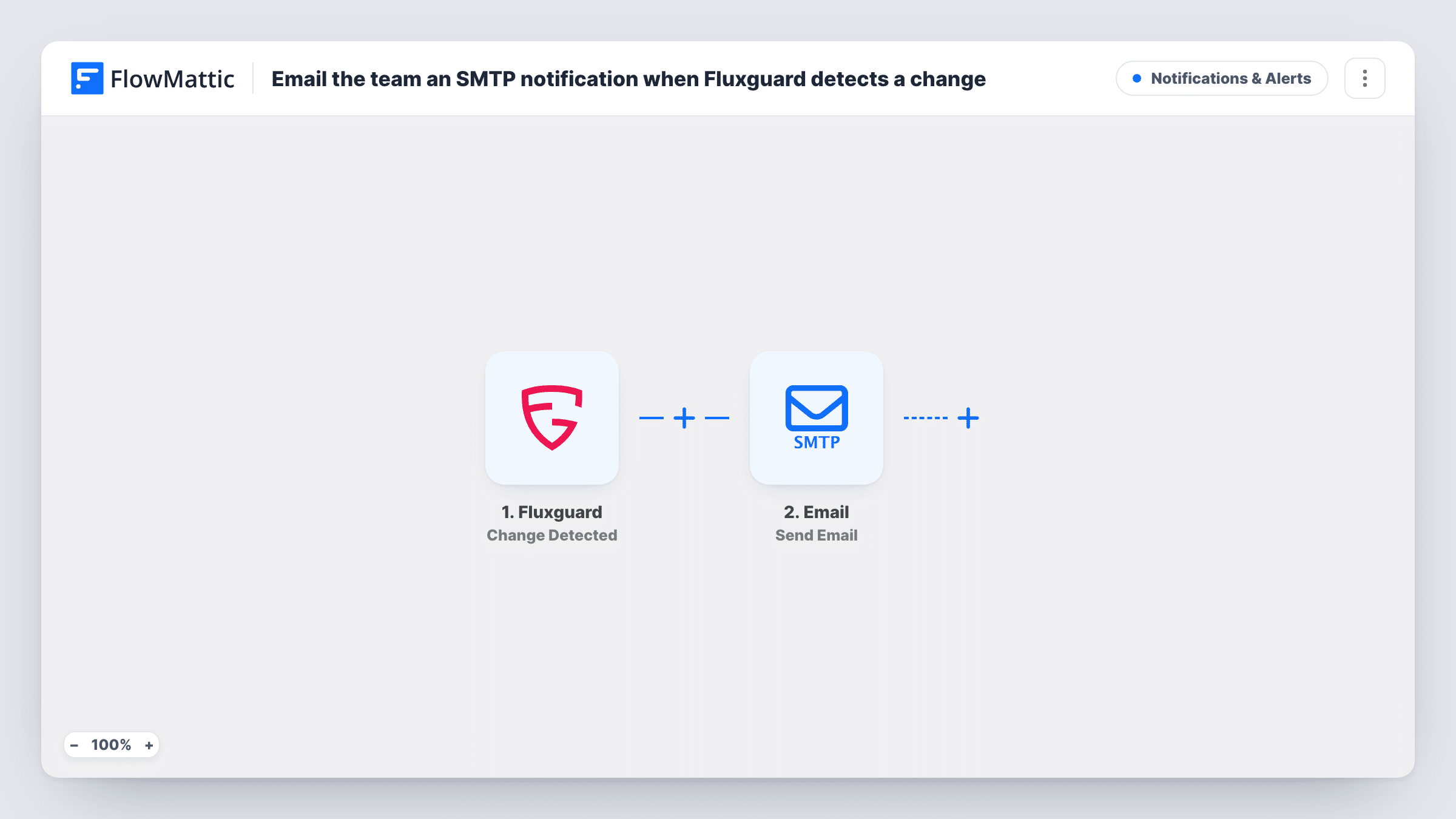
When Fluxguard detects a change on a web page you monitor, this workflow sends an email about it through WordPress mail or your own SMTP server, so the team hears about the change from their inbox.
 Fluxguard
 Email
2 steps Setup ~5 min Used on 3.1k sites Free to import
What this workflow does
Fluxguard watches web pages for you, such as a competitor's pricing page, a supplier's terms or your own site after a release. Spotting a change only helps if the right people learn about it. This workflow turns each Fluxguard change alert into an email to the addresses you choose.
The Fluxguard trigger, Change Detected, fires when Fluxguard finds a change to a monitored web page. The data Fluxguard sends with that event becomes available to map. FlowMattic then runs the Send Email action from the Email app, which sends a message using WordPress's built-in mail function or a custom SMTP connection.
You write the subject and body yourself and drop in the change details where you want them. Every detected change produces one email, so a page that changes often will send several. Task History keeps a record of every alert run and the message it produced.
Competitor pricing watch
Fluxguard monitors a rival's pricing page. When it changes, your sales lead gets an email and can open the page to see what moved.
Legal and policy pages from suppliers
Track a vendor's terms of service or privacy policy. Each detected change lands in the inbox of whoever reviews contracts.
Checking your own site after updates
Watch key pages on your own website. An unexpected change, such as a broken layout after a plugin update, reaches your web team by email.
How this workflow runs
What happens at each step once the workflow is on, and what you need before you import it.
 Fluxguard Change Detected
Fires when Fluxguard detects a change to a web page you monitor. The details Fluxguard sends about the change are passed on so you can place them in the email.
 Email Send Email
Sends an email using WordPress mail or the SMTP connection you set up. Enter the team's addresses, write a subject and body, and map in the Fluxguard change data you want them to see.
What you need
- FlowMatticCore
- Fluxguard AccountAccount
After importing, map your own data. To keep the template universal, not every step is pre-filled. Open each step in the builder and connect your accounts and fields (channels, lists, sheets, recipients) before you switch the workflow on.
Make it yours
Changes worth making after you import it.
- After import, edit a test page that Fluxguard monitors so FlowMattic captures a real Change Detected event. You can then see which change details are available before writing the email body.
- Use a custom SMTP connection rather than default WordPress mail if mail sent from your WordPress site often lands in spam folders.
- Add a Filter after the trigger that continues only for a particular page or site in the Fluxguard data, so the team gets emails just for the pages they care about.
Questions about this workflow
Do I need an SMTP provider to send the Fluxguard alerts?
No. The Send Email action can use WordPress's built-in mail function. A custom SMTP connection is an option if you prefer to send through your own mail server or provider.
Will I get one email per Fluxguard change?
Yes. Each Change Detected event runs the workflow once and sends one email. There is no grouping or digest as imported.
Can the email go to more than one person?
You set the recipients in the Send Email step. Check the step after import to see how it takes several addresses, or use a shared team address.
What change details can I include from Fluxguard?
Whatever Fluxguard sends with the Change Detected event. Run a test so the data is captured, then map the fields you want into the subject or body.
More Notifications & Alerts workflows
Other ready-to-import templates from the same category.




Import this workflow into your WordPress site
Download the JSON, import it from the Workflows screen and connect your accounts. Every run stays on your server, with no per-task fees.
30-day money-back guarantee Unlimited workflows and runs Self-hosted