

Notify dispatch via Discord when a Motion Tools booking is force assigned
When a Motion Tools hailing booking is force assigned to a driver, this workflow posts a message in your dispatch team’s Discord channel, so everyone sees the manual override as it happens.
 Motion Tools
 Discord
2 steps Setup ~5 min Used on 1.3k sites Free to import
What this workflow does
A forced assignment means someone overrode the normal flow and pushed a booking onto a specific driver. Dispatchers working the same shift need to know, so they don't reassign it again or call a different driver. This workflow tells them in Discord, where the team already talks.
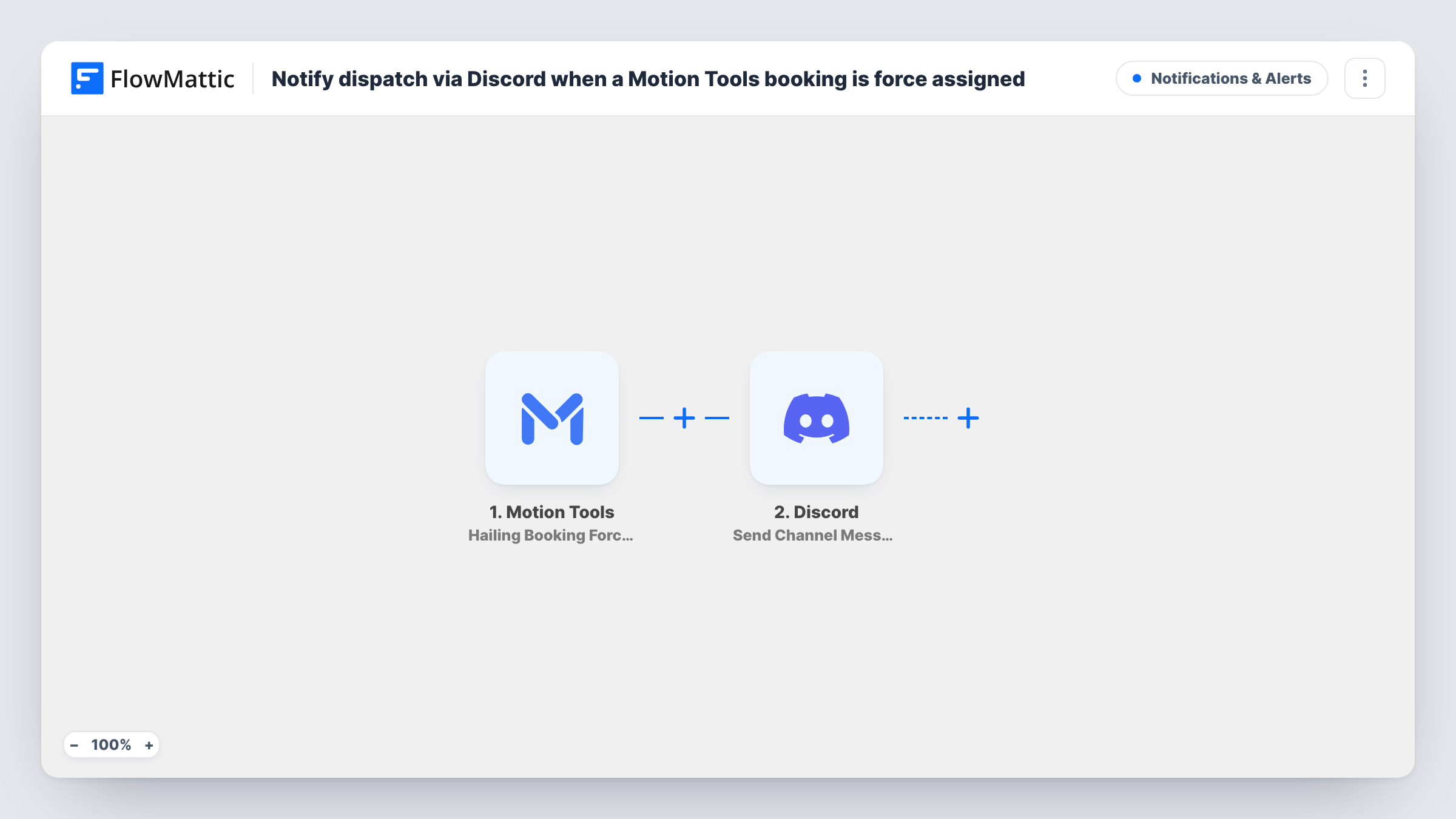
The Motion Tools trigger, Hailing Booking Force Assigned, fires when a booking is forcefully assigned to a driver. FlowMattic passes the booking data on. The Discord step posts a new message to the channel you choose, with the booking and driver details you map into the text.
Only forced assignments trigger it. Normal assignments, unassignments and other booking changes have their own Motion Tools triggers and don't post here. The workflow sends a message and changes nothing in Motion Tools. Task History lists each forced assignment that produced a message.
Taxi or ride dispatch team
The dispatch channel shows each time a supervisor force assigns a ride to a driver, so other dispatchers leave that booking alone.
Courier operations with shift handover
The incoming shift scrolls the Discord channel to see which deliveries were forced onto drivers during the previous shift.
Reviewing override habits
An operations manager looks back over the channel to see how often bookings are force assigned and on which routes.
How this workflow runs
What happens at each step once the workflow is on, and what you need before you import it.
 Motion Tools Hailing Booking Force Assigned
Fires when a Motion Tools hailing booking is forcefully assigned to a driver. The booking data from that event is passed to the Discord step.
- Discord Send Channel Message
Drops an alert into the Discord channel your dispatchers watch. Write the text and insert booking and driver values from the trigger, then connect your Discord account.
What you need
- FlowMatticCore
- Motion Tools AccountAccount
- Discord AccountAccount
After importing, map your own data. To keep the template universal, not every step is pre-filled. Open each step in the builder and connect your accounts and fields (channels, lists, sheets, recipients) before you switch the workflow on.
Make it yours
Changes worth making after you import it.
- Set up a second workflow with Hailing Booking Force Unassigned posting to the same channel, so dispatch sees overrides being reversed too.
- Put the booking reference and driver name first in the message, so a dispatcher can find the booking in Motion Tools from the alert.
- Force assign a test booking after import so FlowMattic captures the event data, then map the fields that matter to your dispatchers.
Questions about this workflow
Does a normal Motion Tools assignment post to Discord?
No. Only the Hailing Booking Force Assigned event starts this workflow. Other booking events use different Motion Tools triggers.
Can the Discord message go to one dispatcher instead of a channel?
Yes, if you swap the step for Discord's Send Direct Message action and set the person to message.
Does the workflow change the booking in Motion Tools?
No. It reads the force-assigned event and posts a Discord message. The booking and driver stay as the person who assigned it left them.
More Notifications & Alerts workflows
Other ready-to-import templates from the same category.




Import this workflow into your WordPress site
Download the JSON, import it from the Workflows screen and connect your accounts. Every run stays on your server, with no per-task fees.
30-day money-back guarantee Unlimited workflows and runs Self-hosted