

Send a Slack notification when a Cockpit page is saved
Whenever someone saves a page in Cockpit, this workflow posts a message to a Slack channel, so editors, developers and reviewers know the content changed without watching the CMS.
 Cockpit
 Slack
2 steps Setup ~5 min Used on 471 sites Free to import
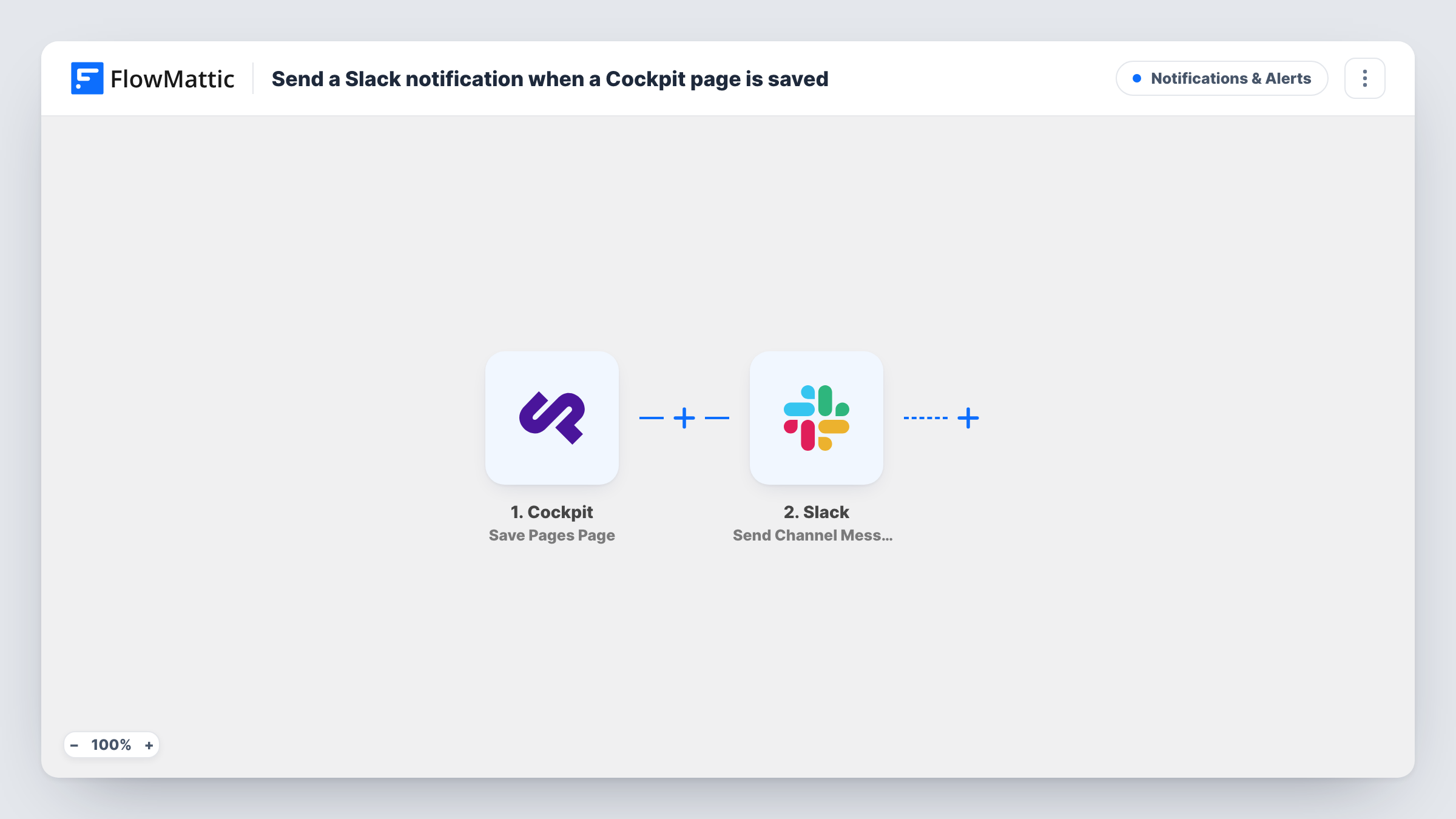
What this workflow does
In a headless CMS, a saved page can change what a website or app shows, yet the people who care often hear about it late. A developer finds new copy by accident, or a reviewer misses a change that needed a second look. This workflow tells a Slack channel each time a page is saved in Cockpit.
The Cockpit trigger fires when a page is saved inside getcockpit.com. FlowMattic receives the page data Cockpit sends and passes it to Slack. The Send Channel Message action posts to the channel you choose, with a message you write and fill with details from the saved page.
The trigger reacts to saves, not only to publishing, so a page saved five times while it is being edited sends five messages. Pick a channel suited to that pace, or add a Filter if you only care about some pages. Task History shows each run and the data that came in from Cockpit.
Content review before release
Editors save landing page changes in Cockpit, and the review channel in Slack gets a message each time, so a second person can check the page.
Front-end team awareness
Developers working on the site see in Slack when a Cockpit page they render was changed, which explains layout shifts before anyone files a bug.
Client sites managed by an agency
An agency posts every Cockpit page save on a client project to that client's Slack channel, keeping an informal change log the account manager can scroll back through.
How this workflow runs
What happens at each step once the workflow is on, and what you need before you import it.
 Cockpit Save Pages Page
Fires whenever a page is saved in Cockpit. The page data sent by Cockpit is captured so you can use it in the Slack message.
- Slack Send Channel Message
Posts your message to the chosen Slack channel, with details from the saved Cockpit page mapped into the text. Connect Slack while importing the workflow.
What you need
- FlowMatticCore
- Cockpit AccountAccount
- Slack AccountAccount
After importing, map your own data. To keep the template universal, not every step is pre-filled. Open each step in the builder and connect your accounts and fields (channels, lists, sheets, recipients) before you switch the workflow on.
Make it yours
Changes worth making after you import it.
- Add a Filter after the trigger that continues only for the Cockpit pages you care about, so routine saves on other pages stay out of Slack.
- Include a page identifier from the Cockpit data in the message, such as its title if the payload carries it, so readers know which page changed.
- Save a test page in Cockpit after import so FlowMattic captures the payload. You can then see which page details are available to map into Slack.
Questions about this workflow
Does every Cockpit save send a Slack message?
Yes, as imported. The trigger fires on each page save, and there is no Filter, so each one posts to Slack.
Does this watch Cockpit content items too?
No. This template uses the Save Pages Page trigger. Cockpit also has a Save Content Item trigger in FlowMattic if you want a workflow for content items.
Can the Slack message link to the changed Cockpit page?
If the saved page data includes a value you can build a link from, map it into the message text. Check a test run to see what Cockpit sends.
Will older Cockpit pages be announced when I turn this on?
No. Only pages saved after the workflow is turned on start a run. Pages already in Cockpit are not posted.
More Notifications & Alerts workflows
Other ready-to-import templates from the same category.




Import this workflow into your WordPress site
Download the JSON, import it from the Workflows screen and connect your accounts. Every run stays on your server, with no per-task fees.
30-day money-back guarantee Unlimited workflows and runs Self-hosted