

When an announcement is published in Frill.co, post update on Twitter
When you publish an announcement in Frill.co, this workflow posts a tweet on X built from that announcement, so followers who never open your changelog still see the news.
 Frill.co
 X ( Twitter )
2 steps Setup ~5 min Used on 3.5k sites Free to import
What this workflow does
Frill.co gives you a place to publish product announcements, but only people who visit your Frill board or widget see them. Many of your users follow you on X instead. This workflow takes each announcement you publish in Frill.co and posts a tweet about it, so you do not have to write the same news twice.
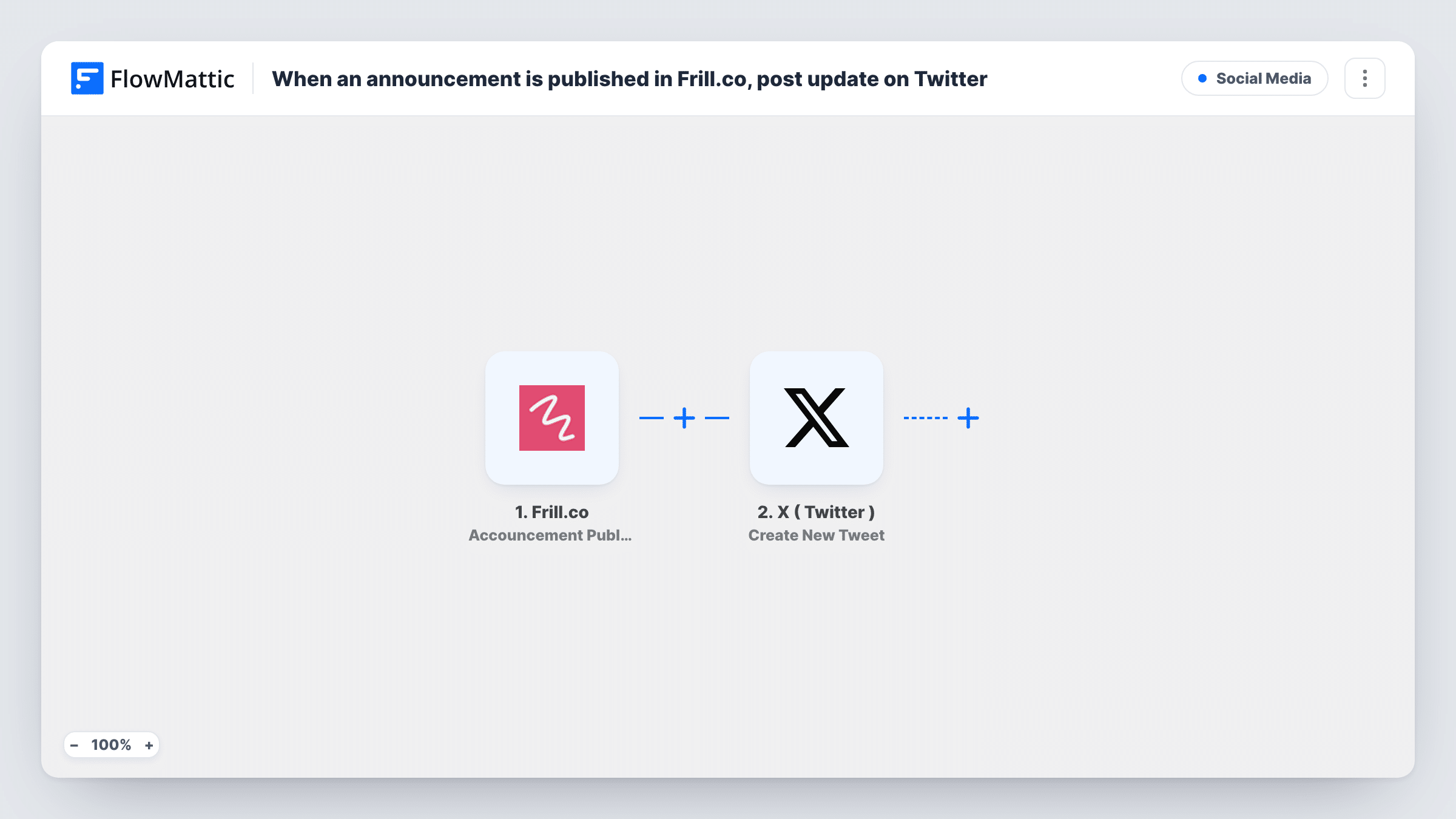
The Frill.co trigger fires when an announcement is published. FlowMattic receives the announcement data and passes it to the Create New Tweet action for X ( Twitter ). You build the tweet text from that data, for example the announcement title followed by a short line and a link back to your Frill page.
Every published announcement leads to one tweet, with no step in between to approve it. Write the tweet template with that in mind, and keep it short, because X limits the length of a post. Task History shows each run and what was sent to X.
Release notes for a software product
Your product team publishes release notes as Frill.co announcements. Each one becomes a tweet on your product account, so the news reaches followers on X the same day.
Announcing that a requested idea shipped
When a feature that users voted for in Frill.co ships, the announcement you publish goes out on X as well, where those users may be watching.
Small team without a social media manager
Nobody owns the X account full time. Publishing in Frill.co is the only step, and the tweet follows from the workflow.
How this workflow runs
What happens at each step once the workflow is on, and what you need before you import it.
 Frill.co Accouncement Published
Runs when an announcement is published in your Frill.co account. The announcement data is passed to the X step so you can build the tweet from it.
- X ( Twitter ) Create New Tweet
Posts a new tweet on the X account you connect, using the Frill.co announcement data you map into the text. Send a test to see how the tweet looks before you turn the workflow on.
What you need
- FlowMatticCore
- Frill.co AccountAccount
- X ( Twitter ) AccountAccount
After importing, map your own data. To keep the template universal, not every step is pre-filled. Open each step in the builder and connect your accounts and fields (channels, lists, sheets, recipients) before you switch the workflow on.
Make it yours
Changes worth making after you import it.
- Want to review tweets before they go out? Add a Human in the Loop step between Frill.co and X, so someone approves each tweet first. Change its timeout action to End Workflow so silence doesn't count as approval.
- Publish a test announcement after import so FlowMattic captures real data. Then build the tweet text from those values and check the length of the result.
- If only some announcements suit X, add a Filter after the trigger, for example continue only when the announcement title does not contain the word Internal.
Questions about this workflow
Does a Frill.co announcement saved as a draft get tweeted?
No. The trigger fires when an announcement is published, so drafts do not start a run.
What happens if the tweet text is too long for X?
X can reject the post. The error shows on the X step in Task History. Keep the template short or map a shorter value, such as the title only.
Can this post to more than one X account?
As imported, it posts to the one account you connect. Add a second Create New Tweet step with another connection if you want a second account to post too.
Will older Frill.co announcements be tweeted after I import it?
No. Only announcements published after you turn the workflow on start a run.
More Social Media workflows
Other ready-to-import templates from the same category.





Import this workflow into your WordPress site
Download the JSON, import it from the Workflows screen and connect your accounts. Every run stays on your server, with no per-task fees.
30-day money-back guarantee Unlimited workflows and runs Self-hosted