

When Beagle Security sends a new response, log it in Airtable
Each new response Beagle Security sends to FlowMattic becomes a record in your Airtable base, so your security notifications build into a table you can sort, filter and assign.
 Beagle Security
 Airtable
2 steps Setup ~5 min Used on 1.2k sites Free to import
What this workflow does
Security notifications are easy to lose in an inbox. Keeping them in Airtable gives you one table where you can sort by date, add a status column, assign follow-ups and keep notes next to each entry. This workflow writes every response from Beagle Security into that table as it arrives.
The Beagle Security trigger is the only trigger FlowMattic offers for the app, and FlowMattic describes it as firing when a new response is received. Whatever Beagle Security includes in that response becomes data you can map. After you connect the app, let Beagle Security send a response and open the trigger's data in FlowMattic to see exactly which values arrive.
The Airtable Create Record step adds one new record per response. It ships unmapped: after import you connect Airtable, pick the base and table, and map the Beagle Security values into your fields. Plan the table first, with a field for each value you want to keep plus your own fields for status or owner.
Each response makes a new record, even if it is about something already in the table, so expect repeat entries over time. You can check every logged response, and Airtable's reply to it, in Task History.
Security log for a web agency
An agency that runs Beagle Security on client sites keeps every response in one Airtable table, with a client field and a status column for the team to work through.
Audit trail for compliance reviews
A company keeps its Beagle Security responses in Airtable so it can show reviewers a dated record of the notifications it received.
Triage board for developers
A product team views the Airtable table as a Kanban board, moving each Beagle Security entry from new to fixed as work is done.
How this workflow runs
What happens at each step once the workflow is on, and what you need before you import it.
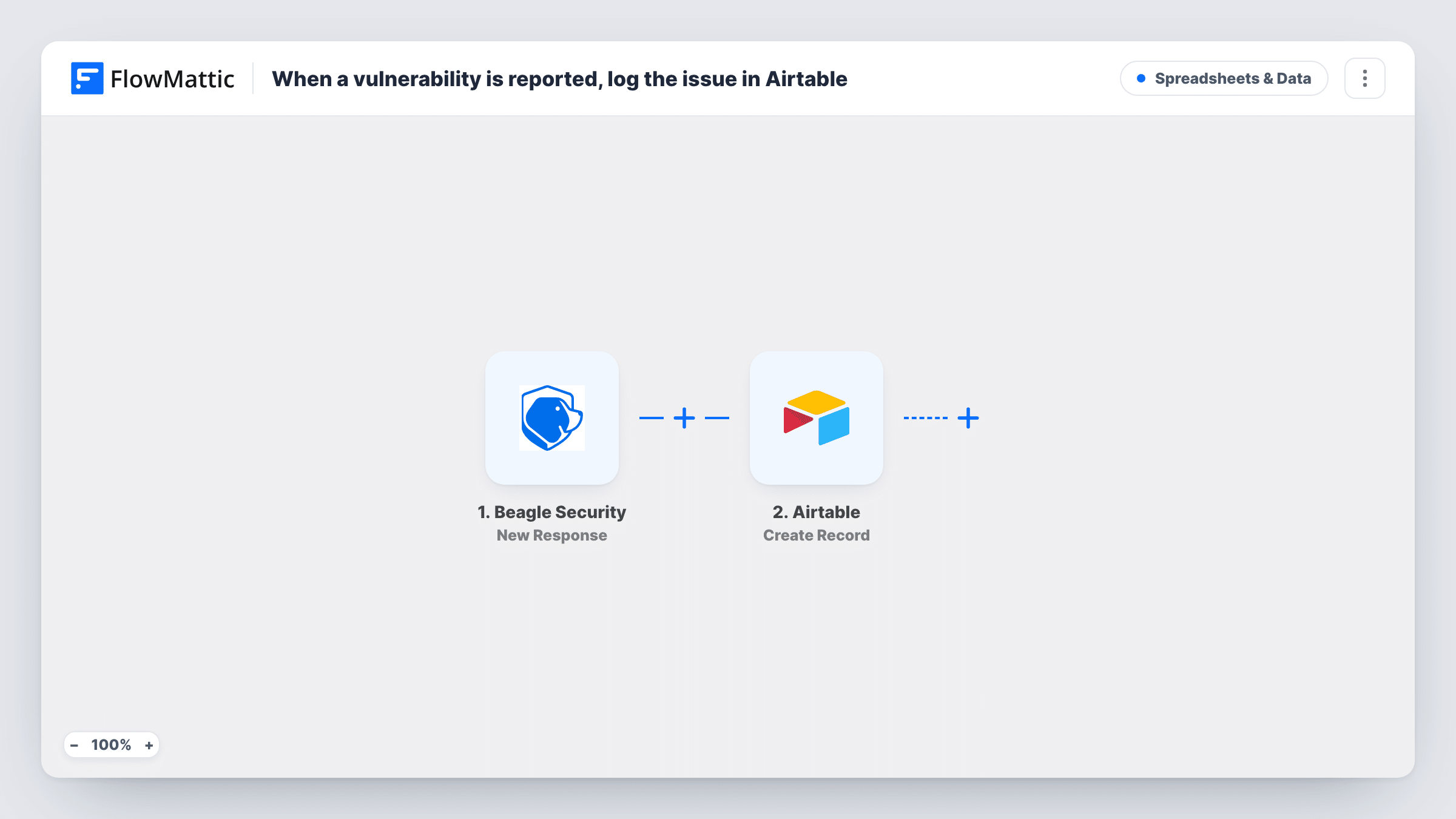
 Beagle Security New Response
Runs each time a fresh Beagle Security response reaches your FlowMattic site. One response means one run, and its contents become values you can map into Airtable.
- Airtable Create Record
Adds the response to your security log table in Airtable as a fresh record. The step ships unmapped: connect Airtable, pick the base and table, and map the Beagle Security values into your fields.
What you need
- FlowMatticCore
- Beagle Security AccountAccount
- Airtable AccountAccount
After importing, map your own data. To keep the template universal, not every step is pre-filled. Open each step in the builder and connect your accounts and fields (channels, lists, sheets, recipients) before you switch the workflow on.
Make it yours
Changes worth making after you import it.
- Add a Status field to the Airtable table that your team fills in by hand, so you can tell new entries from ones someone has already handled.
- Map a date from the response, or the run time, into a date field so you can sort the table and spot when notifications came in.
- To keep only some responses, put a Filter between the Beagle Security trigger and the Airtable step that checks a value you saw in an earlier response. Responses it stops create no record.
Questions about this workflow
What information from Beagle Security ends up in Airtable?
Only what you map. The Create Record step ships empty, so after import you match the values from a Beagle Security response to the Airtable fields you want filled.
Do I need an Airtable table ready before importing?
It helps. Create the base and table with fields for the values you plan to keep, then pick them in the Create Record step and map each one.
Will the same Beagle Security issue create more than one Airtable record?
It can. The workflow creates a new record for every response and doesn't check the table first, so a later response about the same thing adds another row.
More Spreadsheets & Data workflows
Other ready-to-import templates from the same category.




Import this workflow into your WordPress site
Download the JSON, import it from the Workflows screen and connect your accounts. Every run stays on your server, with no per-task fees.
30-day money-back guarantee Unlimited workflows and runs Self-hosted