

Send a Slack alert when a Synchroteam job is completed
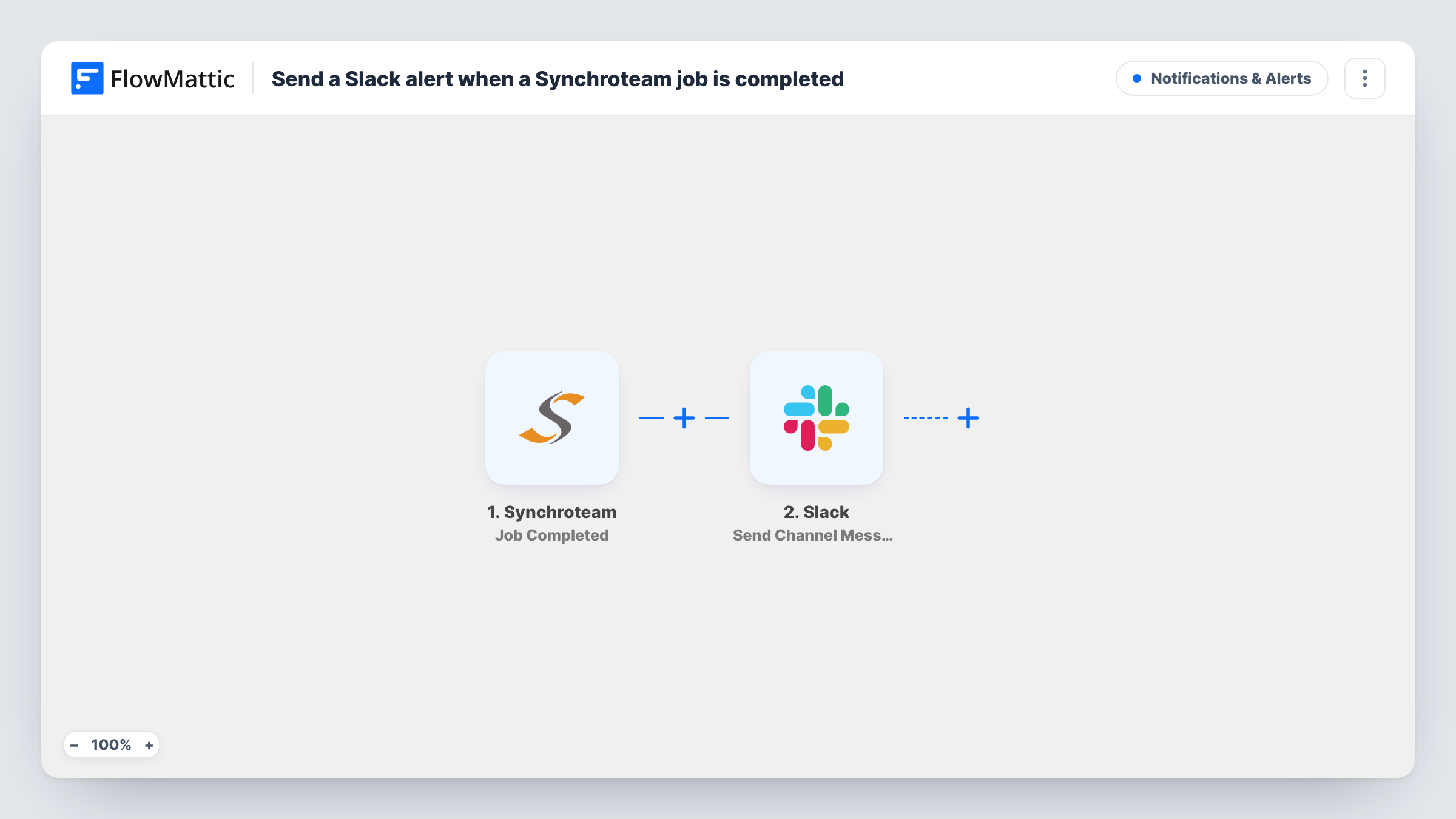
When a technician marks a Synchroteam job as completed, this workflow posts a message to the Slack channel you choose, so your office team hears about finished field work without checking Synchroteam.
 Synchroteam
 Slack
2 steps Setup ~5 min Used on 1.8k sites Free to import
What this workflow does
Field jobs finish out of sight. The dispatcher, the billing person and the account manager each need to know when a visit is done, and refreshing Synchroteam all day is not a good use of their time. This workflow puts that news in Slack, where they already talk.
The Synchroteam trigger fires when a job reaches the completed state. FlowMattic takes the job data from that event and passes it to Slack, which posts a message in the channel you pick. You write the message yourself and drop in job details from the trigger, such as the customer or the job reference, wherever you want them.
Every completed job produces one message. Nothing is changed in Synchroteam, and jobs that were completed before you turned the workflow on are not posted. Task History keeps a record of each run, including the data that came from Synchroteam.
Start invoicing the same day
Your billing team watches a #jobs-done channel and raises the invoice as soon as a Synchroteam job appears there, instead of waiting for an end-of-day report.
Follow-up calls after a service visit
Account managers see each completed job in Slack and know which customers to call about the visit.
A running log for the dispatcher
The dispatcher keeps one Slack channel open and sees completed jobs come in through the day, which helps when reassigning the next visits.
How this workflow runs
What happens at each step once the workflow is on, and what you need before you import it.
 Synchroteam Job Completed
Fires when a job in your Synchroteam account is completed. The job's data from this event is passed to the Slack step for mapping.
- Slack Send Channel Message
Sends a channel message in Slack about the finished job. Connect your Slack workspace, pick the channel, write the message text and map Synchroteam job details into it.
What you need
- FlowMatticCore
- Synchroteam AccountAccount
- Slack AccountAccount
After importing, map your own data. To keep the template universal, not every step is pre-filled. Open each step in the builder and connect your accounts and fields (channels, lists, sheets, recipients) before you switch the workflow on.
Make it yours
Changes worth making after you import it.
- Add a Filter after the trigger if only some completed jobs matter to a channel, for example jobs for one customer or of one type.
- Use a Router to send completed jobs to different Slack channels by region or team, giving each route a condition on a job field.
- Complete one test job in Synchroteam after import so FlowMattic captures the real job fields before you write the Slack message.
Questions about this workflow
Which Synchroteam jobs post a Slack message?
Every job that is completed in your connected Synchroteam account, as the workflow ships. Add a Filter after the trigger if you want only some of them.
Can the Slack message include the job details?
Yes. You map data from the Synchroteam event into the message text, so you decide which details appear.
Does this change anything in Synchroteam?
No. The workflow only reads the completed job event and posts to Slack. The job stays exactly as your technician left it.
More Notifications & Alerts workflows
Other ready-to-import templates from the same category.





Import this workflow into your WordPress site
Download the JSON, import it from the Workflows screen and connect your accounts. Every run stays on your server, with no per-task fees.
30-day money-back guarantee Unlimited workflows and runs Self-hosted