

When inbox is created in Paced Email, update user metadata in WordPress
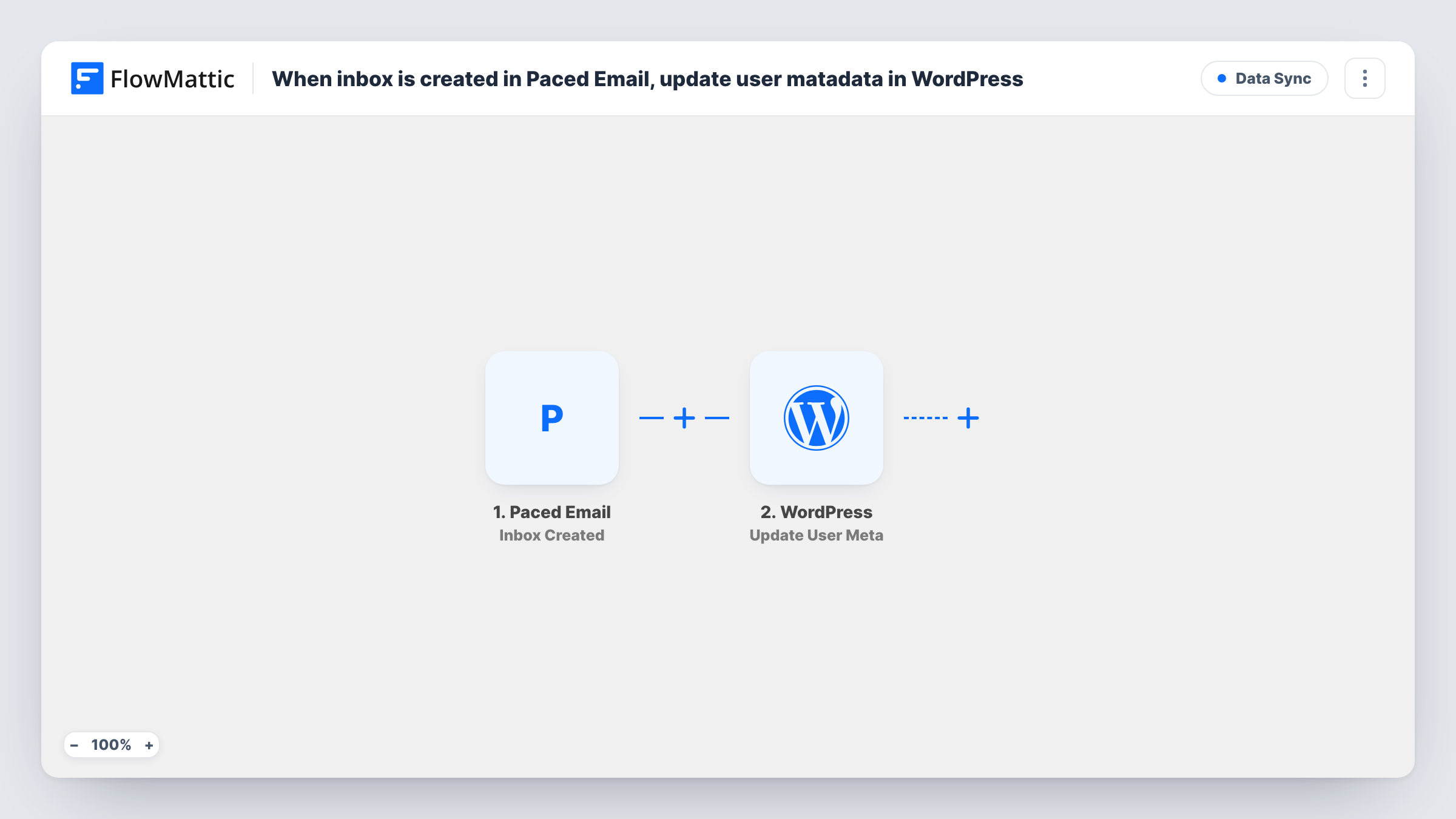
When a new inbox is created in Paced Email, FlowMattic looks up the WordPress user with a matching email address and writes the inbox details into that user’s metadata on your site.
 Paced Email
 WordPress
3 steps Setup ~5 min Used on 3.0k sites Free to import
What this workflow does
If your WordPress site has members who also use Paced Email, you may want their profile on the site to record which Paced Email inbox belongs to them, for display, support or your own reports. This workflow stores that detail on the user each time an inbox is created.
The Paced Email trigger fires when a new inbox is created and passes the inbox data to FlowMattic. The first WordPress step, Get User by Email, then looks up a user profile on your site. It ships unmapped, so after import you map an email address from the Paced Email data into it. That address has to belong to an existing WordPress user, so make a test inbox and check which email values Paced Email sends.
The last step, Update User Meta, already takes the user ID from the lookup, so it changes the user that step 2 found. The meta key and value are not set in the template: you decide what to store, for example an inbox address or name under a key of your own, and map it from the trigger data.
If no user has the mapped email, step 2 finds nobody and step 3 has no user to update; You can see both results in Task History. Every new inbox starts one run, and existing inboxes are not processed when you turn the workflow on.
Show members their digest inbox
A membership site stores each member's Paced Email inbox address in user meta and displays it on the account page, so members can find it without asking support.
Support lookups in the WordPress dashboard
A support team checks a user's profile and sees which Paced Email inbox is linked to them, instead of searching the Paced Email account separately.
Reporting on who uses digests
A site owner saves a meta value when an inbox is created, then counts users with that meta key to see how many members have set up a digest inbox.
How this workflow runs
What happens at each step once the workflow is on, and what you need before you import it.
 Paced Email Inbox Created
Starts when a new inbox is created in Paced Email. The inbox data is passed on. Create a test inbox after import to see which values, including any email addresses, the event includes.
- WordPress Get User by Email
Looks up a WordPress user profile by email address. The step ships unmapped: map the email from the Paced Email data that should match a user on your site.
- WordPress Update User Meta
Writes a meta value to the user that step 2 found. The user ID is already mapped from that lookup. Set the meta key and value yourself, for example storing the inbox address from the trigger.
What you need
- FlowMatticCore
- Paced Email AccountAccount
After importing, map your own data. To keep the template universal, not every step is pre-filled. Open each step in the builder and connect your accounts and fields (channels, lists, sheets, recipients) before you switch the workflow on.
Make it yours
Changes worth making after you import it.
- Choose a clear meta key with a prefix, such as paced_inbox, so it doesn't clash with keys other plugins already use on the user.
- To skip inboxes with no matching account, put a Filter between the Get User by Email step and the Update User Meta step that continues only when step 2 returned a user ID.
- Pair this with a copy that uses Paced Email's Inbox Deleted trigger and clears the same meta key, so profiles don't keep inboxes that no longer exist.
Questions about this workflow
What if no WordPress user has the email from Paced Email?
Get User by Email finds no one, so Update User Meta has no user ID to work with and nothing is stored. Check Task History for that run to see the lookup result.
Which user metadata does this update?
Only the key you set. The template leaves the meta key and value empty, so you pick a key name and map the inbox detail you want saved under it.
Does the Paced Email inbox data include the person's email?
Check with a test inbox. The workflow needs an email address that matches a WordPress user, so confirm which address Paced Email sends before you map it into step 2.
Is user meta overwritten when another inbox is created for the same person?
If you use the same meta key, the new run updates it with the latest inbox's value. Use a different key per inbox if you need to keep each one.
More Data Sync workflows
Other ready-to-import templates from the same category.






Import this workflow into your WordPress site
Download the JSON, import it from the Workflows screen and connect your accounts. Every run stays on your server, with no per-task fees.
30-day money-back guarantee Unlimited workflows and runs Self-hosted