

When a new post is published in Radaar, upload a file from the post to Google Drive
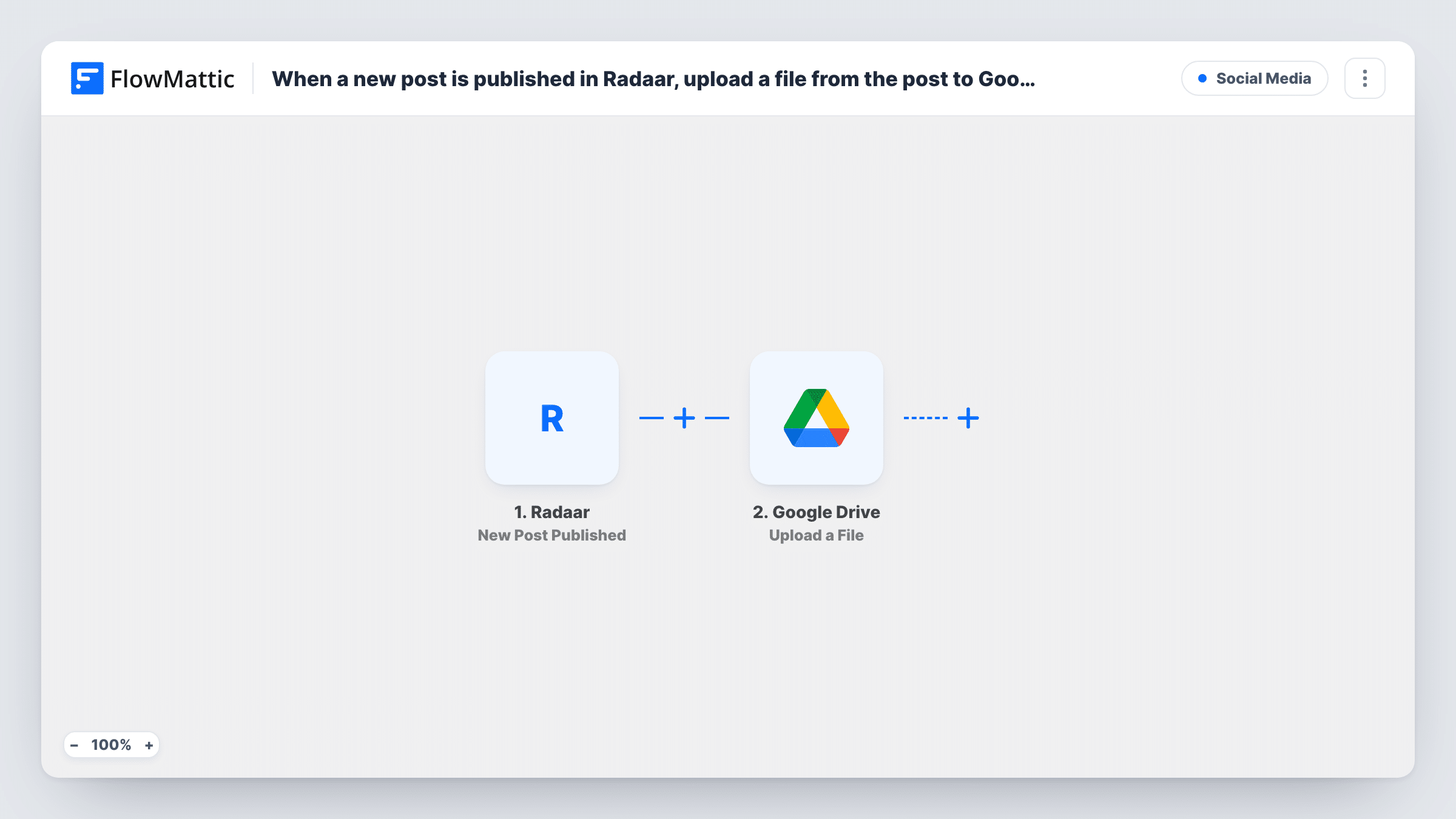
Each time Radaar publishes a new post, FlowMattic uploads a file from that post, such as its image, to the Google Drive folder you choose, building an archive of what you’ve shared.
 Radaar
 Google Drive
2 steps Setup ~5 min Used on 629 sites Free to import
What this workflow does
Social posts go out and the media behind them ends up scattered across devices and tools. Keeping a copy of each file in Google Drive gives your team one folder to reuse images from, check what was published, or hand to a client. This workflow saves a file from every post Radaar publishes into Drive.
The Radaar trigger fires when Radaar publishes a new post, and passes the post's data on. What that data holds, such as the post text and any media links, depends on the post, so publish a test post with an image and look at the trigger's data in FlowMattic to see what arrives.
The Google Drive step saves that file into a Drive folder of your choice. It ships unmapped: after import you connect your Google account, pick the folder and map the file from the Radaar post into the upload.
Every published post starts a run, including text-only posts. A post with no file gives the upload nothing to send, and Google Drive may return an error for it. Task History shows each run and what Drive returned.
Media archive for a social team
A marketing team schedules posts in Radaar and keeps a copy of every published image in a shared Drive folder for reuse in later campaigns.
Proof of posting for agency clients
An agency saves the media from each client post into that client's Drive folder, so account managers can show what went out each month.
Backup of brand visuals
A small business keeps every image it posts through Radaar in Google Drive, so the files survive if they are deleted from a phone or laptop.
How this workflow runs
What happens at each step once the workflow is on, and what you need before you import it.
 Radaar New Post Published
Starts when Radaar publishes a new post. Each published post is one run, and the post's data, including any media links it carries, becomes available to map into the upload.
- Google Drive Upload a File
Puts the post's file into your chosen Google Drive folder. The step ships unmapped: connect Google, pick the folder and map the file from the Radaar post, then check a test run for the result.
What you need
- FlowMatticCore
- Radaar AccountAccount
- Google Drive AccountAccount
After importing, map your own data. To keep the template universal, not every step is pre-filled. Open each step in the builder and connect your accounts and fields (channels, lists, sheets, recipients) before you switch the workflow on.
Make it yours
Changes worth making after you import it.
- Put a Filter between the Radaar trigger and the Google Drive step that continues only when the media value from a test post is not empty, so text-only posts stop before the upload.
- Create a dedicated Drive folder for these files and share it with your team before picking it in the step, so everyone can open the archive.
- Add Google Drive's Share File with Anyone action after the upload, mapping the uploaded file's ID from a test run, if you want a public link to each saved file.
Questions about this workflow
What if a Radaar post has no image or file?
The workflow still runs, but the upload has no file to send, so Google Drive may return an error. A Filter between the trigger and the upload step stops text-only posts before the upload.
Does a post with several images upload all of them to Google Drive?
As imported, the step uploads the one file you map. If a test run shows the post's media as a list, put an Iterator over it between the Radaar trigger and the Google Drive step to upload each file.
Do I need a Google Drive folder ready before importing?
It helps. The Upload a File step saves into the folder you select, so create it first and choose it when you set up the step.
More Social Media workflows
Other ready-to-import templates from the same category.





Import this workflow into your WordPress site
Download the JSON, import it from the Workflows screen and connect your accounts. Every run stays on your server, with no per-task fees.
30-day money-back guarantee Unlimited workflows and runs Self-hosted