

When Post Scheduled To be Published in Socialbee, Create a new post in WordPress
Each time a post is scheduled to be published in SocialBee, FlowMattic creates a new WordPress post from its content, so the updates you plan for social media also get a copy on your own website.
 Socialbee
 WordPress
2 steps Setup ~5 min Used on 1.6k sites Free to import
What this workflow does
If you already write updates in SocialBee for your social profiles, the same text can feed your website: a news page, a short-form updates section, or drafts you expand into full articles. Copying each one into WordPress by hand is the kind of task that slips. This workflow does it for every post you schedule.
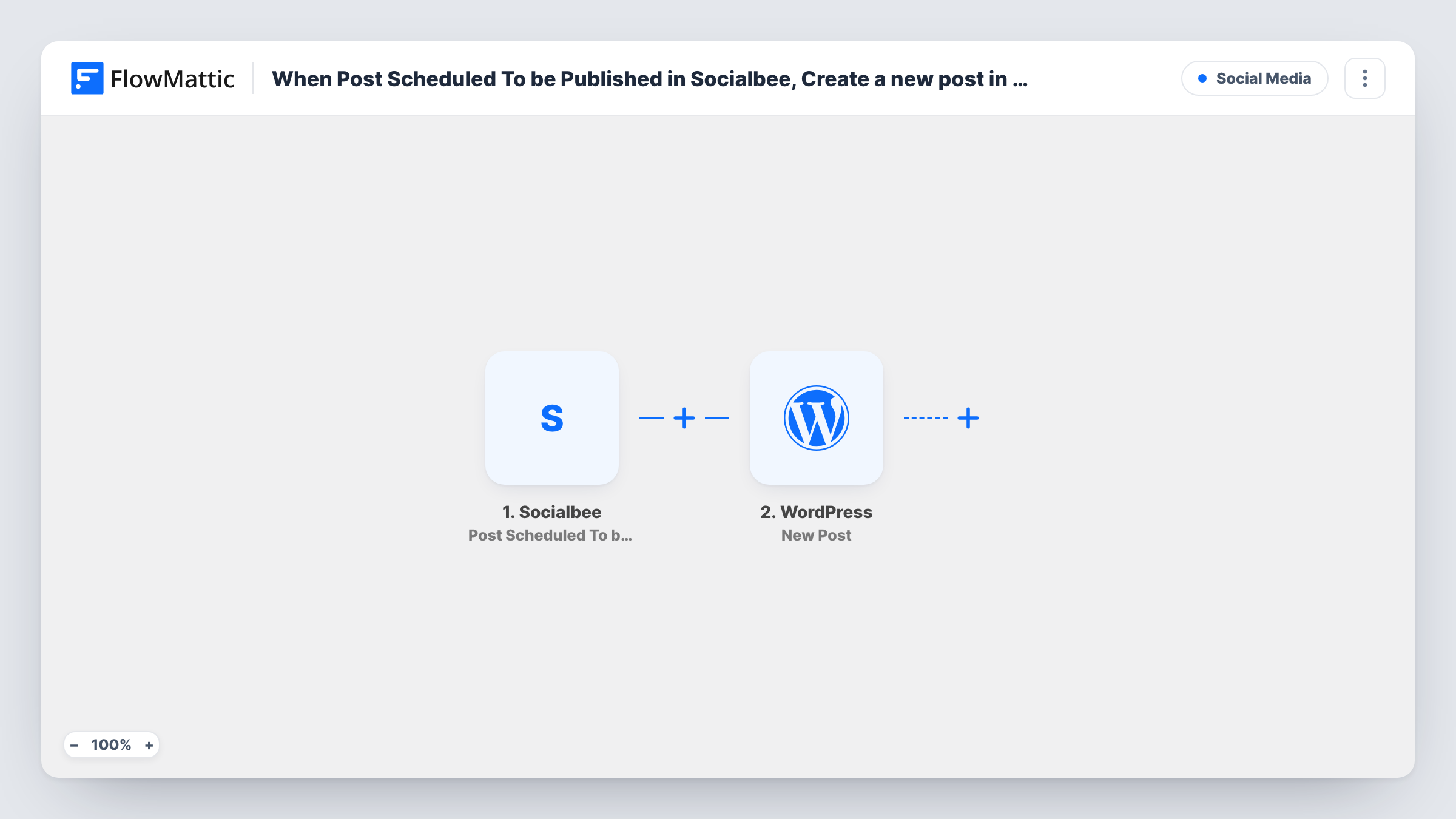
The SocialBee trigger, Post Scheduled To be Published, starts a run when a post is scheduled for publishing in your SocialBee account. The post's details become available to map. FlowMattic then runs New Post on your WordPress site, creating a post from the values you map, such as the SocialBee text as the post content.
Social posts are short and often lack a title, so decide what the WordPress title should be, for example a fixed prefix or the first words of the text. Check the first test post to see whether it arrives as a draft or goes live, and adjust the step before real posts come through. Every scheduled SocialBee post creates its own WordPress post.
A news feed on your site
A local business schedules announcements in SocialBee. Each one also becomes a WordPress post in a News category, so the website shows the same updates as its social pages.
Drafts for longer blog articles
A marketer schedules short tips in SocialBee and has each one arrive in WordPress as a draft, ready to be expanded into a fuller article later.
Keeping an archive you own
Every scheduled social post lands on your own WordPress site too, giving you a searchable record that doesn't depend on the social networks.
How this workflow runs
What happens at each step once the workflow is on, and what you need before you import it.
 Socialbee Post Scheduled To be Published
Starts a run when a post is scheduled to be published in SocialBee. The post's details are passed on so you can map them into the WordPress post.
- WordPress New Post
Creates a new post on your WordPress site from the SocialBee details you map, such as the post text as content. Run a test to check the title and whether it is published or saved as a draft.
What you need
- FlowMatticCore
- Socialbee AccountAccount
After importing, map your own data. To keep the template universal, not every step is pre-filled. Open each step in the builder and connect your accounts and fields (channels, lists, sheets, recipients) before you switch the workflow on.
Make it yours
Changes worth making after you import it.
- Map a title built from fixed text plus part of the SocialBee post, such as Update: followed by the text, so WordPress posts don't all look the same in your admin list.
- Create the WordPress posts as drafts at first, if the step lets you choose, and review a few before letting them go live on your site.
- Add a Filter after the trigger on a word or hashtag in the text, if you only want certain SocialBee posts to appear on your website.
Questions about this workflow
Is the WordPress post published at the same time as the social post?
No. The run happens when the post is scheduled in SocialBee, not when it goes out. The WordPress post is created then, in whatever status the step gives it.
Do images from SocialBee come across to WordPress?
Only if the trigger includes something you can map for them. Check a test run in Task History to see which SocialBee fields are available before planning around images.
What if I edit or reschedule the post in SocialBee?
The WordPress post isn't updated. If rescheduling counts as a new schedule in SocialBee, it may start another run, so check Task History after you reschedule a post.
Can I choose the WordPress category for these posts?
Check the New Post step after import for the options it offers. If you set one, every SocialBee post goes to the same place unless you add more logic.
More Social Media workflows
Other ready-to-import templates from the same category.







Import this workflow into your WordPress site
Download the JSON, import it from the Workflows screen and connect your accounts. Every run stays on your server, with no per-task fees.
30-day money-back guarantee Unlimited workflows and runs Self-hosted