

Post a daily OpenAI quote image to your Facebook Page using Image Builder
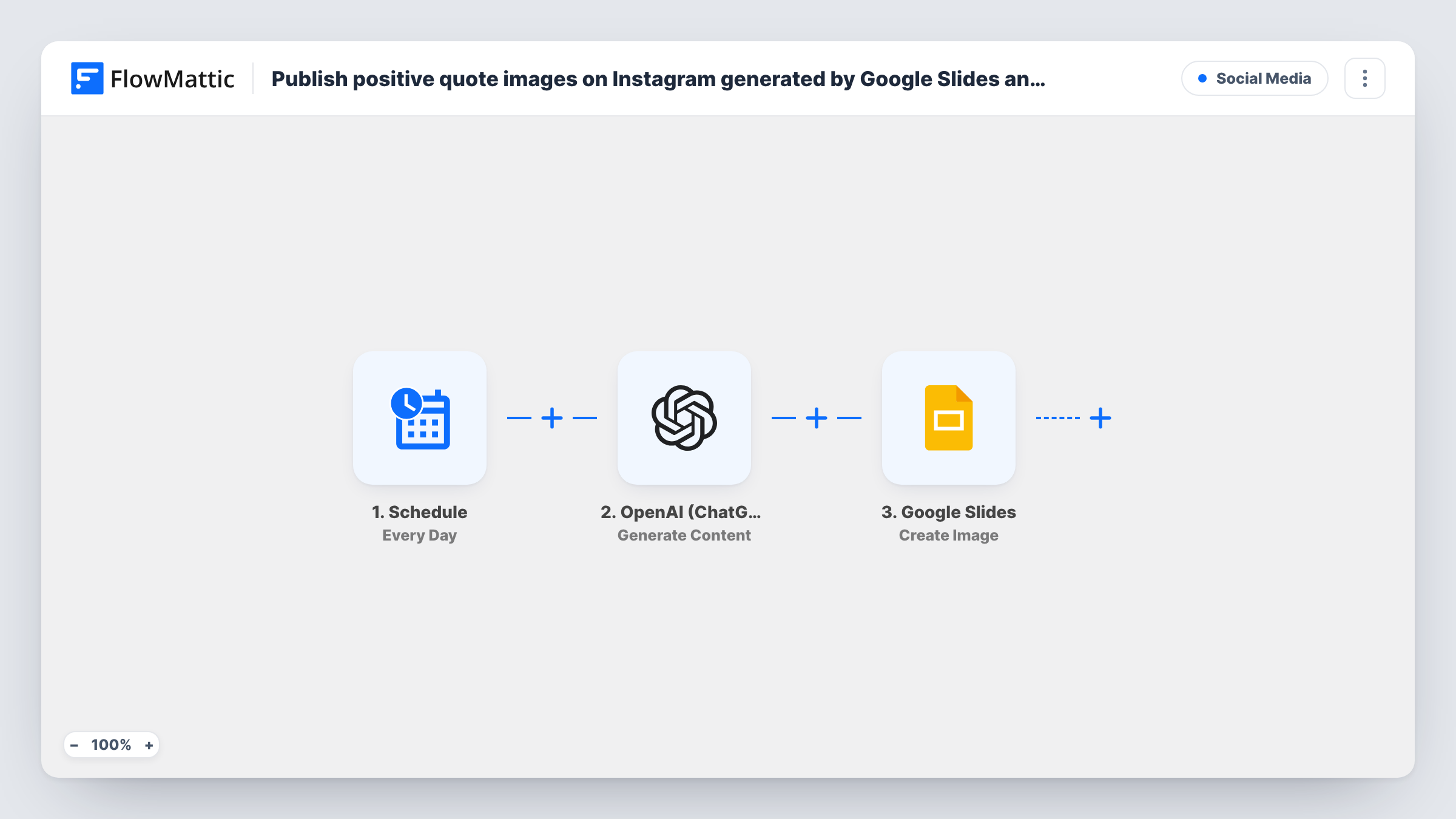
Every day, OpenAI writes a short quote, FlowMattic’s Image Builder renders it onto one of your saved image templates, and the finished picture is uploaded to your Facebook Page.
 Schedule
 OpenAI (ChatGPT)
 Image Builder
 Facebook Pages
4 steps Setup ~8 min Used on 3.4k sites Free to import
What this workflow does
A daily quote graphic is an easy way to keep a Facebook Page active, but designing one each morning takes time. This workflow does the whole chain on a timer: the words come from OpenAI, the design comes from an image template you build once, and the result goes straight to your Page.
The Schedule trigger runs once a day at the time you set after import. The OpenAI (ChatGPT) Generate Content step then writes text from the prompt you give it. The template leaves the prompt empty, so write your own, such as a request for one short motivational quote with the author's name, and keep it brief enough to fit your design.
Image Builder takes a saved Image template, fills its dynamic parts with the data you supply, renders it through Cloudflare Browser Rendering and saves the PNG to your WordPress Media Library. You need an Image template and Cloudflare Browser Rendering set up in FlowMattic first, and you map the OpenAI text into the template's quote placeholder.
Finally, the Facebook Pages Upload a Photo step posts the image to the Page you connect. All three action steps ship unmapped, so map the image file from Image Builder into the upload. Every run publishes a new photo, and nothing checks whether a quote was used before.
Coach or trainer's morning post
A fitness coach's Facebook Page gets a branded motivation graphic every morning, using the coach's colours and logo from the image template.
Bookshop quote of the day
A local bookshop asks OpenAI for a short literary quote with its author and posts it daily on a card that carries the shop's name.
Community page that stays active
A nonprofit keeps its Page posting on quiet weeks with an encouraging quote card, while staff post event news alongside it.
How this workflow runs
What happens at each step once the workflow is on, and what you need before you import it.
 Schedule Every Day
Runs every day at the time you choose. The template doesn't set a time, so pick when the quote should go up on your Page.
- OpenAI (ChatGPT) Generate Content
Generates text with OpenAI from the prompt you write. The prompt is empty in the template, so ask for one short quote in the format your image design expects.
- Image Builder Generate Image from Template
Renders your saved Image template with the quote mapped in and saves the PNG to the Media Library. Pick the template and map the OpenAI output into its text placeholder after import.
- Facebook Pages Upload a Photo
Uploads the generated image to your Facebook Page as a photo. Connect the Page, map the image from the Image Builder step, then run a test to see the photo on your Page.
What you need
- FlowMatticCore
- OpenAI (ChatGPT) AccountAccount
- Facebook Pages AccountAccount
After importing, map your own data. To keep the template universal, not every step is pre-filled. Open each step in the builder and connect your accounts and fields (channels, lists, sheets, recipients) before you switch the workflow on.
Make it yours
Changes worth making after you import it.
- Tell OpenAI the maximum length in your prompt, such as under 20 words, so the quote fits the space in your image template.
- Ask for the quote and the author on separate lines, or as JSON, so you can map each into its own placeholder in Image Builder.
- If the Upload a Photo step offers a text field for the post, map the quote into it too, so the words also appear as text in the feed.
- Set the daily time to when your audience usually reads the Page, and check Task History after the first run to confirm the photo went up.
Questions about this workflow
Do I need an Image Builder template before importing?
Yes. The Generate Image from Template step uses a saved Image template, so design one in FlowMattic with a placeholder for the quote before you finish setting up the step.
What does Image Builder need to render the quote image?
FlowMattic renders Image templates through Cloudflare Browser Rendering, so add those credentials in FlowMattic first. The finished PNG is saved to your Media Library.
Can the same quote appear on my Facebook Page twice?
It can. Each run asks OpenAI for a fresh quote and nothing compares it with earlier posts. Asking for a different theme in the prompt each weekday can help vary them.
Can I post the quote image to Instagram as well?
This template only posts to a Facebook Page. Add a step for another network after the Image Builder step and map the same image into it.
More Social Media workflows
Other ready-to-import templates from the same category.




Import this workflow into your WordPress site
Download the JSON, import it from the Workflows screen and connect your accounts. Every run stays on your server, with no per-task fees.
30-day money-back guarantee Unlimited workflows and runs Self-hosted