

When a new Tilda Publishing lead arrives, add a Google Sheets row and notify Slack
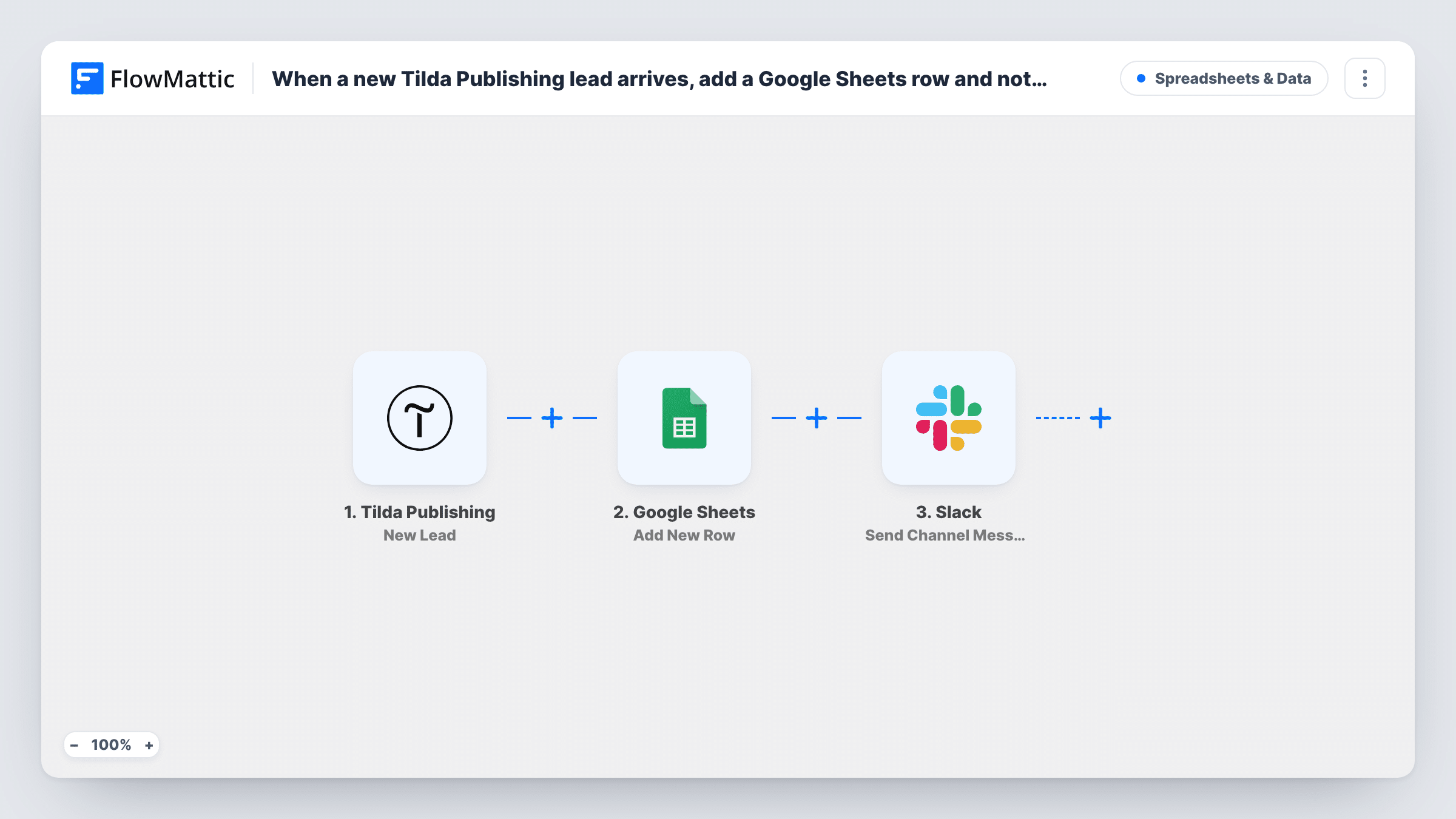
Every lead sent from a Tilda Publishing website form is added as a row in Google Sheets, then FlowMattic posts a message about it in a Slack channel so your team knows someone got in touch.
 Tilda Publishing
 Google Sheets
 Slack
3 steps Setup ~5 min Used on 1.0k sites Free to import
What this workflow does
Tilda makes it quick to publish a landing page with a form, but leads that only arrive by email are easy to miss and hard to count. This workflow gives each lead a row in a spreadsheet you can sort and share, and puts a short alert in Slack so someone picks it up while the visitor still remembers filling in the form.
The Tilda Publishing trigger, New Lead, fires when a lead is sent from a website form. The form's fields, such as name, email, phone and any custom questions, come through to FlowMattic. Submit a test lead after import to see the exact field names your Tilda form uses.
The Google Sheets step adds a new row with the data you map. After import, pick the spreadsheet and sheet, and match each Tilda field to a column. The Slack step then sends a channel message. It also ships unmapped: choose the channel and write the alert, for example with the lead's name, email and the page they came from if Tilda sends it.
Every lead runs all three steps, with no conditions in between, so test submissions show up in the sheet and in Slack too. Task History lists each run and what Google Sheets and Slack returned.
Lead list for a landing page campaign
A marketer running ads to a Tilda page keeps every lead in one Google Sheet, adds a column for the follow-up result, and sees new leads announced in the #sales channel.
Quote requests for a small agency
A web studio's Tilda site has a request form. The Slack message tells whoever is free that a new request came in, and the sheet records who replied.
Event interest from several Tilda pages
An organiser collects interest forms from a few Tilda pages into a single sheet, with an alert in Slack for each person who signs up.
How this workflow runs
What happens at each step once the workflow is on, and what you need before you import it.
 Tilda Publishing New Lead
Starts when a Tilda Publishing website form sends a new lead. The submitted fields, such as name, email and phone, are passed to Google Sheets and Slack.
- Google Sheets Add New Row
Adds a new row to your Google Sheets spreadsheet with the lead's details. The step ships unmapped: pick the spreadsheet and sheet, then match each Tilda field to a column.
- Slack Send Channel Message
Posts a lead alert in Slack. The template leaves the channel and text for you to set: write a short line with the lead's name and email mapped from the Tilda form.
What you need
- FlowMatticCore
- Tilda Publishing AccountAccount
- Google Sheets AccountAccount
- Slack AccountAccount
After importing, map your own data. To keep the template universal, not every step is pre-filled. Open each step in the builder and connect your accounts and fields (channels, lists, sheets, recipients) before you switch the workflow on.
Make it yours
Changes worth making after you import it.
- Add a column for the date the lead arrived and map it from the trigger data if Tilda sends one, so you can sort the sheet by day.
- Keep the Slack alert short and put the full details in the sheet, so the channel stays readable when many leads arrive.
- If only some forms should alert the team, put a Filter between the Google Sheets step and the Slack step that checks a value your test lead shows, such as the form name. Every lead still gets a row, and only matching ones reach Slack.
Questions about this workflow
Do I need to change anything in Tilda to send leads to FlowMattic?
You connect the Tilda Publishing trigger to your Tilda site during setup, then submit a test lead so FlowMattic can show you the fields. Follow the trigger's connection steps in the workflow editor.
Which Google Sheets columns get filled for each Tilda lead?
Only the ones you map. The row step is empty in the template, so match the Tilda field names from your test lead to the column headers in your sheet.
Can the Tilda lead alert be posted in a private Slack channel?
Yes, with a different action than the one shipped. For a private channel, switch the Slack step to the Send Private Channel Message action; for one teammate, use Send Direct Message.
Are leads I received in Tilda before importing copied over?
No. Only leads sent after the workflow is active start a run, so past leads stay where Tilda stored them.
More Spreadsheets & Data workflows
Other ready-to-import templates from the same category.



Import this workflow into your WordPress site
Download the JSON, import it from the Workflows screen and connect your accounts. Every run stays on your server, with no per-task fees.
30-day money-back guarantee Unlimited workflows and runs Self-hosted