

Log every new Pagewiz lead in a Google Sheets spreadsheet
Each lead captured on your Pagewiz landing pages is added as a new row in Google Sheets, so you keep one running list of sign-ups that your team can sort, share and follow up from.
 Pagewiz
 Google Sheets
2 steps Setup ~5 min Used on 2.1k sites Free to import
What this workflow does
Landing pages built in Pagewiz collect leads for campaigns, offers and events. Getting those leads in front of a sales rep or a client usually means logging in and exporting. This workflow writes every new lead into a Google Sheet as it is captured, so the list is always ready to open.
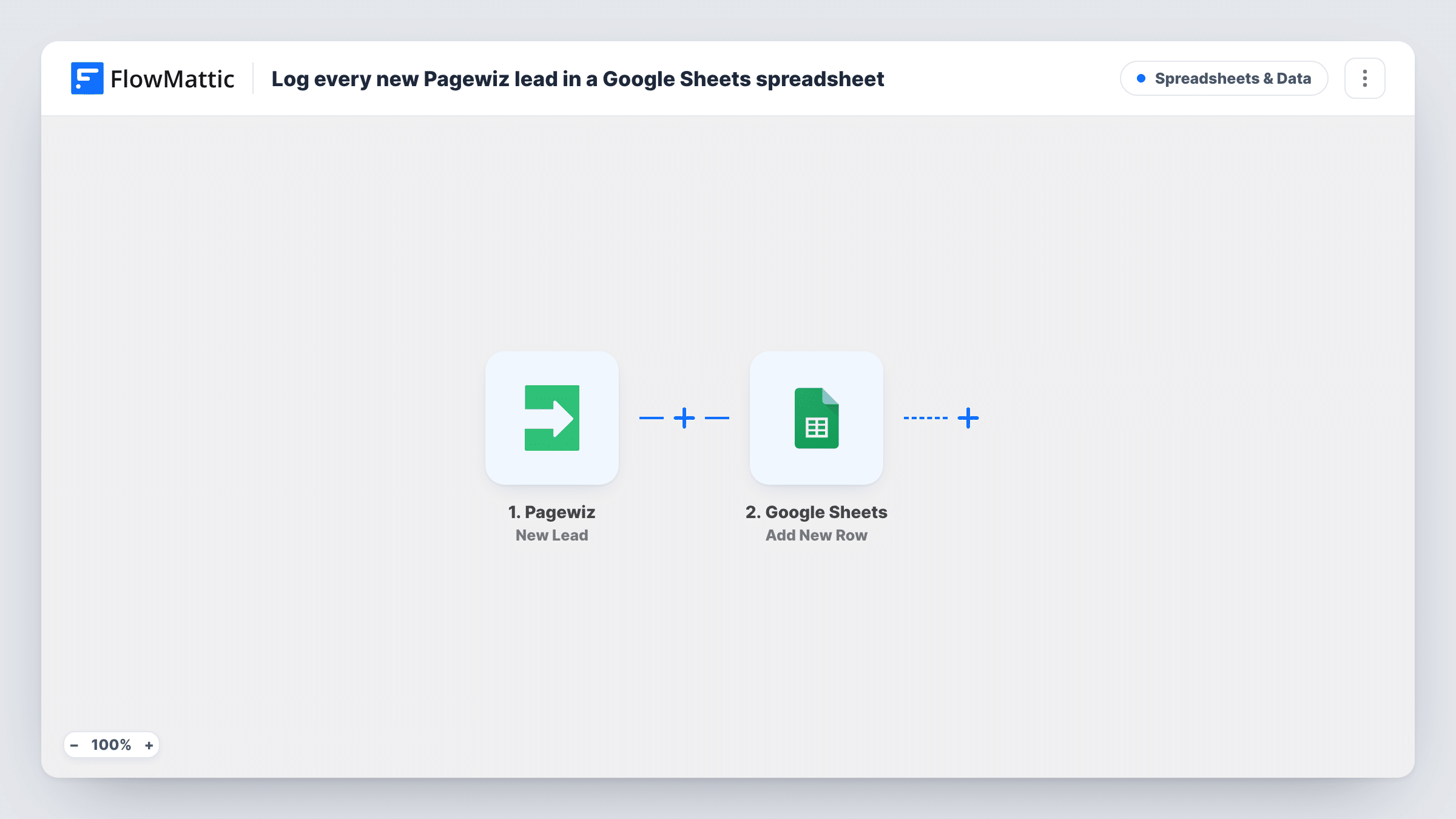
The Pagewiz trigger fires when a new lead is captured. FlowMattic takes the lead's data and passes it to Google Sheets. There, the Add New Row action places it at the bottom of the sheet you choose, with each detail in the column you mapped.
Every lead gets a row, with no checks in between, so the sheet mirrors what your pages collect. Duplicate sign-ups from the same person show up as separate rows. Task History keeps each run, which is handy when a row is missing a value and you want to see what Pagewiz sent.
Campaign leads for a sales team
A paid ad points to a Pagewiz page, and reps call the leads straight from the shared sheet, marking each row once they have spoken to the person.
Agency reporting to a client
You run landing pages for a client and share the sheet with them, so they see every lead their campaign produced without a Pagewiz login.
Webinar or event sign-ups
People register on a Pagewiz page and the sheet becomes the attendee list you check names against on the day.
How this workflow runs
What happens at each step once the workflow is on, and what you need before you import it.
 Pagewiz New Lead
Fires when a new lead is captured on your Pagewiz landing pages. The lead's details become available to map into the sheet.
- Google Sheets Add New Row
Places the Pagewiz lead in a new row of the Google Sheets spreadsheet you pick. Connect Google and match each column to a lead value.
What you need
- FlowMatticCore
- Pagewiz AccountAccount
- Google Sheets AccountAccount
After importing, map your own data. To keep the template universal, not every step is pre-filled. Open each step in the builder and connect your accounts and fields (channels, lists, sheets, recipients) before you switch the workflow on.
Make it yours
Changes worth making after you import it.
- Map a date or time value from the run into its own column, if one is available, so you can sort the sheet by when each lead came in.
- Add a FluentCRM or Mailchimp step after Google Sheets if you also want each Pagewiz lead on an email list.
- Submit a test lead on your Pagewiz page after import so FlowMattic captures the fields, then finish the column mapping.
Questions about this workflow
Will leads from all my Pagewiz pages go into the sheet?
Check the trigger's settings after you connect Pagewiz. If it covers every page, add a Filter on a page value to keep only the leads you want in this sheet.
Are Pagewiz leads collected before import added?
No. The trigger fires for newly captured leads, so earlier ones stay in Pagewiz unless you export them.
Does the same person signing up twice create two rows?
Yes. Each captured lead starts a run and adds a row. Nothing checks the sheet for that email before writing.
More Spreadsheets & Data workflows
Other ready-to-import templates from the same category.




Import this workflow into your WordPress site
Download the JSON, import it from the Workflows screen and connect your accounts. Every run stays on your server, with no per-task fees.
30-day money-back guarantee Unlimited workflows and runs Self-hosted