

When a new row is added in Google Sheets, list templates in DynaPictures
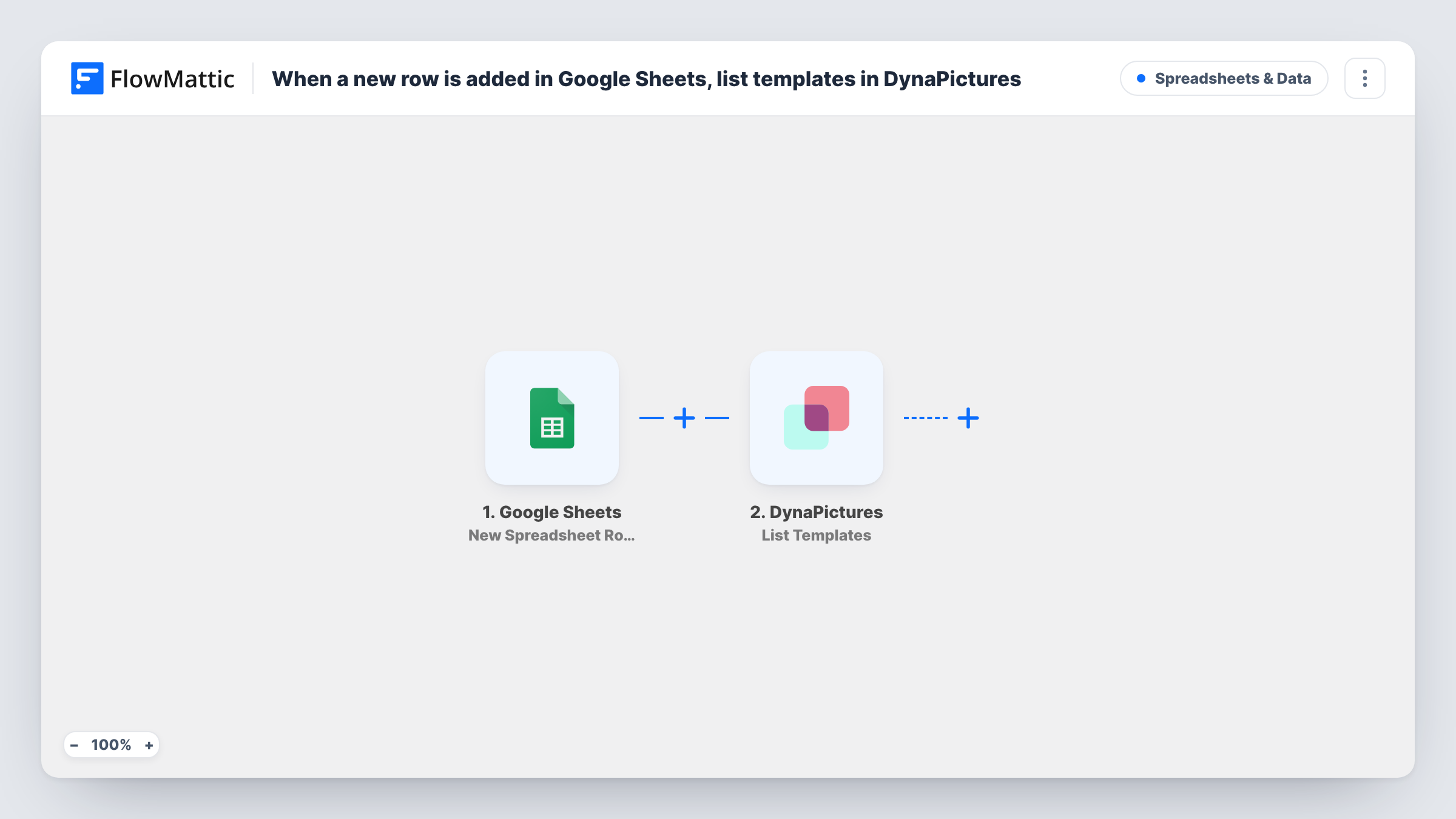
Each time a row is added to your Google Sheets spreadsheet, FlowMattic asks DynaPictures for the list of image templates in your account, so a fresh copy of that list is ready for the steps you add next.
 Google Sheets
 DynaPictures
2 steps Setup ~5 min Used on 655 sites Free to import
What this workflow does
DynaPictures builds images from templates, and most image workflows start by knowing which templates exist. This small workflow fetches that list whenever a new row lands in a spreadsheet. Treat it as a starting block: it gives you the template data inside a run, and you decide what happens to it.
The Google Sheets trigger fires when a row is added to the spreadsheet you connect. The values in that row become data you can use in later steps. FlowMattic then runs the List Templates action in DynaPictures, which retrieves all the image templates in your account and returns them as the step's response.
As imported, nothing is written back to the sheet and no image is made. The template list stays in the run, where you can read it in Task History or map it into steps you add after DynaPictures. A typical next move is to loop through the list or pick out one template and pass it on, together with the row's values.
Look up template details while building a workflow
Add a test row, open Task History and read the DynaPictures response to see each template your account holds before you wire up the rest of an image workflow.
Keep a template reference next to your content sheet
Extend the flow with a Google Sheets step so each new content row also triggers a write of the current template names into a reference tab your team can read.
Base for a row-to-image workflow
Use this as the first half of a flow where each sheet row describes an image. The list step gives you the templates to choose from before later steps act on the row.
How this workflow runs
What happens at each step once the workflow is on, and what you need before you import it.
 Google Sheets New Spreadsheet Row
Starts a run whenever a fresh row appears in your connected spreadsheet. Its cell values travel with the run, so any step you add later can use them alongside the template list.
- DynaPictures List Templates
Retrieves the list of image templates in your DynaPictures account. Connect your DynaPictures account on import. The list comes back as this step's response, ready to map into steps you add after it.
What you need
- FlowMatticCore
- Google Sheets AccountAccount
- DynaPictures AccountAccount
After importing, map your own data. To keep the template universal, not every step is pre-filled. Open each step in the builder and connect your accounts and fields (channels, lists, sheets, recipients) before you switch the workflow on.
Make it yours
Changes worth making after you import it.
- Add an Iterator after the DynaPictures step to loop through the returned templates one at a time, so each template can be handled by its own following steps.
- Add a Filter after the trigger if only some rows should start the lookup, for example rows where a status column is set to Ready.
- Run one test with a new row, then open Task History to see the exact shape of the DynaPictures response before you map it anywhere.
Questions about this workflow
Does this workflow write the DynaPictures template list into my sheet?
No. As imported, the list is only returned inside the run. Add a Google Sheets step after DynaPictures and map the template data into it if you want it stored in the spreadsheet.
Does it create an image in DynaPictures for each new row?
No. List Templates only reads the templates in your account. Making images needs further steps that you add and set up yourself.
Will rows already in the Google Sheets spreadsheet start a run?
No. The trigger watches for new rows, so only rows added after the workflow is turned on start the DynaPictures lookup.
Do I need both a Google account and a DynaPictures account?
Yes. You connect a Google account that can open the spreadsheet, and a DynaPictures account whose templates the step lists.
More Spreadsheets & Data workflows
Other ready-to-import templates from the same category.




Import this workflow into your WordPress site
Download the JSON, import it from the Workflows screen and connect your accounts. Every run stays on your server, with no per-task fees.
30-day money-back guarantee Unlimited workflows and runs Self-hosted