

When a new order is placed in WooCommerce, insert the order details into your remote analytics database for custom reporting
Every new WooCommerce order is written as a row in a table on your remote MySQL database, so your own reports and dashboards can read order data without exports or plugins on the store.
 WooCommerce
 Remote SQL
2 steps Setup ~5 min Used on 3.5k sites Free to import
What this workflow does
WooCommerce reports cover the basics, but custom reporting often happens elsewhere: a BI tool, a data warehouse or a database shared by several stores. Getting orders there usually means CSV exports or direct access to the shop's database. This workflow sends each order to a table you control as it comes in.
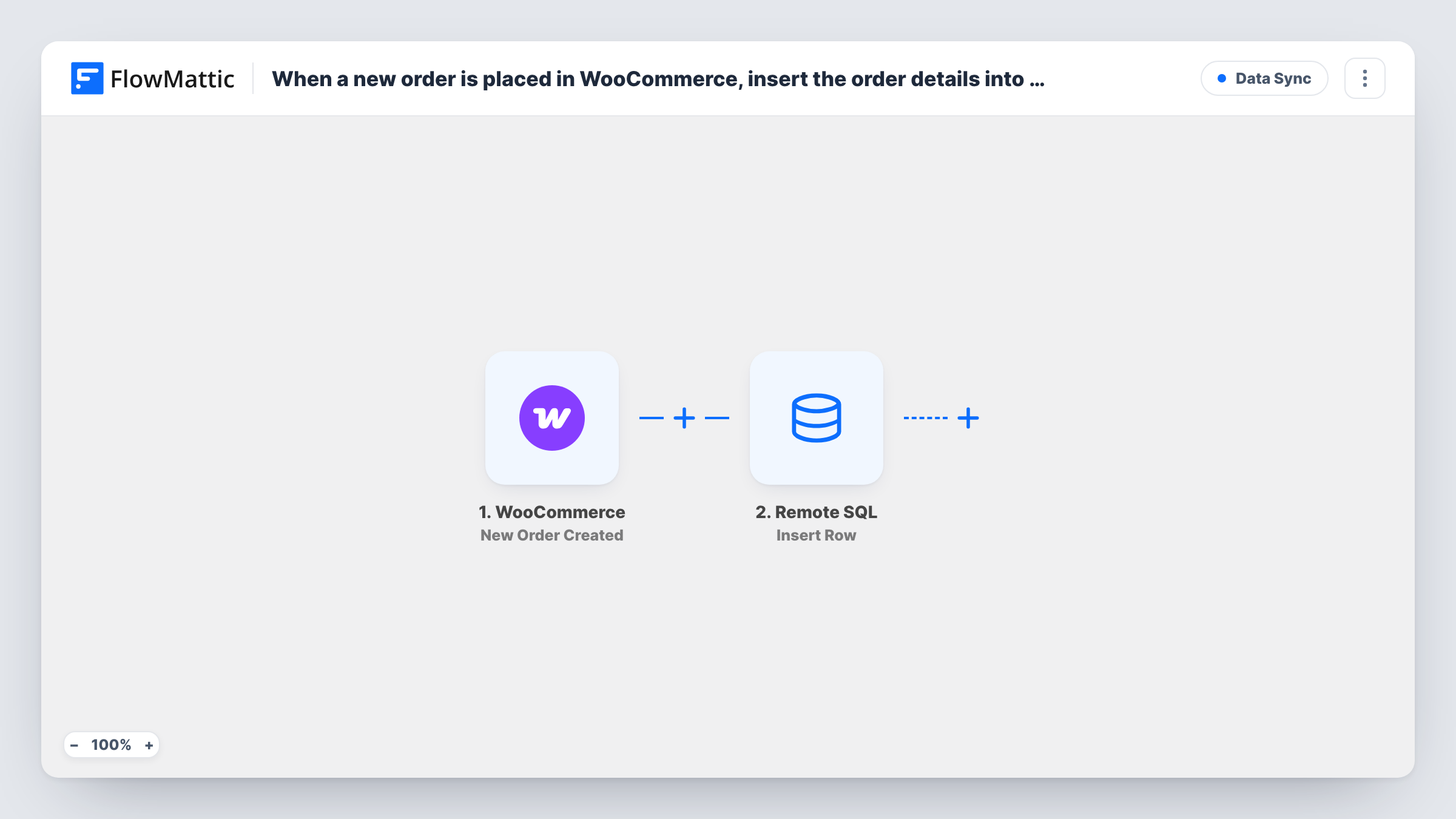
Each new order in WooCommerce starts the run. FlowMattic passes the order data to the Remote SQL step, which inserts a new row into a table on your remote MySQL database. You map order values, such as the order ID, total, status and customer email, to the table's columns.
The workflow inserts one row per order and never goes back to it. Later status changes or refunds are not written to the database by this template. Create the table first, then place an order after import so FlowMattic captures the order fields for mapping.
Several stores feeding one reporting database
Import the workflow on each WooCommerce site and point them all at one table, so your reports cover every store together.
Dashboards in a BI tool
A reporting tool connected to the remote database reads new orders from your table without touching the live store.
Order archive kept outside WordPress
You keep a copy of each order's key values in your own database for accounting or audit queries.
How this workflow runs
What happens at each step once the workflow is on, and what you need before you import it.
 WooCommerce New Order Created
Starts as soon as a fresh order appears in your WooCommerce store. The order data becomes available to map into the database row.
- Remote SQL Insert Row
Inserts a new row into the table you choose on your remote MySQL database. Map WooCommerce order values to the table's columns and connect your database on import.
What you need
- FlowMatticCore
- WooCommerce PluginPlugin
- Remote SQL AccountAccount
After importing, map your own data. To keep the template universal, not every step is pre-filled. Open each step in the builder and connect your accounts and fields (channels, lists, sheets, recipients) before you switch the workflow on.
Make it yours
Changes worth making after you import it.
- Add a unique key on the order ID column in your table, so a repeated run cannot leave two rows for the same order.
- Build a second workflow that pairs a WooCommerce order update trigger with the Remote SQL update action if your reports need the latest status of each order.
- Place a test order after import, then check Task History to confirm the row was inserted before you rely on the data.
Questions about this workflow
Does the remote database table need to exist before I import?
Yes. The Insert Row step writes to a table you pick, so create it with the columns you want to fill before mapping the step.
Are WooCommerce status changes and refunds updated in the database?
No. This workflow only inserts a row when an order is created. Use a separate workflow with an update step to track later changes.
What happens if the database is unreachable when an order comes in?
The Remote SQL step returns an error for that run, and Task History shows it. The order itself is not affected in WooCommerce.
Will existing WooCommerce orders be copied into the database?
No. Only orders created after you turn the workflow on are inserted.
More Data Sync workflows
Other ready-to-import templates from the same category.







Import this workflow into your WordPress site
Download the JSON, import it from the Workflows screen and connect your accounts. Every run stays on your server, with no per-task fees.
30-day money-back guarantee Unlimited workflows and runs Self-hosted