

Notify the support team on Discord about incoming Google RCS Business Messaging messages
Messages and events from your Google RCS Business Messaging agent are posted to a Discord channel, so your support team sees customer messages without watching another console.
 Google RCS Business Messaging
 Discord
2 steps Setup ~5 min Used on 1.2k sites Free to import
What this workflow does
Customers who message your brand over RCS expect a reply. If your support team works in Discord, those messages are easy to miss in a separate tool. This workflow posts what your RCS agent receives into a Discord channel the team reads.
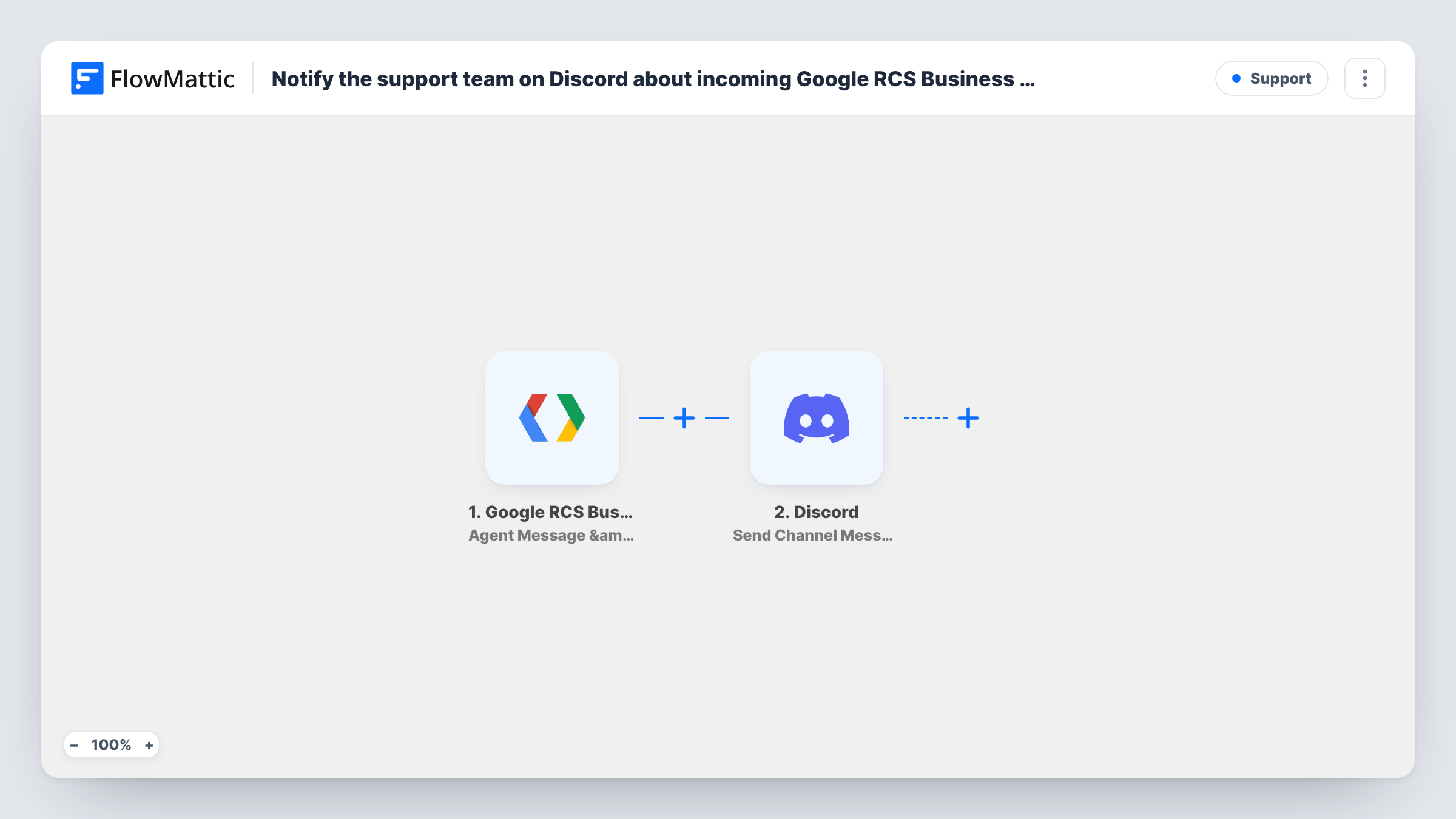
The Google RCS Business Messaging trigger is Agent Message & Event Received. It fires when a user sends a message, when they tap a suggestion chip, and when a delivery or read receipt is generated for your agent. Each of these passes its data to the Send Channel Message action in Discord, where you write the post and map in values such as the message text.
As imported, receipts post to Discord too, not just customer messages. To post only what customers write, add a Filter after the trigger that lets through message events alone. Send yourself a test message and read Task History to see how each event type looks before you set that condition.
Retail customer questions
Shoppers message your store's RCS agent about stock or delivery. Each message shows up in the support channel, where an agent picks it up.
Appointment replies
Clients answer your RCS reminders with questions. The replies appear in Discord, so front-desk staff can see them during the day.
Tracking chip choices
When users tap suggestion chips in your RCS conversation, those events post to a channel, giving your team a view of which options people pick.
How this workflow runs
What happens at each step once the workflow is on, and what you need before you import it.
 Google RCS Business Messaging Agent Message & Event Received
Runs when a user messages your RCS agent, taps a suggestion chip, or when a delivery or read receipt is generated. The event's data is passed to the Discord step.
- Discord Send Channel Message
Puts the RCS event into a Discord channel as a new post. Write the text and map in the event data, such as the user's message, then send a test to check the post.
What you need
- FlowMatticCore
- Google RCS Business Messaging AccountAccount
- Discord AccountAccount
After importing, map your own data. To keep the template universal, not every step is pre-filled. Open each step in the builder and connect your accounts and fields (channels, lists, sheets, recipients) before you switch the workflow on.
Make it yours
Changes worth making after you import it.
- Add a Filter after the trigger that continues only for user messages, so delivery and read receipts do not post to Discord.
- Use a Router to send user messages to a support channel and chip selections to a separate channel, with conditions on the event type that cannot overlap.
- Include the sender's identifier in the Discord post so the agent replying in your RCS tool knows which conversation it is.
Questions about this workflow
Will delivery and read receipts post to Discord?
Yes, as imported. The RCS trigger fires for receipts as well as messages. Add a Filter on the event type to keep them out.
Can my team reply to the RCS customer from Discord?
No. The workflow only posts a copy of the event. Replies are still sent from your RCS Business Messaging setup.
Do I need a Google RCS Business Messaging agent before importing?
Yes. The trigger listens for events on your RCS agent, so you need one set up and connected to FlowMattic.
More Support workflows
Other ready-to-import templates from the same category.





Import this workflow into your WordPress site
Download the JSON, import it from the Workflows screen and connect your accounts. Every run stays on your server, with no per-task fees.
30-day money-back guarantee Unlimited workflows and runs Self-hosted