

When a New Lead is Captured in Contact Form 7, Retrieve Country Details via ISO Integration and Add to Mailchimp
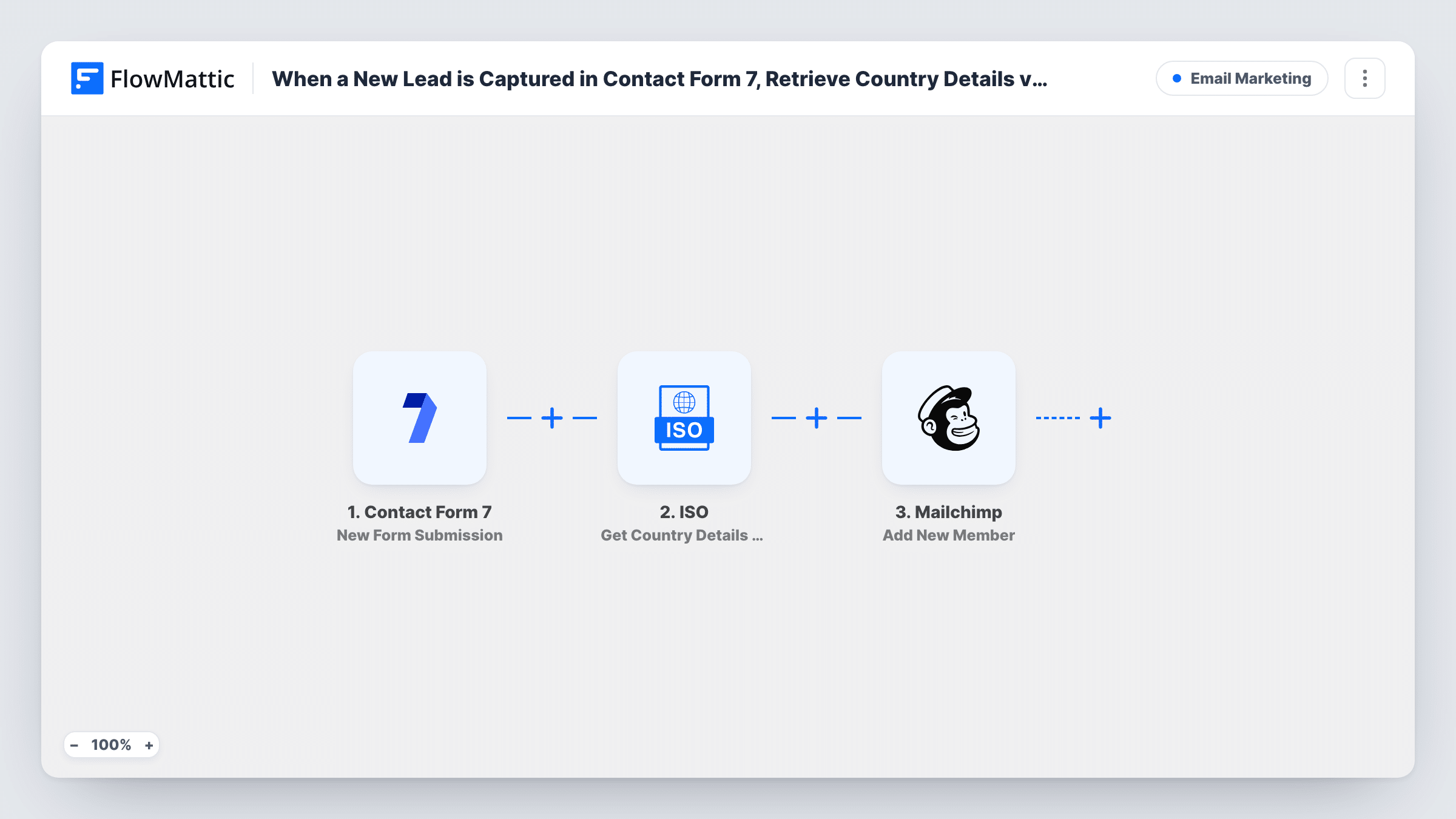
When someone submits a Contact Form 7 form with their country, this workflow looks up that country’s details through ISO and adds the person to your Mailchimp audience, with the country data available to map into their profile.
 Contact Form 7
 ISO
 Mailchimp
3 steps Setup ~5 min Used on 2.6k sites Free to import
What this workflow does
Visitors type their country in many ways, and a free-text answer is hard to segment on. Standard details such as the country code, region or currency are easier to work with in Mailchimp. This workflow fetches them from the country name before the subscriber is added.
The Contact Form 7 trigger starts the run whenever a visitor sends the form. FlowMattic passes the country answer to the ISO step, which gets that country's name, code, capital, region, currency, language and flag. The Mailchimp step then adds the person to your list, or updates them if they are already a member. You map the email and name from the form, plus any country values you want stored as merge fields.
Your form needs a country field for the lookup to work. Every submission runs all three steps. Send a test entry after import to capture the ISO response, then map the values you need.
Segmenting a newsletter by region
Store the region from ISO in a Mailchimp merge field, then send campaigns to European or Asian subscribers separately.
Sending in the right currency
Save the currency returned by ISO so promotional emails can quote prices in the currency of each lead's country.
Cleaner country data for an export business
Leads type their country freely in the form. Mailchimp gets a standard country code you can filter on reliably.
How this workflow runs
What happens at each step once the workflow is on, and what you need before you import it.
 Contact Form 7 New Form Submission
Runs when a visitor submits your Contact Form 7 form. The email, name and country answers are passed to the next two steps.
- ISO Get Country Details by Country Name
Looks up the country by the name submitted in the form and returns its code, capital, region, currency, language and flag. Map the form's country field here.
- Mailchimp Add New Member
Adds the person to your Mailchimp list, or updates them if they already exist. Map the form email plus the name and any ISO country values to your merge fields.
What you need
- FlowMatticCore
- Contact Form 7 PluginPlugin
- ISO AccountAccount
- Mailchimp AccountAccount
After importing, map your own data. To keep the template universal, not every step is pre-filled. Open each step in the builder and connect your accounts and fields (channels, lists, sheets, recipients) before you switch the workflow on.
Make it yours
Changes worth making after you import it.
- Use a dropdown of country names in Contact Form 7 instead of a free text field, so the ISO lookup gets names it can match.
- Create Mailchimp merge fields for country code and region before mapping, so the ISO values have somewhere to go.
- Add a Filter after the trigger that continues only when your consent checkbox is ticked, so only people who agreed are added to Mailchimp.
Questions about this workflow
What happens if the email is already in my Mailchimp list?
Add New Member adds new people and updates existing members, so that person's details are updated rather than duplicated.
Does my Contact Form 7 form need a country field?
Yes. The ISO step looks up a country by name, so the form must collect one. Without it, the lookup has nothing to work with.
What if a visitor misspells their country?
The ISO step may not find a match, and Task History shows its response. The Mailchimp step still runs, without the country values for that person.
Which country details can I send to Mailchimp from ISO?
The ISO step returns the country name, code, capital, region, currency, language and flag. Map any of them to Mailchimp merge fields.
More Email Marketing workflows
Other ready-to-import templates from the same category.



Import this workflow into your WordPress site
Download the JSON, import it from the Workflows screen and connect your accounts. Every run stays on your server, with no per-task fees.
30-day money-back guarantee Unlimited workflows and runs Self-hosted