

When a TaskMagic automation scrapes data, log it in Google Sheets and notify the team in Telegram
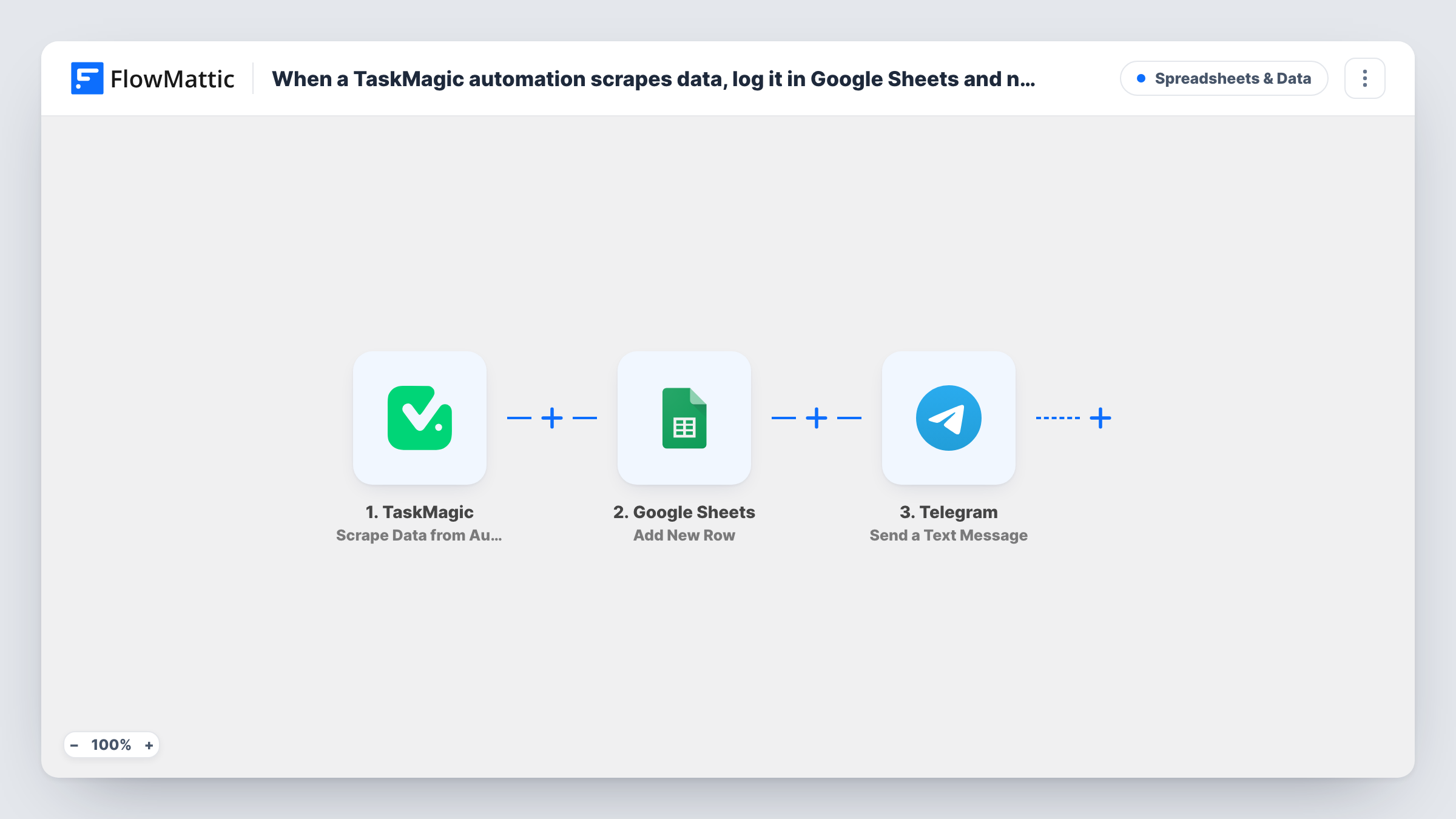
When a TaskMagic automation sends scraped data to FlowMattic, this workflow saves it as a new Google Sheets row and posts a Telegram text message so your team knows new data has arrived.
 TaskMagic
 Google Sheets
 Telegram
3 steps Setup ~5 min Used on 849 sites Free to import
What this workflow does
TaskMagic automations can collect data from web pages, but the results are only useful once they are stored somewhere and someone looks at them. This workflow does both in one run: it keeps the scraped data in a spreadsheet and tells your team about it in Telegram.
The TaskMagic trigger fires when scraped data is sent from your automation. FlowMattic writes the values you map into a new row in Google Sheets. Then the Telegram step sends a text message, which can include the scraped values and supports markup for simple formatting.
Every payload TaskMagic sends adds one row and one message. If your automation sends data often, the chat will get a message for each one. Task History lists every run with the data it carried.
Price checks on competitor pages
A TaskMagic automation reads prices from product pages. Each result is stored in the sheet and the team chat sees the latest figures.
Job or listing monitoring
Scraped listings from a board you follow are logged in Google Sheets, and a Telegram message tells the recruiter or buyer to take a look.
Collecting research data
An automation gathers figures from public pages for a report. The sheet holds the raw data while Telegram tells the analyst a new batch has arrived.
How this workflow runs
What happens at each step once the workflow is on, and what you need before you import it.
 TaskMagic Scrape Data from Automation
Fires when scraped data is sent from your TaskMagic automation to FlowMattic. The scraped values become available to the sheet and the message.
- Google Sheets Add New Row
Adds a row to the Google Sheets spreadsheet you select with the scraped values you map. Connect your Google account and match each column to a value.
- Telegram Send a Text Message
Sends a text message through Telegram, with support for markup. Write the text, insert scraped values or a note that the sheet was updated, and connect your Telegram account.
What you need
- FlowMatticCore
- TaskMagic AccountAccount
- Google Sheets AccountAccount
- Telegram AccountAccount
After importing, map your own data. To keep the template universal, not every step is pre-filled. Open each step in the builder and connect your accounts and fields (channels, lists, sheets, recipients) before you switch the workflow on.
Make it yours
Changes worth making after you import it.
- Run your TaskMagic automation once after import so FlowMattic captures a real payload, then map columns and message text from it.
- If one payload holds a list of results, add an Iterator before Google Sheets so each result gets its own row.
- Add a Filter before the Telegram step if the team only needs a message when a value meets a condition, such as a price below a number you set.
Questions about this workflow
How do I link my TaskMagic automation to this workflow?
The trigger fires when your TaskMagic automation sends its scraped data. Connect TaskMagic in the trigger step, then run the automation once and check that the data shows up in FlowMattic.
Does the team get a Telegram message for every TaskMagic payload?
Yes, as imported. Each payload runs all three steps. Add a Filter before the Telegram step if you want fewer messages.
If writing the TaskMagic row to Google Sheets fails, is Telegram still notified?
Yes. The Telegram step still runs, and Task History shows the error on the Google Sheets step so you can fix the mapping or access.
Are TaskMagic results from before the import added to the sheet?
No. Only data your automation sends after the workflow is switched on reaches Google Sheets and Telegram.
More Spreadsheets & Data workflows
Other ready-to-import templates from the same category.




Import this workflow into your WordPress site
Download the JSON, import it from the Workflows screen and connect your accounts. Every run stays on your server, with no per-task fees.
30-day money-back guarantee Unlimited workflows and runs Self-hosted