

Log every finished Plumsail Documents job in a Google Sheets tracker
Each time a Plumsail Documents process finishes, this workflow adds a row to a Google Sheets tracker, giving you a running record of the documents your processes produce.
 Plumsail Documents
 Google Sheets
2 steps Setup ~5 min Used on 1.7k sites Free to import
What this workflow does
Plumsail Documents turns templates and data into contracts, invoices, certificates and other files through processes you set up. Once a process runs often, it gets hard to say what was produced, for whom and when. This workflow writes a row to Google Sheets every time a process finishes.
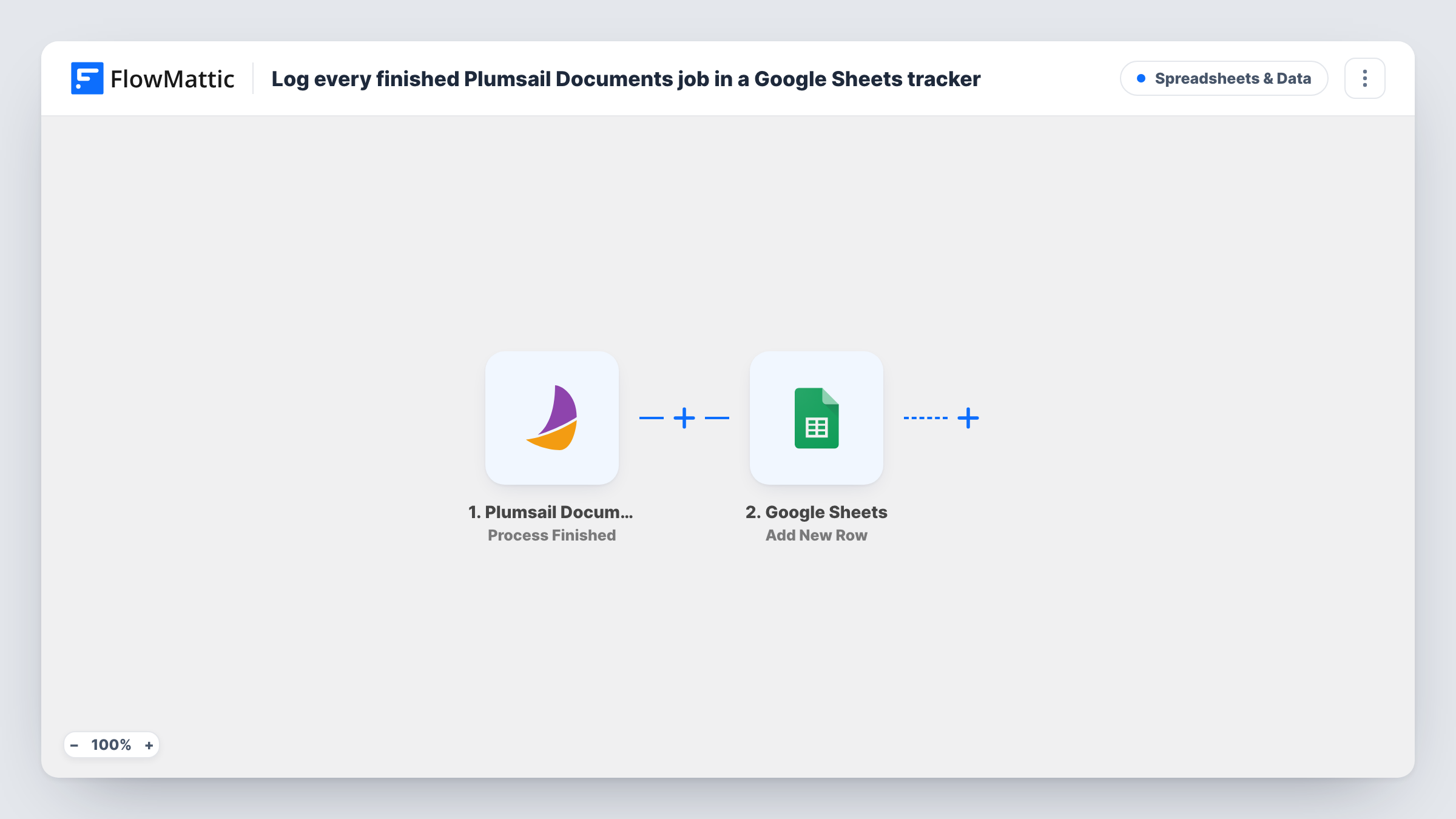
The Plumsail Documents trigger, Process Finished, fires when a process is finished. FlowMattic passes the data from that event to Google Sheets, where Add New Row appends a row to the spreadsheet you choose. You decide which values fill which columns, depending on what Plumsail includes in the event.
The sheet is a log, not a store for the documents themselves. Each finished process adds one row, and nothing is filtered as imported. Run a process once after import to see the values Plumsail sends, then map your columns.
Contract register for a small business
Every contract generated by a Plumsail process gets a row, so the office manager has one list to check which agreements went out.
Certificate log for a training provider
Course certificates produced by a Plumsail process are recorded in a sheet that the training team can sort by date.
Spotting gaps in a monthly invoice run
Compare the sheet against your customer list to see whether an invoice process finished for everyone this month.
How this workflow runs
What happens at each step once the workflow is on, and what you need before you import it.
 Plumsail Documents Process Finished
Fires when a Plumsail Documents process is finished. The data from that finished process is passed to the Google Sheets step.
- Google Sheets Add New Row
Appends a row to the Google Sheets tracker you pick. Map each column to a value from the finished process, and connect your Google account.
What you need
- FlowMatticCore
- Plumsail Documents AccountAccount
- Google Sheets AccountAccount
After importing, map your own data. To keep the template universal, not every step is pre-filled. Open each step in the builder and connect your accounts and fields (channels, lists, sheets, recipients) before you switch the workflow on.
Make it yours
Changes worth making after you import it.
- Add a date column filled from the trigger data, if Plumsail sends a timestamp, so the tracker sorts in the order processes finished.
- If you run several Plumsail processes, map a value that identifies the process into its own column so you can filter the sheet by it.
- Add a Filter after the trigger if only one process should be logged in this tracker.
Questions about this workflow
Does the Google Sheets row include the Plumsail document file?
The row holds whatever values you map. If the event includes a link to the result file, you can map it into a column; run a process after import to check.
Which Plumsail Documents processes start this workflow?
Process Finished fires when a process is finished, so as imported every process that finishes adds a row. Add a Filter to narrow it.
Are processes that finished before import logged in the sheet?
No. Only processes that finish while the workflow is on reach Google Sheets.
More Spreadsheets & Data workflows
Other ready-to-import templates from the same category.




Import this workflow into your WordPress site
Download the JSON, import it from the Workflows screen and connect your accounts. Every run stays on your server, with no per-task fees.
30-day money-back guarantee Unlimited workflows and runs Self-hosted