

Send a SlackBot message when a new Task is created in SuiteDash
Each time a task is created in SuiteDash, this workflow posts a message about it to a Slack channel you choose, so your team sees new work without checking the SuiteDash dashboard.
 SuiteDash
 Slack
2 steps Setup ~5 min Used on 1.7k sites Free to import
What this workflow does
SuiteDash keeps clients, projects and tasks in one portal, but most teams talk in Slack. A new task can sit unnoticed until someone opens SuiteDash. This workflow announces each new task in a Slack channel instead.
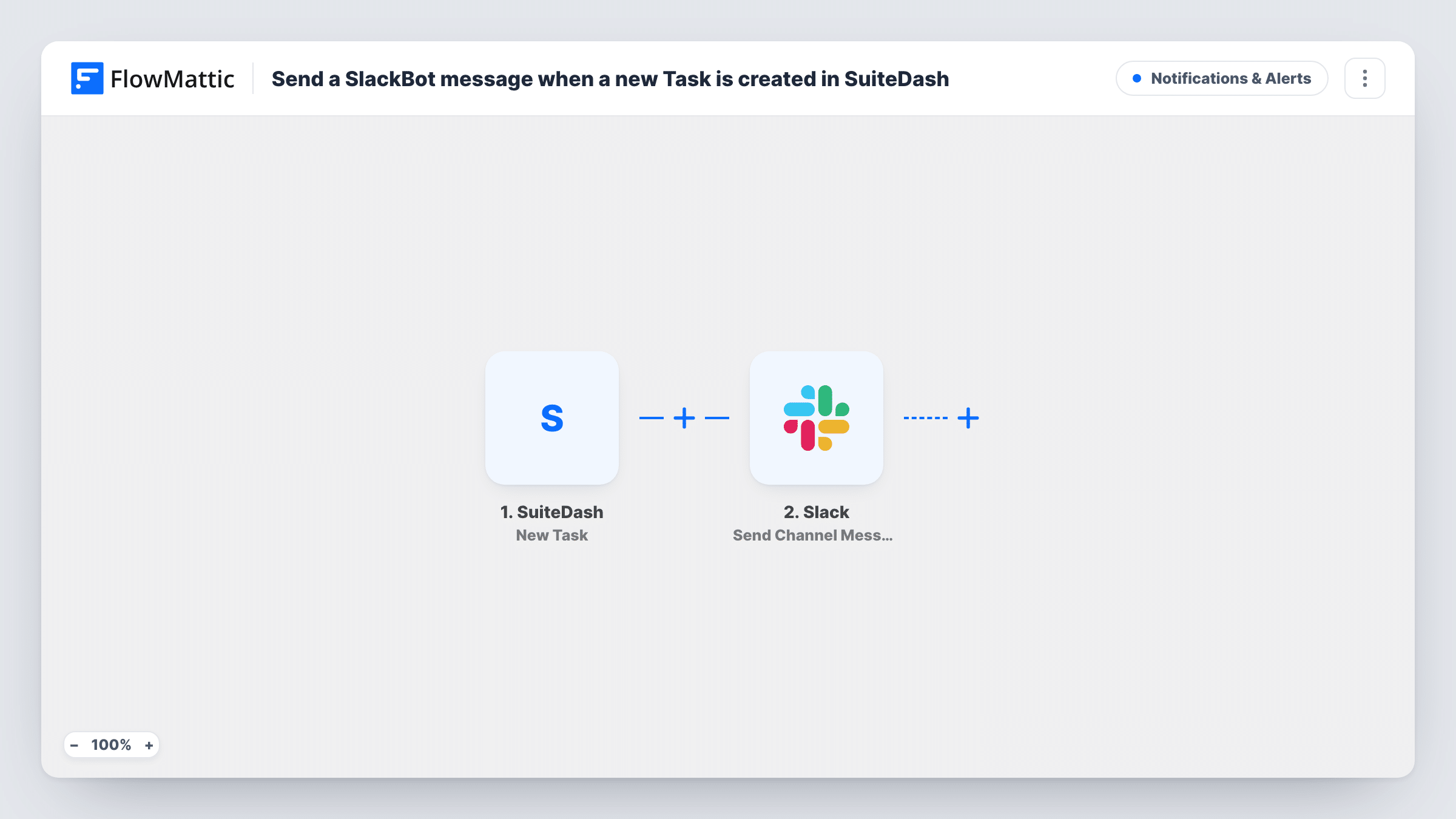
The SuiteDash trigger, New Task, fires when a task is created and hands its details to FlowMattic. The next step uses Slack Send Channel Message to post in the #channel you pick. You write the message and drop in the SuiteDash values you want people to see.
The template doesn't come with a message written, so you build it after import. A test task shows exactly which details SuiteDash sends. Keep the message short enough to read at a glance. Every post is recorded in Task History, which helps if a message doesn't show up in the channel.
An agency's delivery channel
Project managers create tasks in SuiteDash for client work. Each one appears in the team's delivery channel in Slack, so designers and writers see it right away.
Admin tasks for a small office
Office staff add admin tasks in SuiteDash. A message in a shared Slack channel lets whoever is free pick it up.
Client requests turned into tasks
When a client request becomes a task in SuiteDash, the support channel in Slack gets a note about it, keeping the team aware of new requests.
How this workflow runs
What happens at each step once the workflow is on, and what you need before you import it.
 SuiteDash New Task
Fires when a new task is created in SuiteDash. Connect your SuiteDash account, and the task details SuiteDash sends become available to place in the Slack message.
- Slack Send Channel Message
Announces the new SuiteDash task in one Slack channel of your choosing. Connect your Slack workspace, pick the channel, and write the message using values from the task.
What you need
- FlowMatticCore
- SuiteDash AccountAccount
- Slack AccountAccount
After importing, map your own data. To keep the template universal, not every step is pre-filled. Open each step in the builder and connect your accounts and fields (channels, lists, sheets, recipients) before you switch the workflow on.
Make it yours
Changes worth making after you import it.
- Add a Filter after the trigger on a value SuiteDash sends with each task, so only the tasks your channel cares about are posted.
- Route tasks for different teams to different channels with a Router. Give each route a distinct condition so a task matches only one of them.
- Create a test task in SuiteDash after import, then build the Slack message from the values you see in that test.
Questions about this workflow
Will the Slack message change when the SuiteDash task is updated?
No. The workflow posts once, when the task is created. Later changes in SuiteDash don't edit or repost the message.
Can the SuiteDash alert go to a direct message instead of a channel?
Not as imported. The step is Send Channel Message. You could replace it with a different Slack action in FlowMattic if you want a direct message.
Are tasks created before I import this posted to Slack?
No. Only tasks created after the workflow is turned on trigger a message.
Does a private Slack channel work with this SuiteDash workflow?
The connected Slack app needs access to the channel before it can post there. Test with your chosen channel and check Task History for Slack's response.
More Notifications & Alerts workflows
Other ready-to-import templates from the same category.





Import this workflow into your WordPress site
Download the JSON, import it from the Workflows screen and connect your accounts. Every run stays on your server, with no per-task fees.
30-day money-back guarantee Unlimited workflows and runs Self-hosted