

When a GivingFuel deposit is processed, log it in Airtable and send a thank-you email via Gmail
When GivingFuel processes a subscription payment or deposit, this workflow saves it as a record in Airtable and then sends a thank-you message from your Gmail account, so each gift is logged and acknowledged.
 GivingFuel
 Airtable
 Gmail
3 steps Setup ~5 min Used on 2.1k sites Free to import
What this workflow does
Every gift deserves a record and a thank-you, and both are easy to put off when donations arrive in batches. Keeping a donor table in Airtable by hand also means retyping amounts and names from GivingFuel. This workflow does the logging and sends the thank-you as each payment is processed.
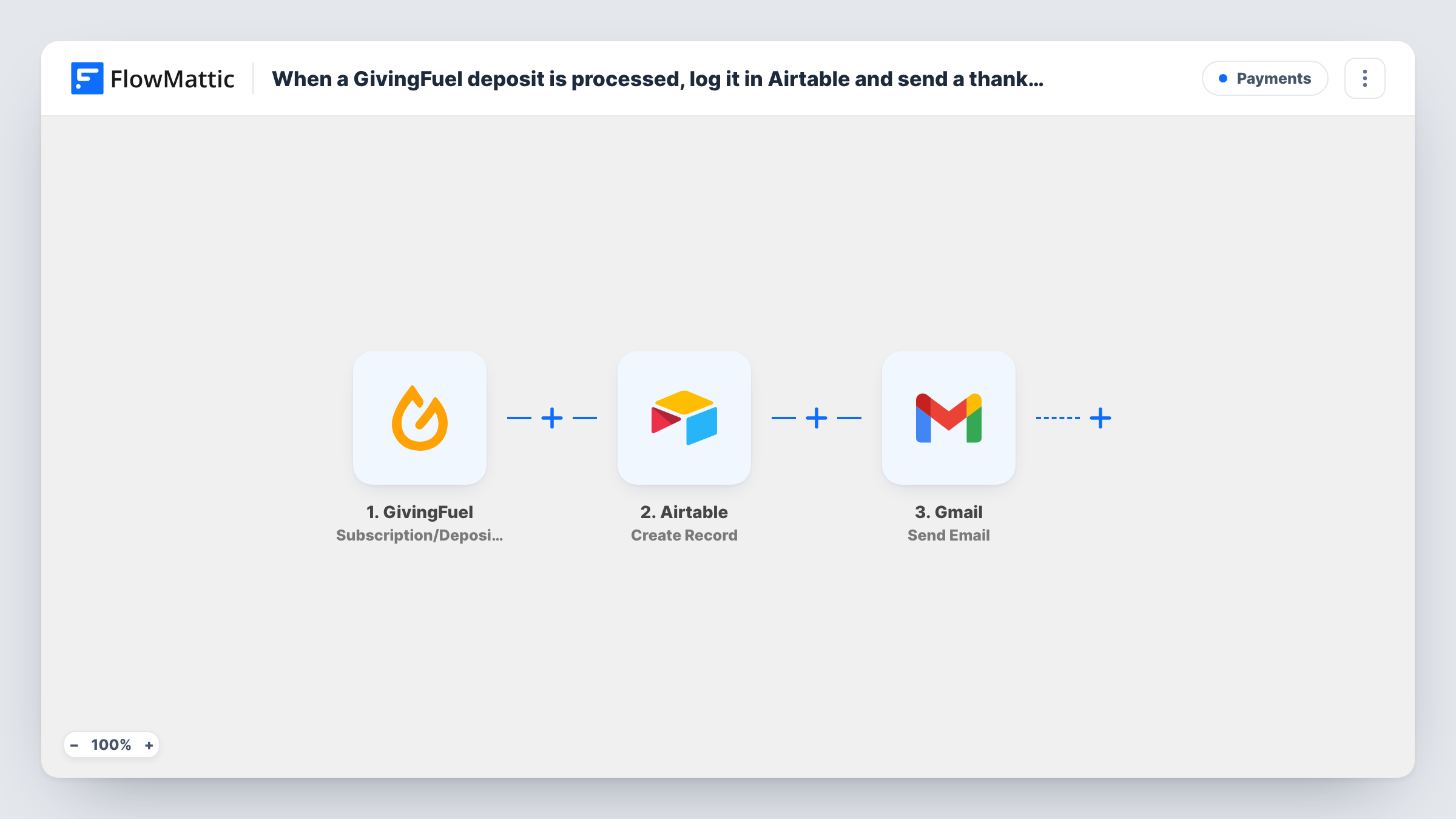
The GivingFuel trigger, Subscription/Deposit Processed, fires when a subscription or deposit is processed. FlowMattic passes the payment details GivingFuel sends to Airtable, where Create Record adds a new row to the base and table you choose. The last step uses Gmail Send Email to send a message you write, addressed with the donor email you map from the GivingFuel data.
Because the trigger covers recurring subscription payments as well as deposits, a monthly donor receives a new record and a new email each time a payment is processed. Write the message with that in mind, or add a Filter after import. A test donation shows which values GivingFuel sends, and Task History keeps every run.
Thanking one-off donors after a campaign
A year-end appeal brings in many single gifts. Each processed deposit gets its own Airtable record and a personal thank-you from the development officer's Gmail address.
A donor table for board reporting
Your treasurer builds board reports in Airtable. Every processed gift is already there as a record, ready to group by campaign or date.
Recognising monthly supporters
Recurring givers get a short note each time their payment goes through, and the Airtable table shows the full run of their payments.
How this workflow runs
What happens at each step once the workflow is on, and what you need before you import it.
 GivingFuel Subscription/Deposit Processed
Fires when GivingFuel processes a subscription payment or a deposit. Connect your GivingFuel account. The payment and donor details it sends become available to map into Airtable and Gmail.
- Airtable Create Record
Creates a new record in the Airtable base and table you pick. Map the GivingFuel values, such as the amount and the donor's name, into your table's fields. Run one test gift to see what GivingFuel provides.
- Gmail Send Email
Emails the donor through the Gmail account you connect. Map the donor's email from the GivingFuel data as the recipient, then write the subject and the thank-you text, adding the donor's name and gift details where you want them.
What you need
- FlowMatticCore
- GivingFuel AccountAccount
- Airtable AccountAccount
- Gmail AccountAccount
After importing, map your own data. To keep the template universal, not every step is pre-filled. Open each step in the builder and connect your accounts and fields (channels, lists, sheets, recipients) before you switch the workflow on.
Make it yours
Changes worth making after you import it.
- Add a Filter after the trigger if only deposits, not recurring subscription payments, should get the thank-you, using a value from the GivingFuel data that tells them apart.
- Create the Airtable fields before mapping, such as amount, donor name, email and date, so each value has a column to land in.
- Send a test donation to your own address first and read the Gmail message as a donor would see it, then switch the workflow on.
Questions about this workflow
Will monthly GivingFuel donors get a thank-you email every month?
Yes, as imported. The trigger fires for subscription payments as well as deposits, so each processed payment creates a record and sends an email. Add a Filter if you want fewer messages.
Which email address does the GivingFuel thank-you come from?
It is sent through the Gmail account you connect to the Send Email step, so donors see that address as the sender.
What if the Airtable step fails?
The run carries on, so the Gmail email is still sent. Task History shows the error on the Airtable step and the data it tried to save.
Are past GivingFuel donations added to Airtable?
No. Only payments processed after the workflow is on reach Airtable and Gmail. Earlier gifts need a separate import.
More Payments workflows
Other ready-to-import templates from the same category.






Import this workflow into your WordPress site
Download the JSON, import it from the Workflows screen and connect your accounts. Every run stays on your server, with no per-task fees.
30-day money-back guarantee Unlimited workflows and runs Self-hosted