

When contact form 7 form is submitted, add a new contact in Sendinblue
Each Contact Form 7 submission on your WordPress site creates a new contact in Brevo (Sendinblue) from the fields you map, so people who write to you are ready for your next email campaign.
 Contact Form 7
 Brevo ( Sendinblue )
2 steps Setup ~5 min Used on 3.1k sites Free to import
What this workflow does
Contact Form 7 emails you each message and keeps nothing else. The people who filled in the form never reach your Brevo contacts unless you copy their addresses across. This workflow does that copying for you, one submission at a time.
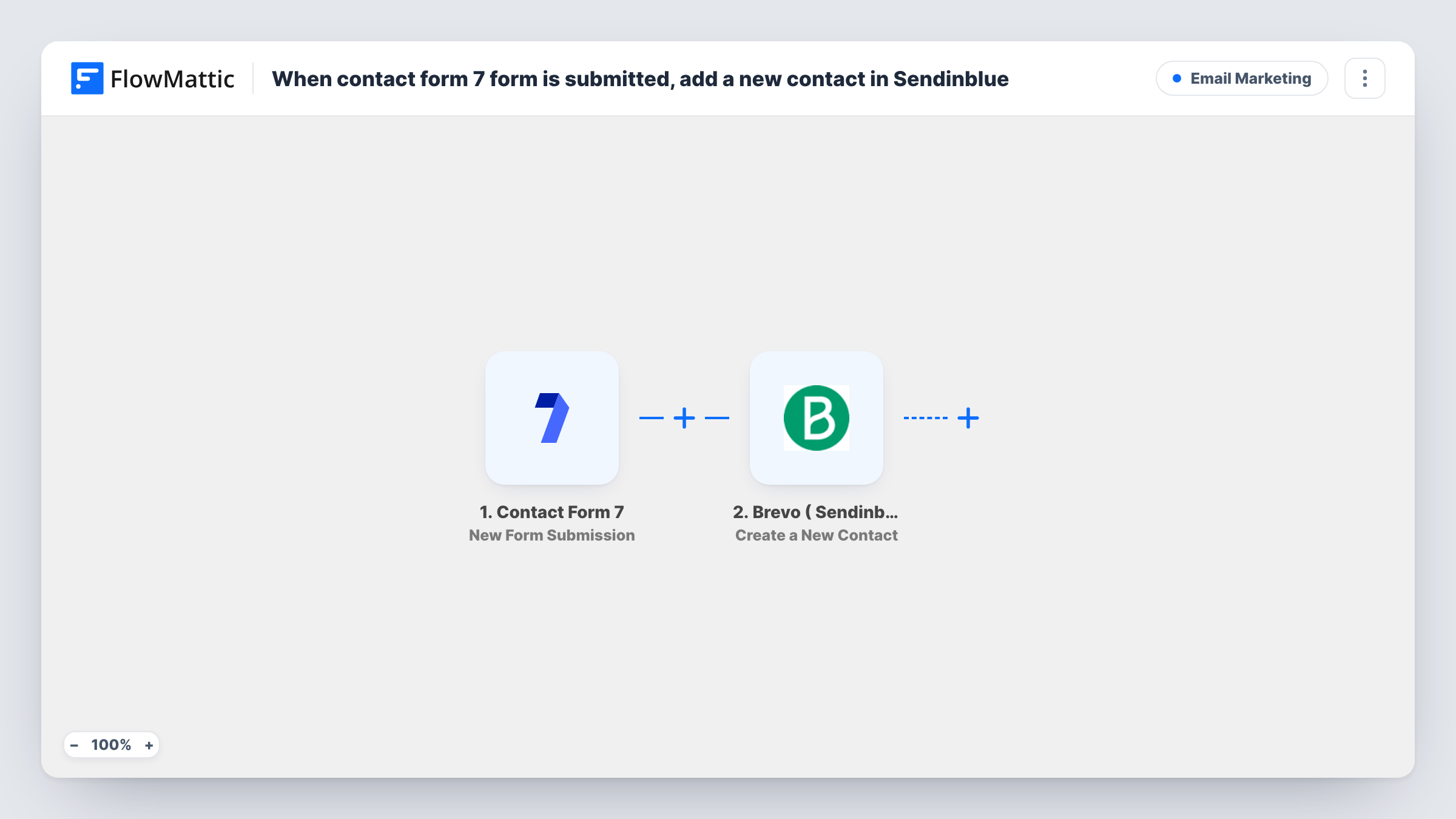
The Contact Form 7 trigger runs each time a visitor sends one of your WordPress contact forms. FlowMattic takes the submitted fields, such as name and email, and passes them on. The Brevo ( Sendinblue ) step creates a new contact from the values you map.
Your form keeps working as before, including its notification email. The workflow runs alongside it. Task History shows each run, so you can see which fields were sent to Brevo and what it replied. If you only want people who agreed to marketing, add a consent checkbox to the form and a Filter on it.
Contact page on a service business site
People who send an enquiry through Contact Form 7 are added to Brevo, so you can include them in a later newsletter if they agreed to it.
Simple newsletter form in a sidebar
A two-field Contact Form 7 form asking for name and email works as a sign-up box, with each entry created as a Brevo contact.
Download request form
Visitors ask for a brochure through a form. Their details reach Brevo, where you can send the file in a follow-up email.
How this workflow runs
What happens at each step once the workflow is on, and what you need before you import it.
 Contact Form 7 New Form Submission
Fires when a visitor submits a Contact Form 7 form on your WordPress site. Each field from that form is available to map into Brevo.
- Brevo ( Sendinblue ) Create a New Contact
Creates a new contact in Brevo (Sendinblue) from the submission. Map the form's email field to the contact email and add the name field if you collect it. You link a Brevo account to the step during import.
What you need
- FlowMatticCore
- Contact Form 7 PluginPlugin
- Brevo ( Sendinblue ) AccountAccount
After importing, map your own data. To keep the template universal, not every step is pre-filled. Open each step in the builder and connect your accounts and fields (channels, lists, sheets, recipients) before you switch the workflow on.
Make it yours
Changes worth making after you import it.
- Use email* in the Contact Form 7 form tag so the email field is required and the Brevo step always has an address to work with.
- Add a consent checkbox to the form, then a Filter after the trigger that continues only when it is ticked.
- Submit the form once after import so FlowMattic captures the field names, then map them in the Brevo step before turning the workflow on.
Questions about this workflow
Will Contact Form 7 still send its usual email?
Yes. The workflow listens for submissions and does not change your form's mail settings.
What happens when someone submits the form twice?
The Brevo step runs again and tries to create the contact. Brevo may refuse an address it already holds; the response appears in Task History for that run.
Does the Brevo step store the message text from Contact Form 7?
Only if you map it. The step creates a contact from the fields you place in it, so a message field reaches Brevo only when you add it to a contact attribute there.
Do I need Brevo and Contact Form 7 both set up first?
Yes. Contact Form 7 must be active on the same WordPress site as FlowMattic, and you connect a Brevo account to the Create a New Contact step.
More Email Marketing workflows
Other ready-to-import templates from the same category.






Import this workflow into your WordPress site
Download the JSON, import it from the Workflows screen and connect your accounts. Every run stays on your server, with no per-task fees.
30-day money-back guarantee Unlimited workflows and runs Self-hosted