

Log every Gainsight feedback event in a Google Sheets spreadsheet
Each feedback event from Gainsight becomes a new row in Google Sheets, holding the details you map, so you keep a running log of customer feedback in a spreadsheet anyone on the team can open.
 Gainsight
 Google Sheets
2 steps Setup ~5 min Used on 2.4k sites Free to import
What this workflow does
Feedback collected in Gainsight is most useful when people outside the customer success tool can see it too. Product managers, support leads and executives often work in spreadsheets instead. This workflow copies each Gainsight feedback event into Google Sheets as it happens, so the log fills itself.
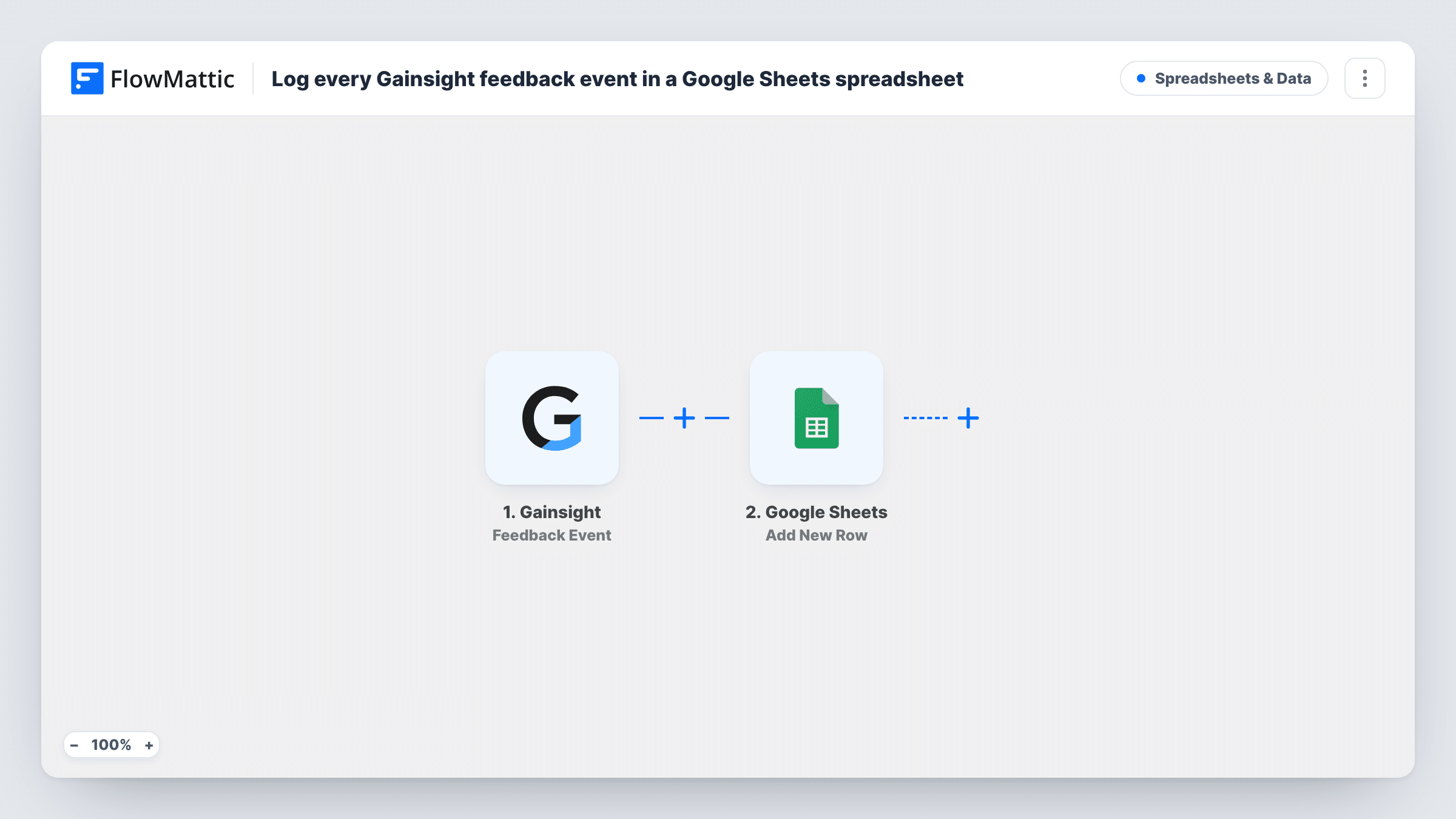
The Gainsight trigger fires for a feedback event. FlowMattic takes the data that event carries and hands it to Google Sheets. The Add New Row action then puts the fields you mapped into a new row of the spreadsheet you picked, one row per event.
Every feedback event is logged as imported. There is no step that sorts or scores the feedback, so the sheet is a plain record you can filter, chart or comment on. Task History lists each run with the data it passed along.
Product team feedback review
Product managers read new Gainsight feedback in a shared sheet before planning meetings, without needing their own Gainsight seat.
Quarterly feedback report
A customer success lead builds charts on top of the sheet to show the volume and themes of feedback over the quarter.
Tagging feedback for follow-up
Support adds its own columns next to each row to mark which feedback needs a reply and who owns it.
How this workflow runs
What happens at each step once the workflow is on, and what you need before you import it.
 Gainsight Feedback Event
Fires for a feedback event in Gainsight. The data that event sends to FlowMattic becomes available to map into the spreadsheet row.
- Google Sheets Add New Row
Places each Gainsight feedback event in its own new row of the Google Sheets file you pick. Map the event fields to your columns and connect your Google account on import.
What you need
- FlowMatticCore
- Gainsight AccountAccount
- Google Sheets AccountAccount
After importing, map your own data. To keep the template universal, not every step is pre-filled. Open each step in the builder and connect your accounts and fields (channels, lists, sheets, recipients) before you switch the workflow on.
Make it yours
Changes worth making after you import it.
- Trigger a test feedback event in Gainsight after import so FlowMattic captures the payload, then map each field you care about to a column header.
- Add a column in the Google Sheets step for the time of the run, so you can sort feedback by when it arrived even if the event data has no date you want to use.
- Want only some feedback in the sheet? Add a Filter after the trigger that checks a field from the event, such as a type or rating value.
Questions about this workflow
Which Gainsight feedback details end up in the sheet?
Whatever the feedback event sends and you map to a column. Run a test after import to see what the event carries before you set up your columns.
Will older Gainsight feedback be added to Google Sheets?
No. Only feedback events that happen after you turn on the workflow are logged.
Does the Gainsight workflow overwrite rows in my sheet?
No. It always adds a new row for each event and leaves existing rows as they are.
More Spreadsheets & Data workflows
Other ready-to-import templates from the same category.




Import this workflow into your WordPress site
Download the JSON, import it from the Workflows screen and connect your accounts. Every run stays on your server, with no per-task fees.
30-day money-back guarantee Unlimited workflows and runs Self-hosted