

Save Typeform form entries to Google Docs
Each Typeform submission is turned into its own Google Doc, with the answers you choose written into the document, so every response has a readable copy in your Google Drive.
 Typeform
 Google Docs
2 steps Setup ~5 min Used on 1.5k sites Free to import
What this workflow does
Typeform is good at collecting answers, but a long response is easier to read, share and comment on as a document than as a row in a results table. This workflow creates a new Google Doc for each Typeform entry, holding the answers you choose.
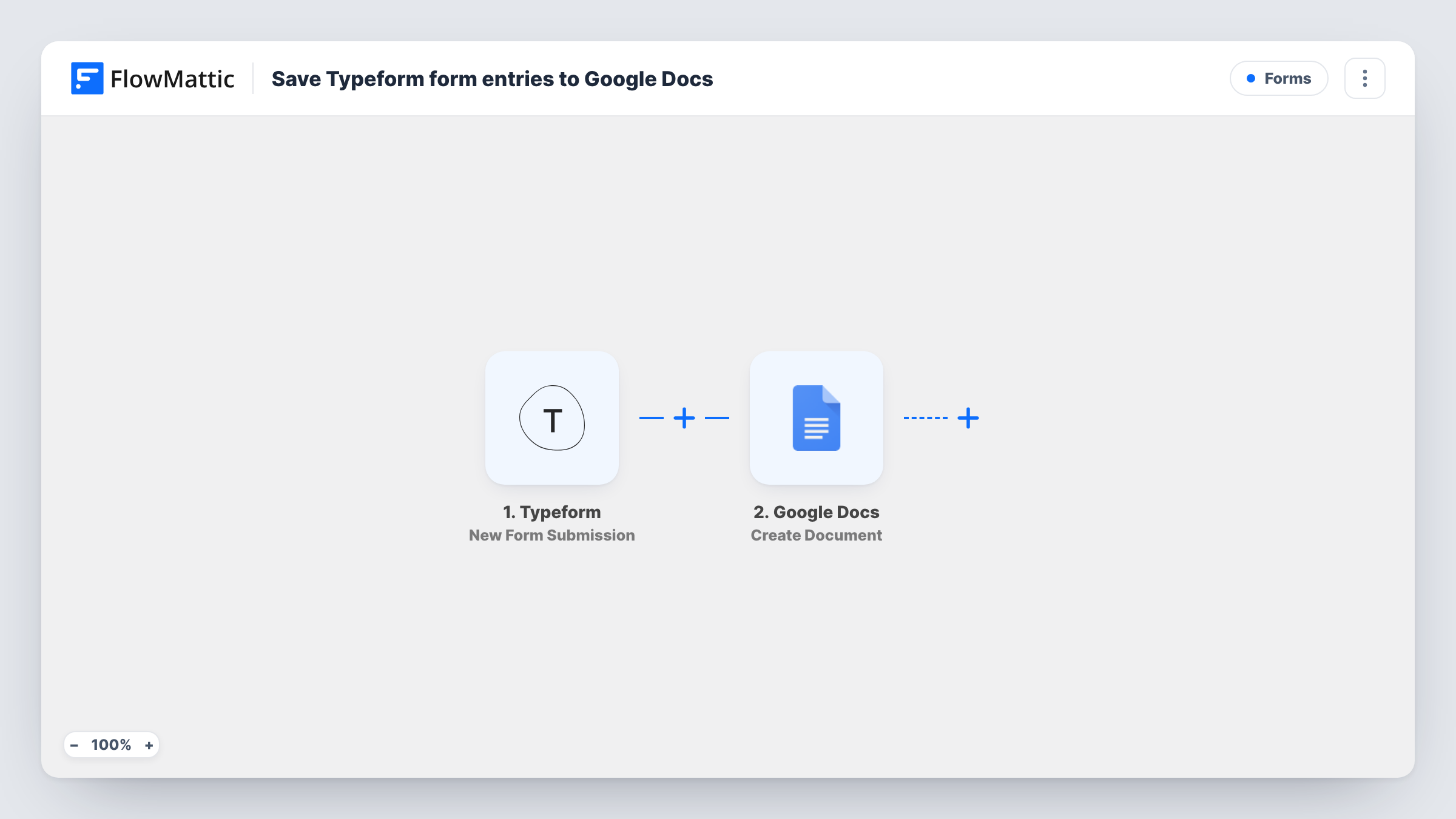
The Typeform trigger starts a run whenever a respondent finishes your form, carrying their answers into FlowMattic. The Google Docs Create Document step then creates a new document, and you build its title and content from fixed text and those answers. A title that includes the respondent's name or company makes the docs easy to find later.
One submission makes one document, with nothing filtered out. The docs are created in the Google account you connect, where you can share them, comment on them or move them into folders. Each run appears in Task History, so you can see the answers that went into a particular document.
Client onboarding questionnaires
A new client's Typeform onboarding answers become a Google Doc you can share with the project team and annotate before the kickoff call.
Job application write-ups
Each applicant's long-form Typeform answers land in a separate doc, so reviewers can read and comment on one candidate at a time.
Interview or research notes
Researchers collect structured interview answers in Typeform and get a document per participant for quoting and analysis.
How this workflow runs
What happens at each step once the workflow is on, and what you need before you import it.
 Typeform New Form Submission
Runs on each new Typeform submission. Every answer in the response is passed to FlowMattic and can be placed in the Google Doc.
- Google Docs Create Document
Creates a new Google Doc for the submission. Build the document's title and its optional content from Typeform answers, then connect your Google account on import.
What you need
- FlowMatticCore
- Typeform AccountAccount
- Google Docs AccountAccount
After importing, map your own data. To keep the template universal, not every step is pre-filled. Open each step in the builder and connect your accounts and fields (channels, lists, sheets, recipients) before you switch the workflow on.
Make it yours
Changes worth making after you import it.
- Start the content with labels such as Name, Email and Answer, each followed by the mapped Typeform answer, so the doc reads like a tidy form summary.
- Add a Gmail or Slack step after the doc is created to tell your team. Check a test run for what the Google Docs step returns, such as the document ID, and include it.
- Send one test response in Typeform after import so FlowMattic captures the question fields before you map them into the document.
Questions about this workflow
Does every Typeform response create a separate Google Doc?
Yes. Each submission runs the Create Document step once, so you get one new document per response rather than one growing file.
Where are the Typeform Google Docs saved?
In the Google Drive of the account you connect. Check a test run to see where the step places new documents and move them into folders if needed.
Can I choose which Typeform answers go into the document?
Yes. You map only the answers you want into the document's content, and you can mix them with your own fixed text and headings.
Can each Typeform response go into one shared document instead?
Not as imported. Swap Create Document for the Google Docs Append Text to Document action and pick one existing document, so each response is added to the end of it.
More Forms workflows
Other ready-to-import templates from the same category.








Import this workflow into your WordPress site
Download the JSON, import it from the Workflows screen and connect your accounts. Every run stays on your server, with no per-task fees.
30-day money-back guarantee Unlimited workflows and runs Self-hosted