

Add 5 days to the date received in Google Sheet new row and set the Slack alert after 5 days
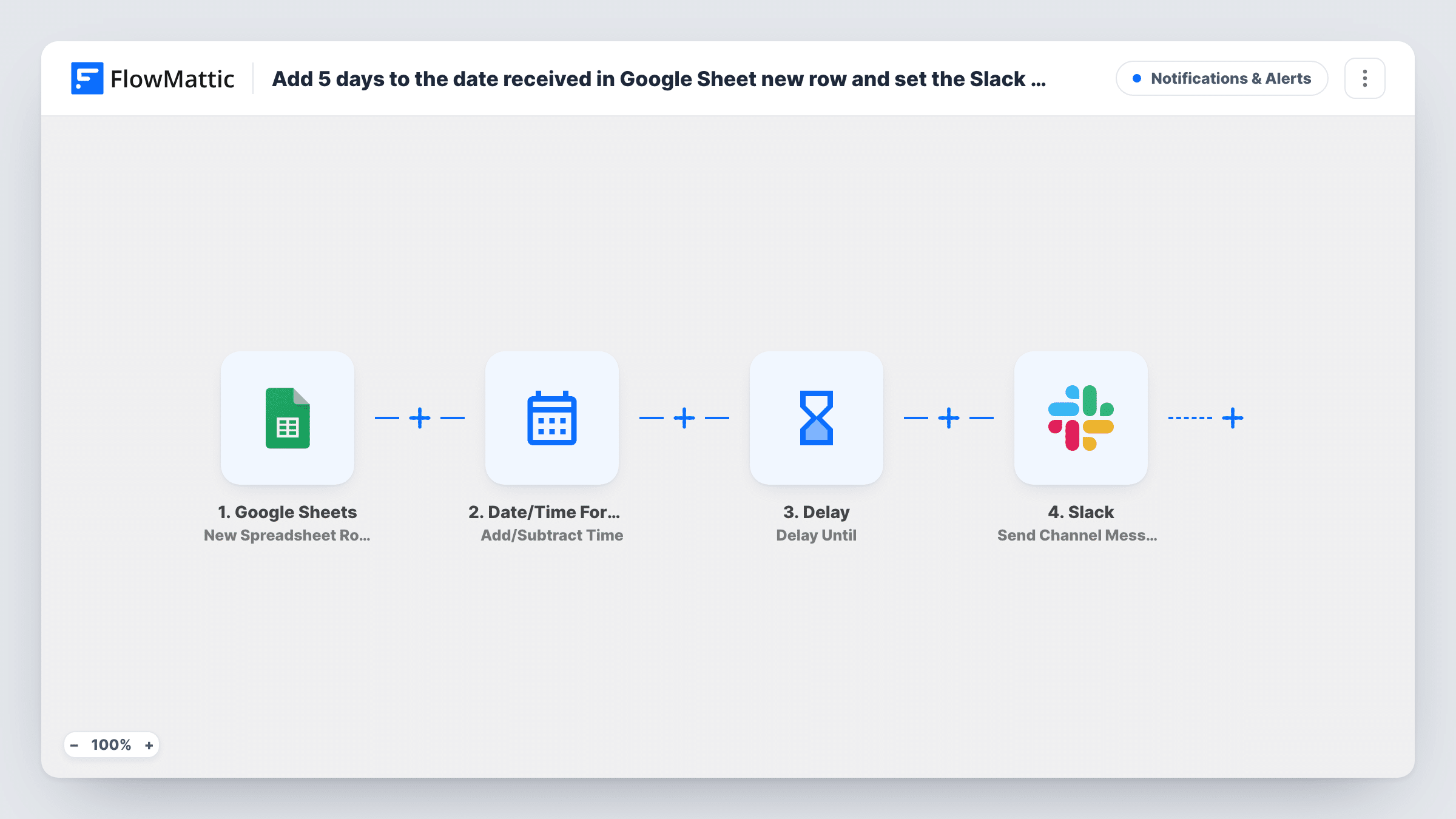
When a new row is added to Google Sheets, this workflow adds five days to a date from that row, waits until the new date, then posts a message to a Slack channel so the follow-up lands on time.
 Google Sheets
 Date/Time Formatter
 Delay
 Slack
4 steps Setup ~8 min Used on 448 sites Free to import
What this workflow does
A date in a spreadsheet is easy to note and easy to forget. If something needs attention a few days later, such as a follow-up call or a check on a delivery, someone has to remember to look. This workflow turns each new row into a Slack reminder five days after the date it holds.
The Google Sheets trigger fires when a new row is added to the spreadsheet you pick. The Date/Time Formatter step takes the date you map from that row and adds five days to it. A Delay Until step then holds the run until that calculated date and time. When it is reached, the Slack step posts your message to the channel you choose.
The run waits per row, so ten new rows mean ten separate waits, each ending on its own date. Changing the date in the sheet after the row is added does not move the reminder, because the date was read when the row arrived. Task History shows each waiting run.
Follow-up after a sales demo
Reps log each demo date in a sheet. Five days later, the sales channel in Slack gets a message naming the prospect so someone checks in.
Delivery check for shipped orders
A row is added with the dispatch date. When five days have passed, the support channel is told to confirm the parcel arrived.
Review window on submitted work
Freelance submissions go into a sheet with a received date. The team channel is reminded when the five-day review window has run out.
How this workflow runs
What happens at each step once the workflow is on, and what you need before you import it.
 Google Sheets New Spreadsheet Row
Starts a run each time a row is appended to your chosen Google Sheets spreadsheet. Each column in that row becomes data you can map, including the date the later steps use.
- Date/Time Formatter Add/Subtract Time
Adds five days to the date you map from the new row. The result is a new date and time that the Delay step waits for. Check the output format with a test row.
- Delay Delay Until
Holds the workflow until the date and time calculated in the previous step. The run stays paused for that row until then, while other rows keep their own waits.
- Slack Send Channel Message
Posts a message to the Slack channel you pick once the wait ends. Map details from the sheet row, such as a name or reference, into the message text.
What you need
- FlowMatticCore
- Google Sheets AccountAccount
- Slack AccountAccount
After importing, map your own data. To keep the template universal, not every step is pre-filled. Open each step in the builder and connect your accounts and fields (channels, lists, sheets, recipients) before you switch the workflow on.
Make it yours
Changes worth making after you import it.
- Change the number of days in the Date/Time Formatter step if five days doesn't suit you. Every new row then uses the new interval.
- Add a Filter after the trigger that continues only when the date column is not empty, so rows without a date don't start a wait.
- Make sure the date column in your sheet uses one consistent format. Test a row first and check in Task History that the calculated date is correct.
Questions about this workflow
What if the Google Sheets row date plus five days is already in the past?
The Delay Until step has nothing left to wait for, so the Slack message may go out right away. Test with an old date to confirm how your setup behaves.
Will editing the sheet's date later change the Slack reminder?
No. The date is read once when the row is added. A later edit in the sheet does not change a run that is already waiting.
Can the Slack reminder go to a direct message instead of a channel?
Not as imported. The step posts to a channel. Swap it for a Slack direct message action if you want a person to receive it.
Does every new row in the Google Sheet get its own Slack reminder?
Yes. Each new row starts its own run, with its own wait and its own message.
More Notifications & Alerts workflows
Other ready-to-import templates from the same category.





Import this workflow into your WordPress site
Download the JSON, import it from the Workflows screen and connect your accounts. Every run stays on your server, with no per-task fees.
30-day money-back guarantee Unlimited workflows and runs Self-hosted