

Save new Typeform entries as text files in Dropbox
Each new Typeform response becomes a text file in your Dropbox, holding the answers you choose, so you keep a copy of every submission as a plain file outside Typeform.
 Typeform
 Dropbox
2 steps Setup ~5 min Used on 470 sites Free to import
What this workflow does
Typeform keeps responses in its own dashboard. If you want a copy you control, or a file per response that colleagues can open without a Typeform login, you need to export them. This workflow writes each new response to a text file in Dropbox as it arrives.
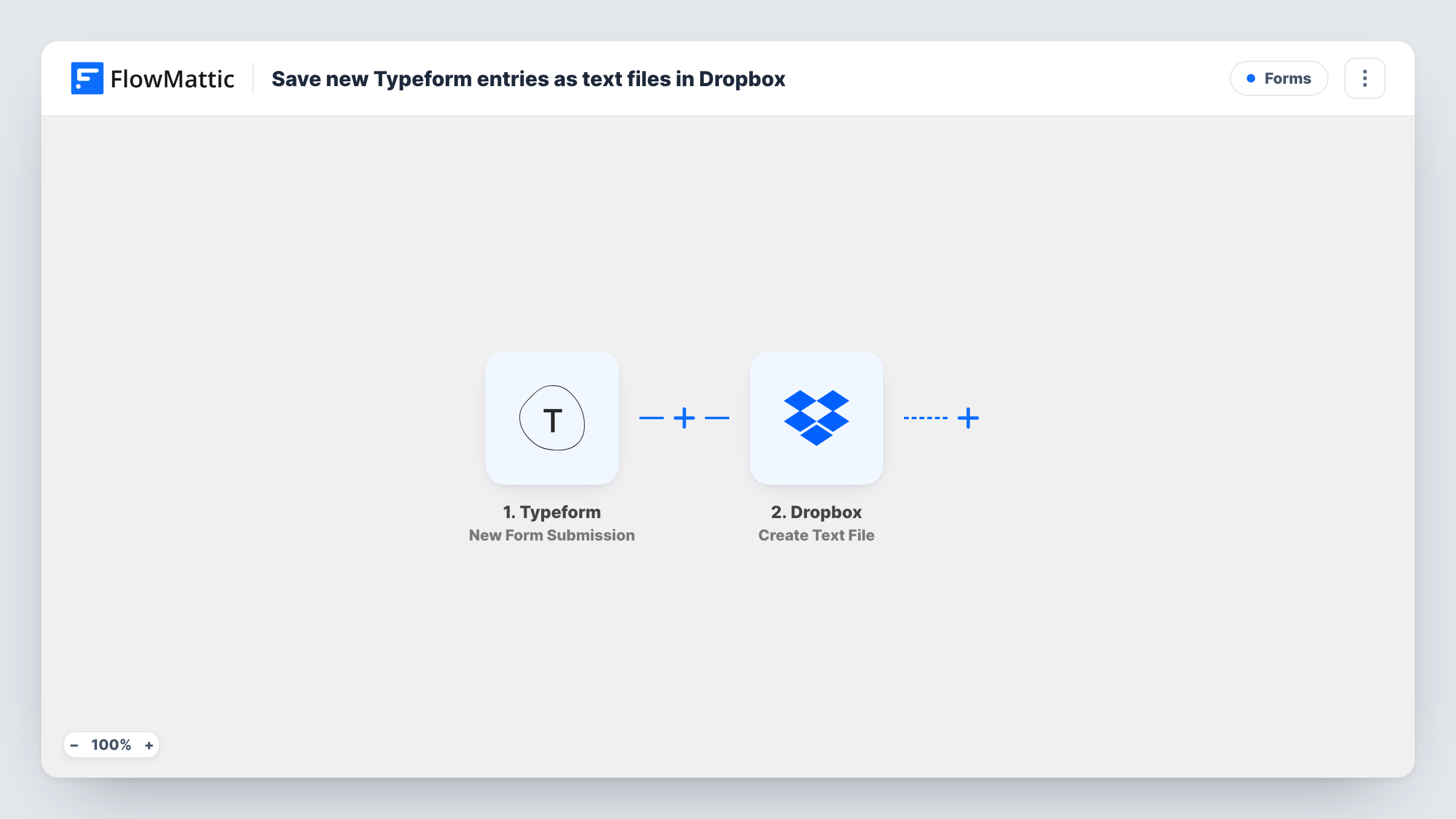
As soon as a respondent completes your Typeform, the trigger runs. FlowMattic passes the answers to Dropbox, where Create Text File makes a new file with the content you set. You decide the layout: put each question label next to its mapped answer, add the submission time, and so on.
Plain text is easy to open on any device and easy to search in Dropbox. Each response makes its own file. Run a test after import to see where the file is saved and how it is named. Each run, with the content sent to Dropbox, is listed in Task History.
Interview or intake questionnaires
Each candidate or client who completes a Typeform intake gets a text file in a Dropbox folder, ready to open before your first call.
Archive for compliance
Keep a file copy of every consent or registration form in Dropbox, so you still have the answers if you later close the Typeform account.
Sharing with a contractor
A designer working from a shared Dropbox folder reads each project brief submitted through Typeform without needing access to your forms.
How this workflow runs
What happens at each step once the workflow is on, and what you need before you import it.
 Typeform New Form Submission
Fires when a respondent submits your Typeform form. Each answer becomes data you can place in the text file.
- Dropbox Create Text File
Creates a new text file in Dropbox with the content you write. Map the Typeform answers into that content and connect your Dropbox account.
What you need
- FlowMatticCore
- Typeform AccountAccount
- Dropbox AccountAccount
After importing, map your own data. To keep the template universal, not every step is pre-filled. Open each step in the builder and connect your accounts and fields (channels, lists, sheets, recipients) before you switch the workflow on.
Make it yours
Changes worth making after you import it.
- If the Dropbox step asks for a file name or path, map a value that differs per response, such as the respondent's email, so one response's file doesn't clash with another's.
- Add a Filter after the trigger if only some responses need a file, for example those that answered a particular choice.
- Submit a test response after import so FlowMattic captures the Typeform answers, then lay out the file content in the Dropbox step.
Questions about this workflow
Can the Dropbox file be a PDF or Word document instead of text?
Not with this step. Create Text File makes a plain text file. You'd need a different step that produces a document if you want another format.
Are uploaded files from Typeform saved in Dropbox too?
Not by this template. It writes the response content you map into the text file. If a file upload answer gives a link, you can include that link as text.
Which Typeform responses are saved as Dropbox files?
Every new response submitted after you turn the workflow on. Earlier responses stay in Typeform and are not copied.
Where in Dropbox are the Typeform files saved?
That depends on how you set up the Create Text File step. Run a test response and open Dropbox to confirm where the file landed before you share the folder.
More Forms workflows
Other ready-to-import templates from the same category.





Import this workflow into your WordPress site
Download the JSON, import it from the Workflows screen and connect your accounts. Every run stays on your server, with no per-task fees.
30-day money-back guarantee Unlimited workflows and runs Self-hosted