

Create a Tweet for every new listing in Voxel
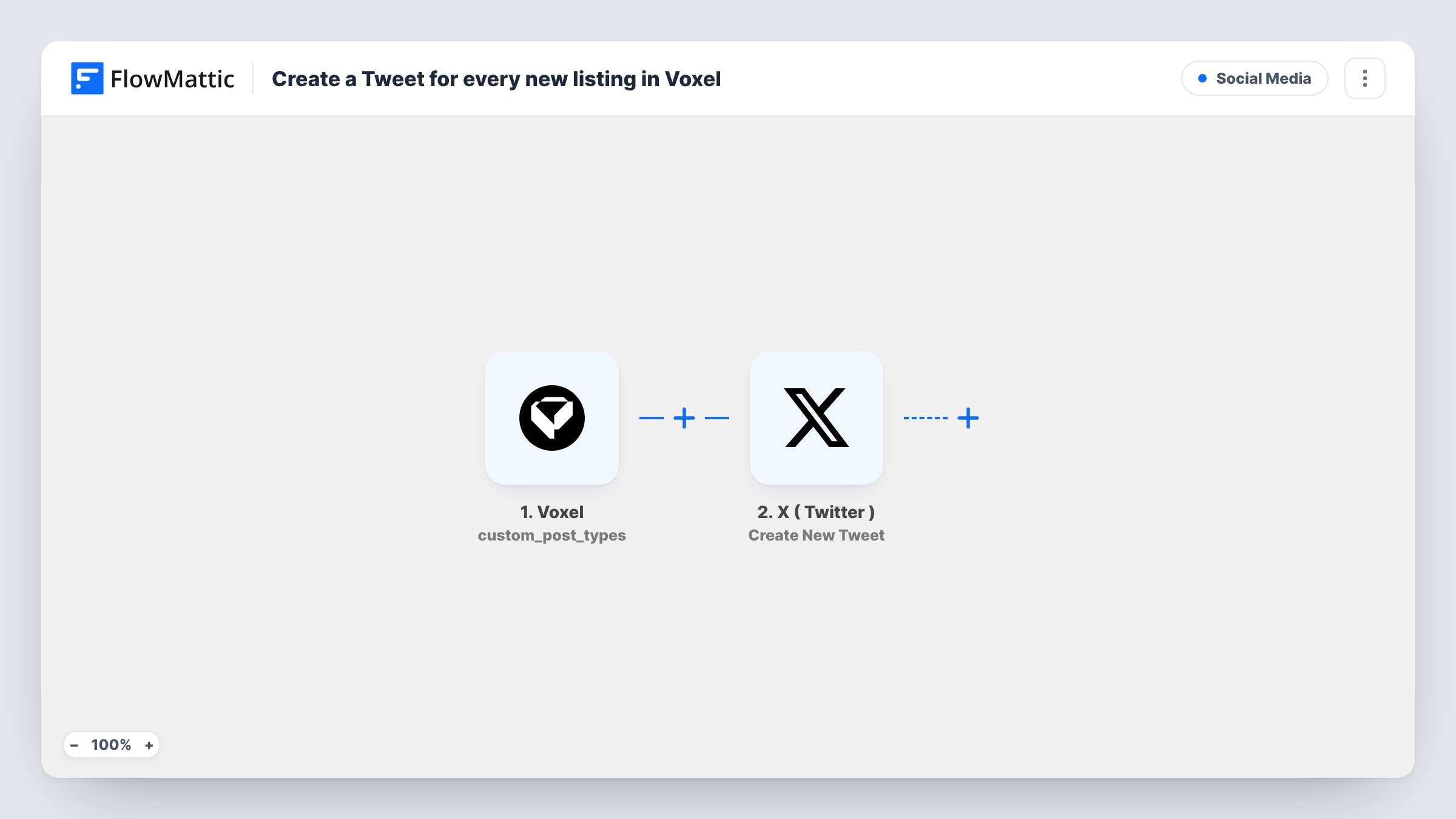
When a new post is created in the Voxel post type you choose, such as your listings, FlowMattic publishes a tweet about it on your X (Twitter) profile.
 Voxel
Voxel
 X ( Twitter )
2 steps Setup ~5 min Used on 2.1k sites Free to import
What this workflow does
Directory and marketplace sites built on Voxel grow one listing at a time, and each one is a reason to post on social media. Doing that by hand means someone has to notice the listing, copy its name and link, and write a post. This workflow tweets for you as soon as the listing is created.
The Voxel Post Created trigger fires when a post is created in the post type you select. After import, pick your listings post type so other content doesn't tweet. FlowMattic describes this event as firing before moderation, so a listing that is still waiting for approval starts a run too.
The X (Twitter) step then creates a new tweet on the profile you connect. It ships unmapped: after import you write the tweet and map listing details from the trigger, such as the title and the link to the listing page.
Create a test listing and check Task History to see which Voxel values arrive and what X returned. If your site reviews listings before they go live, read the tips below first.
Restaurant directory announcements
A city food guide on Voxel tweets each new restaurant listing with its name and a link, so followers find new places to eat.
New rentals on a property site
A rental marketplace posts every new property listing to its X profile, linking straight to the listing page on the site.
Job board updates
A niche job board built with Voxel uses a jobs post type and tweets each opening as employers create it.
How this workflow runs
What happens at each step once the workflow is on, and what you need before you import it.
 Voxel Post Created
Fires when a post is created in the Voxel post type you select, before moderation. Choose your listings post type after import; the listing's details are passed to the tweet.
 X ( Twitter ) Create New Tweet
Publishes a new tweet on your connected X (Twitter) profile. The step ships unmapped: write the text and map the listing's title and link from the Voxel trigger.
What you need
- FlowMatticCore
- Voxel AccountAccount
- X ( Twitter ) AccountAccount
After importing, map your own data. To keep the template universal, not every step is pre-filled. Open each step in the builder and connect your accounts and fields (channels, lists, sheets, recipients) before you switch the workflow on.
Make it yours
Changes worth making after you import it.
- If listings are moderated, swap the trigger for FlowMattic's Voxel "Post Approved" trigger, so only approved listings are tweeted instead of ones still pending.
- Keep the tweet short and put the listing link at the end, so X's character limit doesn't cut off the important part.
- To tweet only some listings, put a Filter between the Voxel trigger and the X (Twitter) step on a category or field from a test run. The value it checks is an example to change.
Questions about this workflow
Does a Voxel listing get tweeted before it's approved?
Yes, as imported. Post Created fires before moderation. Use the Voxel Post Approved trigger instead if pending listings shouldn't be tweeted.
Will editing a Voxel listing post a second tweet?
It shouldn't. Post Created fires when the listing is created, and FlowMattic's Voxel integration has a separate Post Updated trigger for edits. Edit a test listing and check Task History to confirm.
Can the tweet include the listing's photo?
The template creates a text tweet with what you map. Check the Create New Tweet step after import to see which options it offers for your account.
More Social Media workflows
Other ready-to-import templates from the same category.





Import this workflow into your WordPress site
Download the JSON, import it from the Workflows screen and connect your accounts. Every run stays on your server, with no per-task fees.
30-day money-back guarantee Unlimited workflows and runs Self-hosted