

When user pays for membership in Buy Me a Coffee, thank them with a tweet
When a supporter starts a membership on Buy Me a Coffee, this workflow posts a thank-you tweet from your X account, using the wording you write and any supporter details you choose to include.
 Buy Me a Coffee
 X ( Twitter )
2 steps Setup ~5 min Used on 1.3k sites Free to import
What this workflow does
Creators often want to thank new members in public, but writing a post for each one is easy to put off. This workflow posts a tweet for you whenever someone starts a membership on your Buy Me a Coffee page.
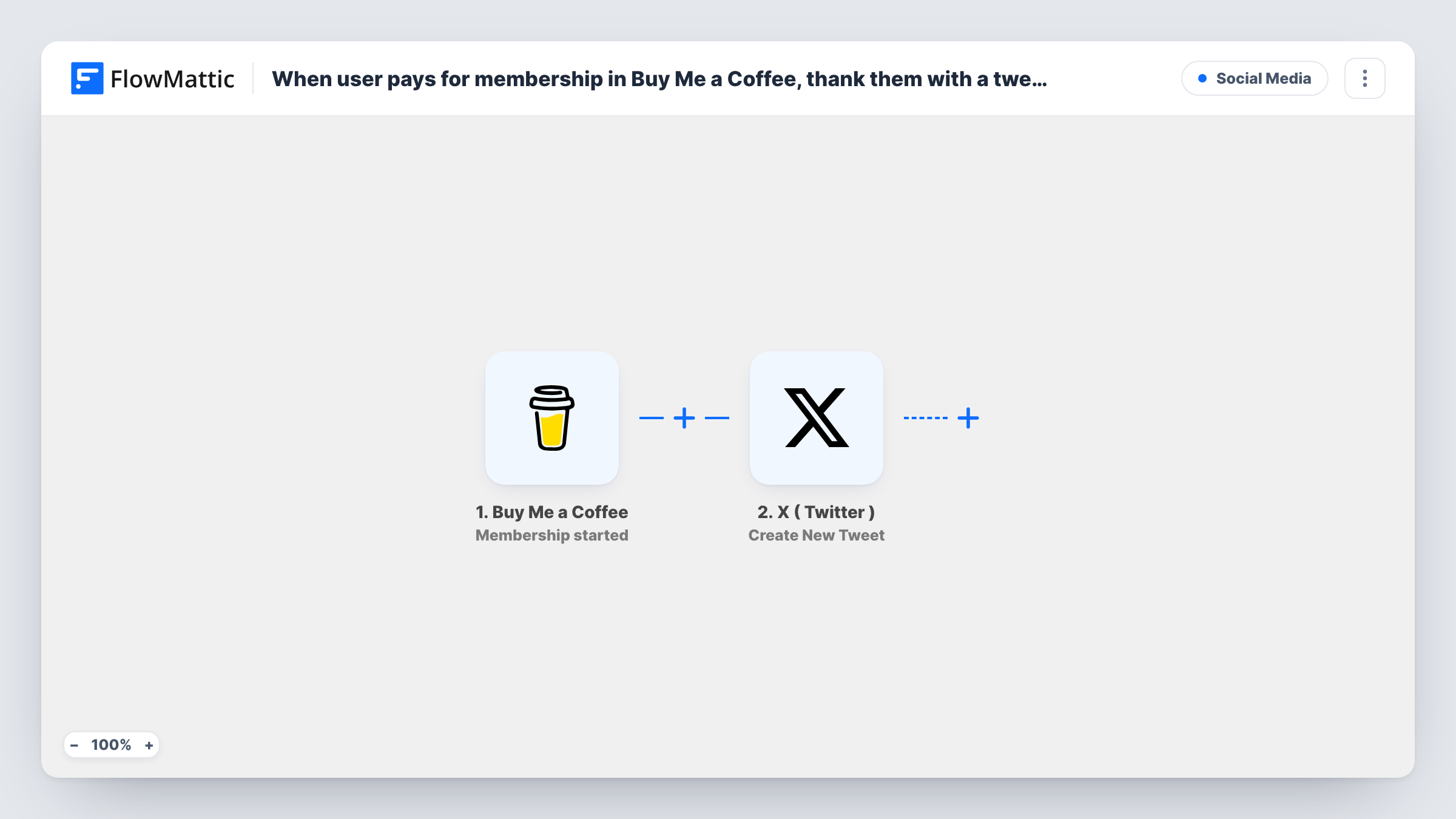
The Buy Me a Coffee trigger runs when the Membership started webhook arrives. The data in that webhook is handed to X (Twitter), where Create New Tweet posts to the profile you connect. You write the tweet and decide what goes into it, such as the supporter's name or the membership level, if the webhook includes them.
A tweet is public. Some supporters would rather stay anonymous, so think about whether to name people at all, or post a general thank-you instead. Every new membership posts a tweet, since the template has no Filter. Task History records each run and the response from X.
Podcast or video creator
Each new monthly member of your Buy Me a Coffee page gets a public thank-you on X, which also tells your followers that memberships exist.
Open-source maintainer
A maintainer funded through Buy Me a Coffee memberships posts a short thanks for each new supporter, keeping the project's funding visible.
Writer or illustrator
Post a thank-you that mentions the membership tier a supporter chose, so followers see what each level offers.
How this workflow runs
What happens at each step once the workflow is on, and what you need before you import it.
 Buy Me a Coffee Membership started
Runs when Buy Me a Coffee sends the Membership started webhook for your page. The supporter and membership data in that webhook can be mapped into the tweet.
- X ( Twitter ) Create New Tweet
Posts a new tweet on the X (Twitter) profile you connect. Write the thank-you text and map in Buy Me a Coffee details if you want to name the supporter.
What you need
- FlowMatticCore
- Buy Me a Coffee AccountAccount
- X ( Twitter ) AccountAccount
After importing, map your own data. To keep the template universal, not every step is pre-filled. Open each step in the builder and connect your accounts and fields (channels, lists, sheets, recipients) before you switch the workflow on.
Make it yours
Changes worth making after you import it.
- Leave names out of the tweet, or add a Filter on a field from the webhook, if some supporters may prefer not to be thanked in public.
- Keep the tweet short and leave room for mapped values, since a long supporter name or message can push the post past X's length limit.
- Start one test membership, or wait for the first, then check Task History to see which Buy Me a Coffee fields you can place in the tweet.
Questions about this workflow
Does the tweet tag the Buy Me a Coffee supporter on X?
Only if you have their X handle and put it in the text. The webhook carries Buy Me a Coffee data, so check a test run to see whether a handle is included.
Will one-time coffee purchases post a tweet too?
No. The trigger listens for the Membership started event only. One-time support comes through Buy Me a Coffee's Donation created event, which you could use in a separate workflow.
Which X account posts the thank-you?
The account you connect in the Create New Tweet step. Every tweet from this workflow goes out from that profile.
Can I post the thank-you somewhere other than X?
Yes. Replace the X step with another action, such as a Discord or Slack message, or add it as a second step after the tweet.
More Social Media workflows
Other ready-to-import templates from the same category.





Import this workflow into your WordPress site
Download the JSON, import it from the Workflows screen and connect your accounts. Every run stays on your server, with no per-task fees.
30-day money-back guarantee Unlimited workflows and runs Self-hosted