

Share new RSS items in Slack
When an RSS feed you follow publishes a new item, this workflow posts it to a Slack channel, so your team sees new posts, releases or news in the place they already talk.
 RSS Feed
 Slack
2 steps Setup ~5 min Used on 906 sites Free to import
What this workflow does
Blogs, changelogs, job boards and news sites still publish RSS feeds, but few people open a feed reader every day. Posting each new entry into Slack puts it in front of the team without anyone checking. This workflow does that for one feed of your choice.
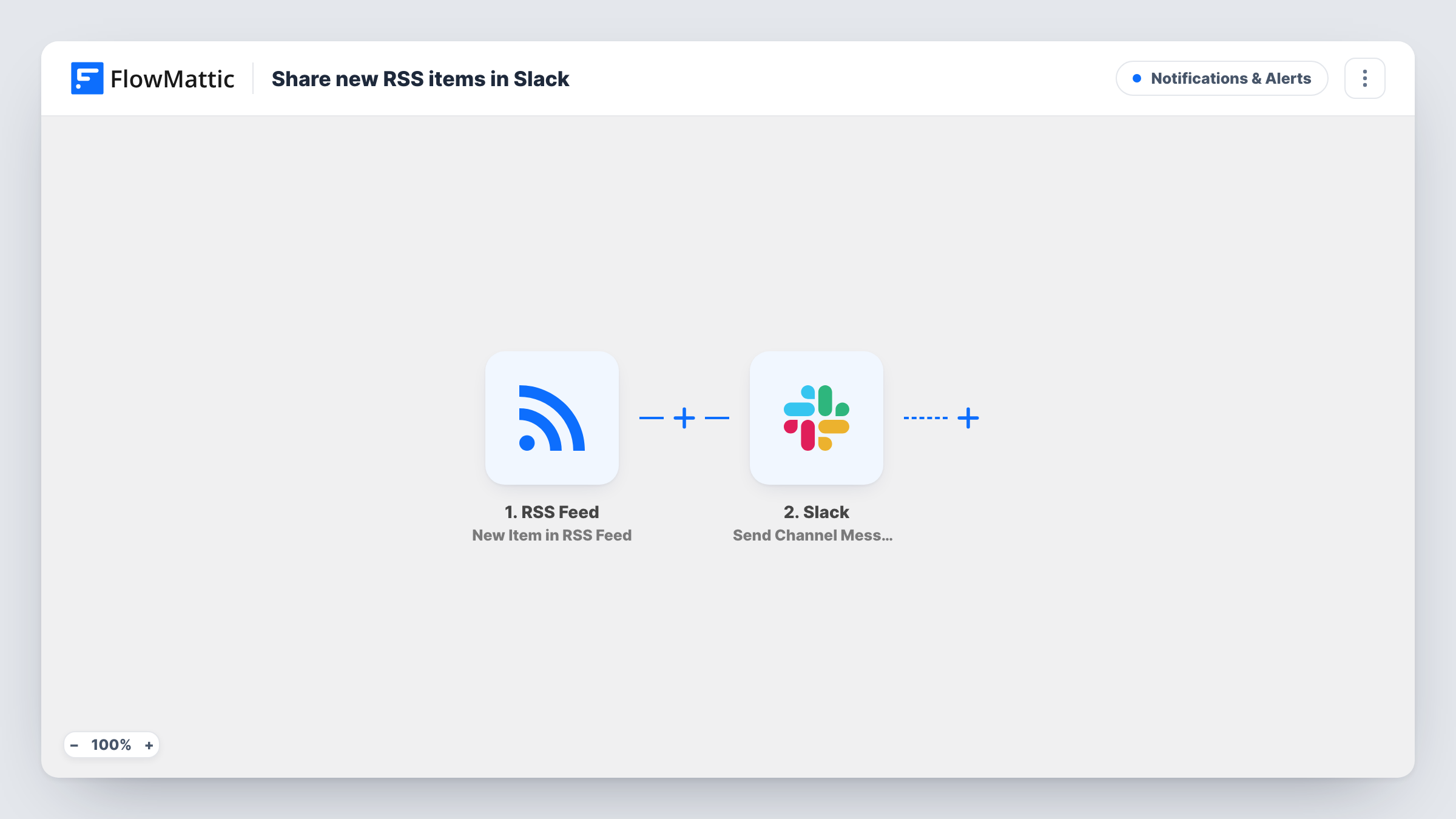
The RSS Feed trigger watches the feed you set up and fires when it finds a new item. The item's details, such as its title and link, come into FlowMattic. The Slack step then sends a channel message built from those details to the channel you pick.
Every new item becomes its own message, and nothing is filtered out as imported. A busy feed can fill a channel quickly, so give it a channel of its own or add a Filter for the topics you care about. Task History lists each item handled and Slack's response.
Competitor blog watch
A marketing team follows a competitor's blog feed and gets each new article in a #competitors channel to discuss.
Release notes from your tools
Developers follow the changelog feed of a library or service they depend on, so new versions appear in #dev-updates.
Company blog in the team channel
Your own blog's feed posts each new article to #general, so staff can read and share it the day it goes out.
How this workflow runs
What happens at each step once the workflow is on, and what you need before you import it.
 RSS Feed New Item in RSS Feed
Watches the RSS feed you set up and starts a run when a new item appears in it. The item's details are passed on to build the Slack message.
- Slack Send Channel Message
Sends the new feed item into a Slack channel of your choice as a message. Write the message from the feed item's details, for example its title followed by its link, and connect your Slack workspace after import.
What you need
- FlowMatticCore
- Slack AccountAccount
After importing, map your own data. To keep the template universal, not every step is pre-filled. Open each step in the builder and connect your accounts and fields (channels, lists, sheets, recipients) before you switch the workflow on.
Make it yours
Changes worth making after you import it.
- Add a Filter after the RSS trigger that continues only when the item title contains a keyword, so only posts on topics your team follows reach Slack.
- Put the item link on its own line at the end of the message so Slack shows a preview of the article.
- Import the workflow once per feed if you follow several, and point each copy at its own channel to keep sources apart.
Questions about this workflow
Does the Slack message carry the whole RSS article?
It carries what you map from the feed item. Many feeds include a summary or excerpt as well as the title and link, so you can add it to the message, while the full article stays on the site behind the link.
Can I follow more than one RSS feed with this Slack workflow?
Each copy of the workflow watches one feed. Import it again for each extra feed, or for a different channel.
Which RSS fields can I put in the Slack message?
Whatever the feed provides for each item, which typically includes the title and link. Run a test after import to see the exact fields your feed sends.
More Notifications & Alerts workflows
Other ready-to-import templates from the same category.





Import this workflow into your WordPress site
Download the JSON, import it from the Workflows screen and connect your accounts. Every run stays on your server, with no per-task fees.
30-day money-back guarantee Unlimited workflows and runs Self-hosted