

Send a Slack alert when a Kixie call is answered
When a call is answered in Kixie, FlowMattic posts a message to the Slack channel you choose with the call details you map, so your team sees live conversations as they connect.
 Kixie
 Slack
2 steps Setup ~5 min Used on 1.6k sites Free to import
What this workflow does
On a busy sales or support floor, it's hard to know which calls actually connected. Managers want to see conversations as they start, and teammates want to know when a prospect they've been chasing finally picks up. This workflow puts that signal in Slack.
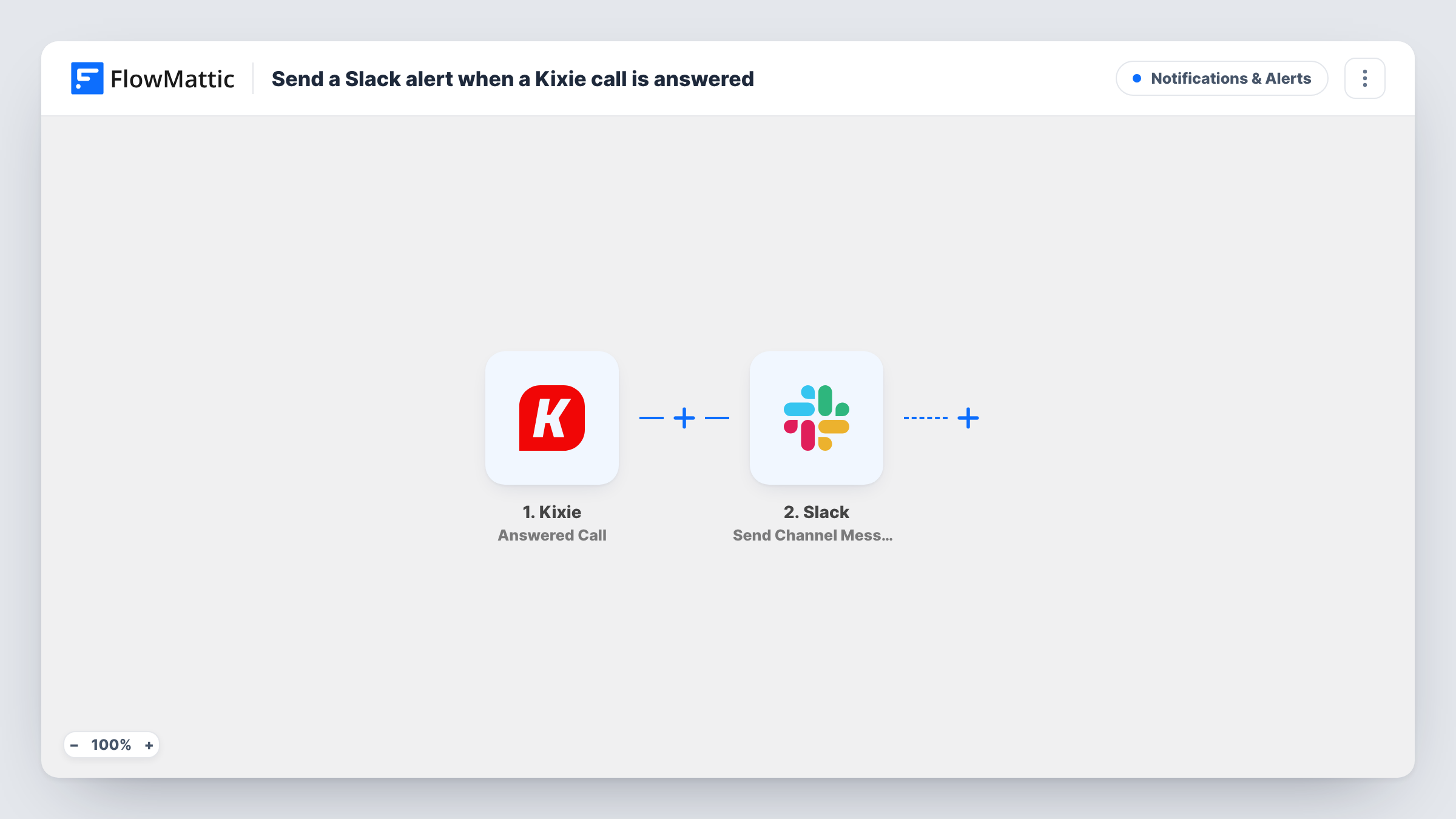
The Kixie trigger, Answered Call, fires when a call is answered. The call data Kixie sends becomes available to map. FlowMattic then runs Send Channel Message in Slack, posting a message to the channel you pick. You write the message and drop in the call values Kixie provides wherever you want them.
Every answered call posts a message, since there's no Filter in the template. On a high-volume team that can be a lot of messages, so use a dedicated channel or add a Filter for the calls you care about. Check a test call to see which fields Kixie includes before you write the message.
Live view for sales managers
A #calls-live channel shows each Kixie call as it's answered, so a manager can see who is on the phone and jump in to coach when a big prospect connects.
Tracking callbacks on hard-to-reach leads
When a lead who has ignored several attempts finally answers, the alert lets the account owner know the conversation is happening right now.
Support desk visibility
Support leads watch a Slack channel to see answered calls as they happen, which helps them spot when the phone line is busy.
How this workflow runs
What happens at each step once the workflow is on, and what you need before you import it.
 Kixie Answered Call
Fires when a call is answered in your Kixie account. The call's details are passed on so you can include them in the Slack message.
- Slack Send Channel Message
Sends your call alert to one public Slack channel of your choice. Write the alert text and map Kixie call values into it, then connect your Slack workspace on import.
What you need
- FlowMatticCore
- Kixie AccountAccount
- Slack AccountAccount
After importing, map your own data. To keep the template universal, not every step is pre-filled. Open each step in the builder and connect your accounts and fields (channels, lists, sheets, recipients) before you switch the workflow on.
Make it yours
Changes worth making after you import it.
- Add a Filter after the trigger on the agent or call direction, if Kixie includes it, so only the answered calls your team cares about reach Slack.
- Planning to post into a locked-down room? Kixie alerts for a private Slack channel need Slack's Send Private Channel Message, and a single rep is better served by Send Direct Message.
- Make a test call after import and check Task History to see which Kixie fields came through, then write them into the message text.
Questions about this workflow
Does every answered Kixie call post to Slack?
Yes, as imported. There's no Filter, so each answered call sends one message. Add a Filter after the trigger if you want to limit which calls are announced.
Are missed calls or voicemails sent to Slack too?
No. This template only reacts to answered calls. Kixie has separate triggers in FlowMattic, such as Voicemail and End Call, that you can use in other workflows.
Can the Slack alert include a link to the contact in my CRM?
Only if Kixie sends a value you can build that link from. Check a test run in Task History to see what the Answered Call trigger provides.
More Notifications & Alerts workflows
Other ready-to-import templates from the same category.




Import this workflow into your WordPress site
Download the JSON, import it from the Workflows screen and connect your accounts. Every run stays on your server, with no per-task fees.
30-day money-back guarantee Unlimited workflows and runs Self-hosted