

Send a OneSignal email when a new Gravity Forms entry is submitted
Each new Gravity Forms entry triggers an email sent through OneSignal, with its content built from the submitted fields, so your form can kick off an email from the same platform you use for notifications.
 Gravity Forms
 OneSignal
2 steps Setup ~5 min Used on 987 sites Free to import
What this workflow does
If you already use OneSignal for push and email notifications, it makes sense to send form-related emails from there too, rather than mixing in a separate mail setup. This workflow sends a OneSignal email each time a Gravity Forms entry is submitted on your WordPress site.
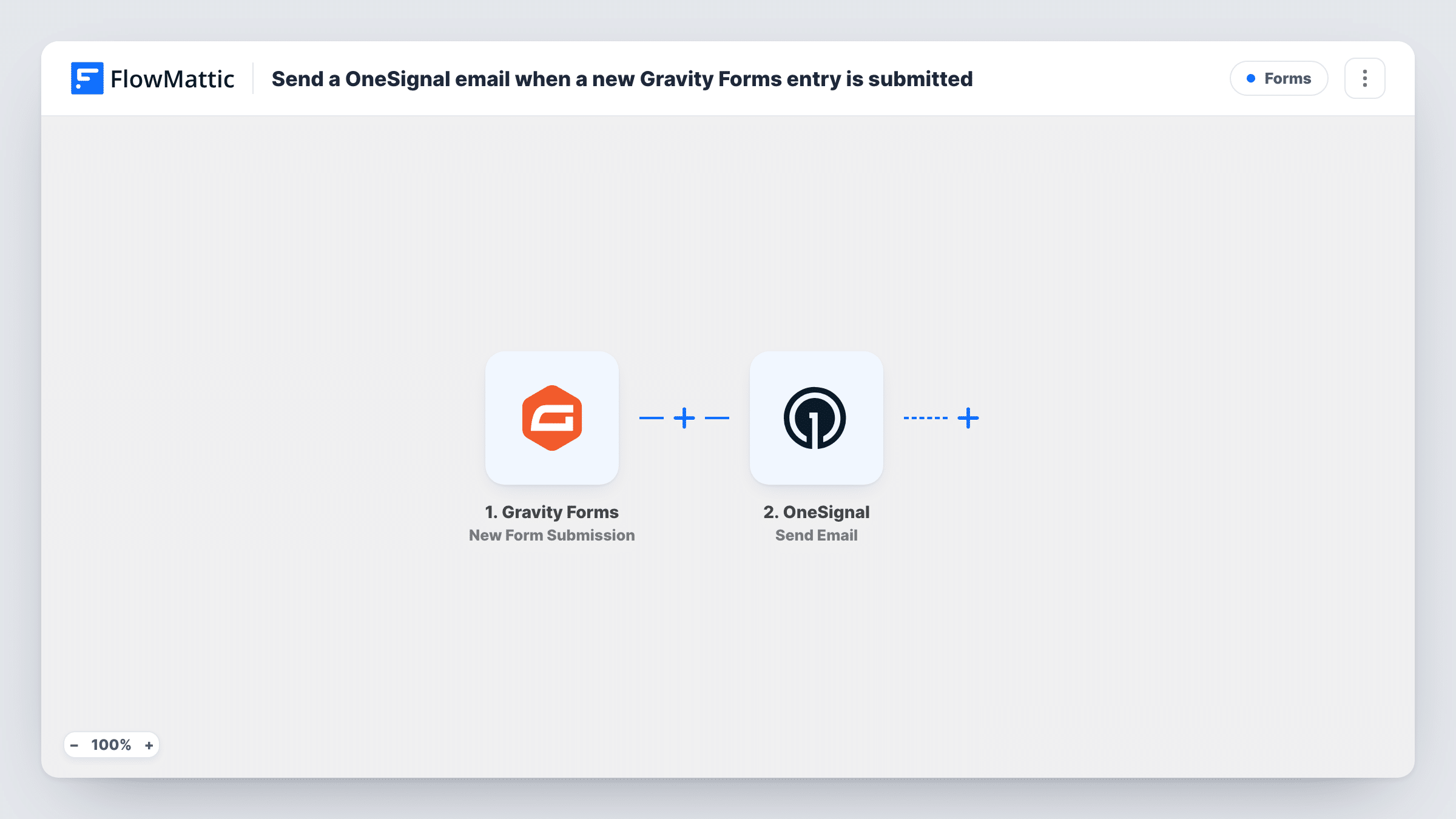
The Gravity Forms trigger fires on each new form submission and hands every field to FlowMattic. The OneSignal step then sends an email message through your OneSignal account. You set the recipient and the message content in that step, placing form answers wherever they fit.
Whether the email reaches the person who filled in the form depends on how you set the recipient and how your OneSignal app is configured. Send a test entry with your own address after import and check both your inbox and the OneSignal step in Task History.
Thank-you email after an enquiry
A visitor sends a question through Gravity Forms and receives a OneSignal email confirming you got it, with their own message quoted back.
Internal alert to your team
Point the email at a team address so staff see each new application or booking request in their inbox, sent from your OneSignal account.
Event registration confirmation
Registrants get an email with the event name and date they chose on the form, delivered through the same OneSignal setup you use for reminders.
How this workflow runs
What happens at each step once the workflow is on, and what you need before you import it.
 Gravity Forms New Form Submission
Runs for each new Gravity Forms entry on your WordPress site. Every field from the entry is passed on, ready to use in the OneSignal email.
- OneSignal Send Email
Sends an email message through OneSignal. Set the recipient and write the message with form fields, then connect your OneSignal account and run a test.
What you need
- FlowMatticCore
- Gravity Forms PluginPlugin
- OneSignal AccountAccount
After importing, map your own data. To keep the template universal, not every step is pre-filled. Open each step in the builder and connect your accounts and fields (channels, lists, sheets, recipients) before you switch the workflow on.
Make it yours
Changes worth making after you import it.
- Make the email field required in your Gravity Forms form so every entry has an address to map into the OneSignal step.
- Add a Filter after the trigger if only some answers should get an email, for example when a consent checkbox is ticked.
- Use a Router if different forms or choices need different emails, with each route checking a distinct value so an entry follows only one path.
Questions about this workflow
Does the person who filled in the Gravity Form get the email?
Only if you map their address as the recipient and your OneSignal app can email it. Test with your own address after import, and look at the OneSignal response in Task History if nothing arrives.
Do Gravity Forms notifications still go out?
Yes. The workflow only listens for new entries. Your Gravity Forms notification settings are untouched.
Can I send a push notification or SMS through OneSignal instead?
Yes. OneSignal in FlowMattic also has Send Push Notification and Send SMS actions. Swap one in for the email step or add it after.
Are earlier Gravity Forms entries emailed?
No. Only entries submitted after the workflow is turned on trigger an email.
More Forms workflows
Other ready-to-import templates from the same category.







Import this workflow into your WordPress site
Download the JSON, import it from the Workflows screen and connect your accounts. Every run stays on your server, with no per-task fees.
30-day money-back guarantee Unlimited workflows and runs Self-hosted