

When Joonbot sends a webhook event, send a thank-you WhatsApp message via WhatsApp Cloud API
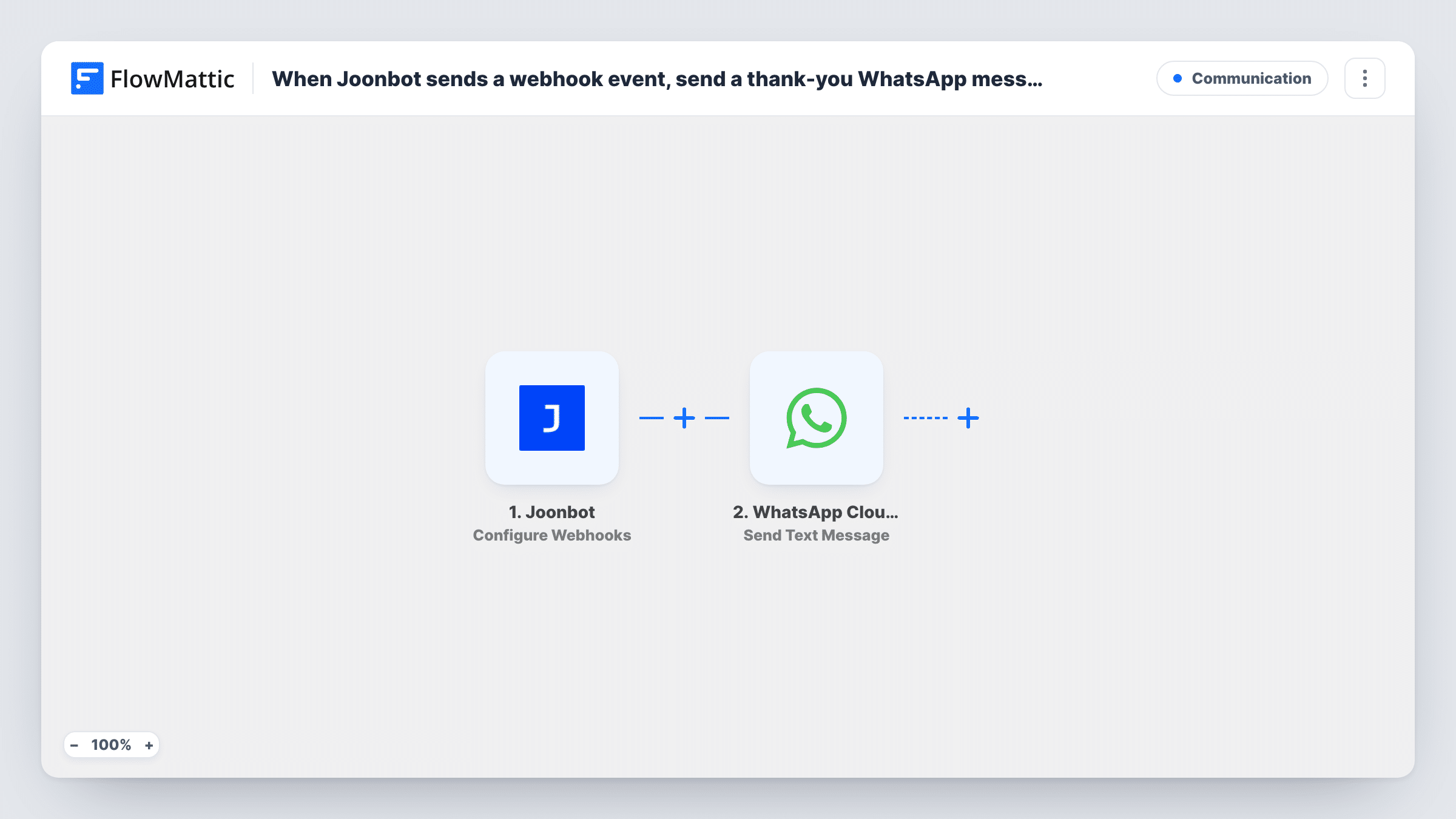
When your Joonbot chatbot sends a webhook event to FlowMattic, this workflow sends a free-form WhatsApp text through the WhatsApp Cloud API to the number you map, such as a thank-you to the visitor.
 Joonbot
 WhatsApp Cloud API
2 steps Setup ~5 min Used on 2.4k sites Free to import
What this workflow does
A chatbot conversation on your website ends when the visitor closes the tab. If the bot collected a phone number, a WhatsApp message afterwards is a natural way to say thanks and keep the thread going. This workflow sends one each time Joonbot reports an event.
The Joonbot trigger, Configure Webhooks, receives the webhook events your bot sends to the workflow's URL, carrying the answers it collected. FlowMattic passes that data to the WhatsApp Cloud API step, which runs Send Text Message from your business number. You map the visitor's phone number from the bot's data and write the thank-you text.
There is a catch with free-form text. WhatsApp hands it over only to someone who has messaged your business number within the past day. A website visitor who chatted with your bot most likely has not, so the message usually won't be delivered. Switch the step to Send Template Message with an approved template if the thank-you must reach new contacts. Task History records WhatsApp's response to each send.
Thanks after a quote request
A visitor asks your Joonbot for a quote and leaves a phone number, and the workflow sends a WhatsApp thank-you saying when to expect the quote.
Follow-up after a booking chat
A bot that books calls sends its result to FlowMattic, and the WhatsApp message confirms you received the request.
Returning customers who already use WhatsApp with you
Customers who recently messaged your business number on WhatsApp get the free-form thank-you, since they are inside the 24-hour window.
How this workflow runs
What happens at each step once the workflow is on, and what you need before you import it.
 Joonbot Configure Webhooks
Receives webhook events that your Joonbot bot sends to this workflow's URL. Set the URL in Joonbot and run through the bot once so FlowMattic captures the collected answers.
- WhatsApp Cloud API Send Text Message
Texts the mapped number on WhatsApp, from your Cloud API business number, as free-form text. It only arrives if the recipient messaged that number in the last 24 hours. Connect your WhatsApp Cloud API account and map the phone number.
What you need
- FlowMatticCore
- Joonbot AccountAccount
- WhatsApp Cloud API AccountAccount
After importing, map your own data. To keep the template universal, not every step is pre-filled. Open each step in the builder and connect your accounts and fields (channels, lists, sheets, recipients) before you switch the workflow on.
Make it yours
Changes worth making after you import it.
- For visitors who have never written to you on WhatsApp, change the step to Send Template Message and use a template approved in your WhatsApp account.
- Add a Filter after the trigger that continues only when the bot captured a phone number, so runs without one don't reach WhatsApp.
- Make sure the bot asks for the number with the country code, since WhatsApp needs a full international number to deliver.
Questions about this workflow
Why didn't the Joonbot visitor get the WhatsApp thank-you?
Free-form text is only delivered to people who messaged your business number in the last 24 hours. Most chatbot visitors haven't. Use Send Template Message with an approved template to reach them, and check Task History for WhatsApp's response.
How does Joonbot send data to FlowMattic?
Through webhooks. Copy the URL from the trigger step into your Joonbot bot's webhook settings, then complete a test conversation so FlowMattic captures the fields.
Does the bot need to collect a phone number?
Yes. The WhatsApp step needs a number to send to, and it comes from the answers your bot sends. Without one, the run has no recipient.
Can the WhatsApp message use the visitor's name?
Yes, if your bot asks for it. Map the name from the Joonbot data into the message text.
More Communication workflows
Other ready-to-import templates from the same category.




Import this workflow into your WordPress site
Download the JSON, import it from the Workflows screen and connect your accounts. Every run stays on your server, with no per-task fees.
30-day money-back guarantee Unlimited workflows and runs Self-hosted