

When a new row is added in Airtable, create a new voice in Hume AI
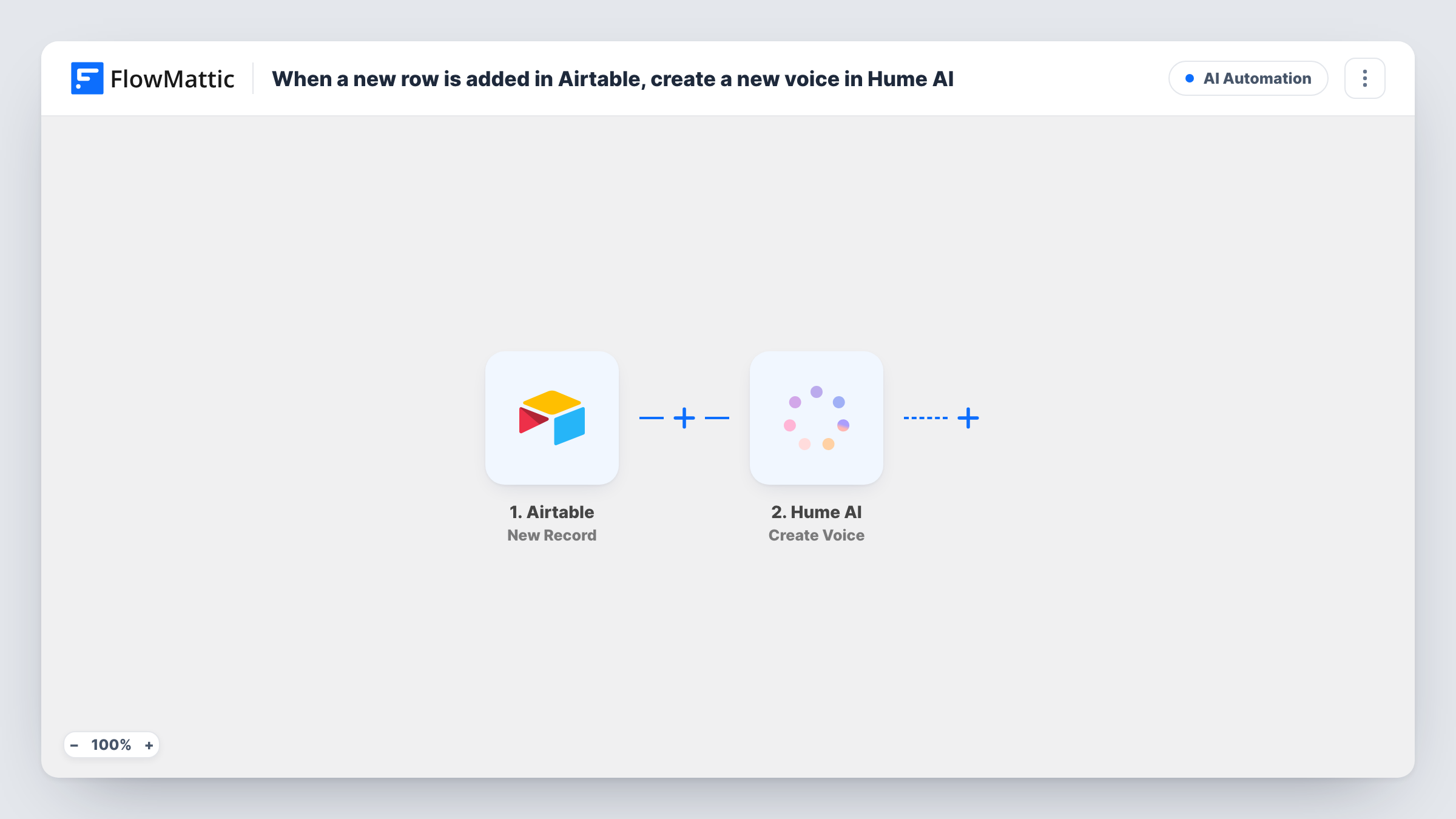
Each new Airtable record is turned into speech with Hume AI’s Text to Speech, and that generated voice is then saved as a new voice in your Hume AI account for reuse.
 Airtable
 Hume AI
3 steps Setup ~5 min Used on 501 sites Free to import
What this workflow does
If you design voices for narration, podcasts or product audio, it helps to keep the briefs in one place and the resulting voices in another. This workflow links the two: you add a record to an Airtable base, and Hume AI generates speech from it and saves the result as a voice you can use again.
The Airtable New Record trigger fires when a record is created in the table you pick and passes its fields on. The first Hume AI step, Text to Speech (File), converts text to speech. It ships unmapped, so after import you map the record's text, and any other inputs your table holds, into the step.
The second Hume AI step, Create Voice, saves a voice in Hume AI. Its generation ID is already mapped from the Text to Speech step, so the voice is created from the speech that was just generated. Check the step for anything else it needs, such as a name, and map it from the record so each saved voice is easy to find.
Every new record runs both steps, so test records you add create saved voices too. A test run with one record shows what Hume AI returned in Task History.
Voice library from a briefs table
An audio producer keeps an Airtable table of voice briefs and saves a Hume AI voice for each new brief, named after the record.
Character voices for a game or story
A small studio adds a record per character with a sample line, and each one becomes a saved voice in Hume AI for later recording.
Brand voice options for a client
An agency creates one record per voice idea for a client's ads, then compares the saved Hume AI voices before choosing one.
How this workflow runs
What happens at each step once the workflow is on, and what you need before you import it.
 Airtable New Record
Starts a run for each record added to your chosen Airtable table. The record's fields, such as the text to speak and a name, are passed to the Hume AI steps.
- Hume AI Text to Speech (File)
Converts text to speech with Hume AI. The step ships unmapped: map the text from the Airtable record, then run a test to see the generation ID and file Hume AI returns.
- Hume AI Create Voice
Creates a voice in Hume AI from the speech generated in the previous step, using the generation ID the template already maps. Map a name or anything else the step asks for from the record.
What you need
- FlowMatticCore
- Airtable AccountAccount
- Hume AI AccountAccount
After importing, map your own data. To keep the template universal, not every step is pre-filled. Open each step in the builder and connect your accounts and fields (channels, lists, sheets, recipients) before you switch the workflow on.
Make it yours
Changes worth making after you import it.
- Give each Airtable record a name column and map it into Create Voice, so the voices in Hume AI match your records.
- Add an Airtable Update Record step after Create Voice and write the returned voice details back to the same record, so the table shows which briefs are done.
- Use a separate Airtable table for voice briefs, so other records you add to the base don't start this workflow.
Questions about this workflow
Do I need a Hume AI account to use this workflow?
Yes. Both Hume AI steps use your connected Hume AI account, and the saved voices appear in that account.
Does editing an Airtable record create another voice?
No. The trigger fires when a record is created, not when one is edited. Only new records produce speech and a saved voice.
Where does the generated speech file go?
Text to Speech (File) returns it to the workflow, and nothing stores it as imported. Add a step that saves or sends the file if you want to keep the audio itself.
What does Create Voice need from the Text to Speech step?
The generation ID, which the template already maps. It tells Hume AI which generated speech to save as a voice. Check the step for a name or other inputs after import.
More AI Automation workflows
Other ready-to-import templates from the same category.








Import this workflow into your WordPress site
Download the JSON, import it from the Workflows screen and connect your accounts. Every run stays on your server, with no per-task fees.
30-day money-back guarantee Unlimited workflows and runs Self-hosted