

Update the matching record in Airtable when a Prodigi order status changes
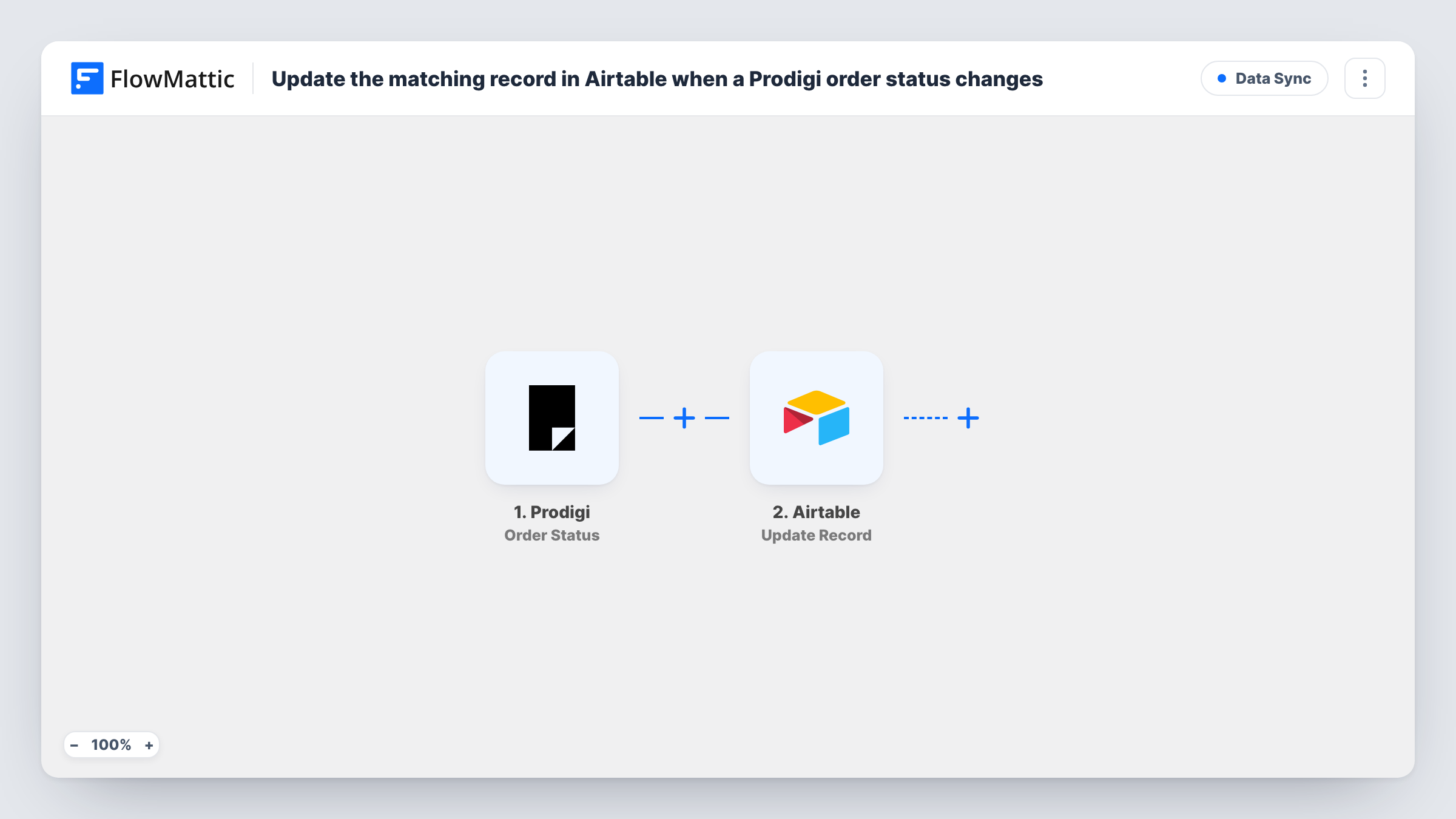
When a Prodigi order changes status, FlowMattic searches your Airtable table for that order’s record and, if it finds one, updates it, so your order base reflects what Prodigi reports.
 Prodigi
 Airtable
 Filter
4 steps Setup ~8 min Used on 885 sites Free to import
What this workflow does
If you track print-on-demand orders in Airtable, the status column goes stale the moment Prodigi moves an order along. This workflow listens for Prodigi status changes and writes them back to the record you already keep for that order, instead of adding a new one each time.
The Prodigi trigger fires whenever an order's status changes and passes the order data on. The first Airtable step then searches your table with a filter formula. That step ships unmapped: after import you pick the base and table and write a formula that matches your order ID column against the order ID from Prodigi.
Next, a Filter lets the run go on only when the search found more than zero records. The final step updates the first record the search returned, using its record ID. Which fields it changes is up to you: the template sets only the record ID, so you map the new status, and anything else you want, into the columns you choose.
Every status change starts a run, so one order can update the same record several times as it moves through production and shipping. Orders with no matching record stop at the Filter. Run a test order and open Task History to see what the search and the update returned.
Order tracker for a print shop
A poster seller keeps one Airtable record per order and wants the status column to change as Prodigi moves each order from received to shipped.
Customer service lookups
Support staff answer "where is my print" questions from the Airtable view, because each record shows the latest status Prodigi sent.
Production overview by status
An artist groups the Airtable table by status to see at a glance how many orders are still in production and how many have left.
How this workflow runs
What happens at each step once the workflow is on, and what you need before you import it.
 Prodigi Order Status
Starts the workflow each time a Prodigi order's status changes. The order's details, including its ID and new status, become available for the later steps; check a test run for the exact field names.
- Airtable Search Record
Searches your Airtable table for records that match a filter formula. The template leaves this step blank, so you choose the base and table and write a formula that compares your order ID column with the order ID from Prodigi.
- Filter Continue If Condition Meet
Lets the run continue only when the Airtable search returned more than zero records. When no record matches the order, the run stops here and nothing in Airtable changes.
- Airtable Update Record
Updates the first record the search found, identified by its Airtable record ID. Pick the same base and table, then map the Prodigi status, and any other order fields you track, into the columns you want changed.
What you need
- FlowMatticCore
- Prodigi AccountAccount
- Airtable AccountAccount
After importing, map your own data. To keep the template universal, not every step is pre-filled. Open each step in the builder and connect your accounts and fields (channels, lists, sheets, recipients) before you switch the workflow on.
Make it yours
Changes worth making after you import it.
- Keep the Prodigi order ID in its own Airtable column and use that column in the search formula, so each order matches exactly one record.
- Add a column for the date of the last change and map the run's date into it in the Update Record step, so you can see when Prodigi last reported.
- To hear about one status in particular, such as shipped, add a second Filter after the Update Record step that checks the Prodigi status, then an Email step after it. The record is still updated for every status.
- Test with an order that already has a record, then open Task History to confirm the search found it and the update changed the right columns.
Questions about this workflow
What happens when a Prodigi order has no record in Airtable?
The search returns zero records, so the Filter stops the run and Airtable stays as it is. The workflow only updates records you already have; it doesn't create new ones.
Do I have to write the Airtable filter formula myself?
Yes. The Search Record step ships empty, so after import you pick the base and table and write a formula that compares your order ID column with the order ID Prodigi sends.
Which Airtable record is updated if the search finds more than one?
The first one in the search results, because the Update Record step uses the first record's ID. Keep one record per Prodigi order so the right one is changed.
Will each Prodigi status change update the record again?
Yes. The trigger fires on every status change, so the same record is updated each time the order moves along. Map the status into the update so the latest one is what you see.
More Data Sync workflows
Other ready-to-import templates from the same category.







Import this workflow into your WordPress site
Download the JSON, import it from the Workflows screen and connect your accounts. Every run stays on your server, with no per-task fees.
30-day money-back guarantee Unlimited workflows and runs Self-hosted