

Log every Connecteam clock in to a Google Sheets timesheet
Every time an employee clocks in through Connecteam’s time clock, FlowMattic adds a row to your Google Sheets timesheet, so start times build up in a spreadsheet you can sort, total and share.
 Connecteam
 Google Sheets
2 steps Setup ~5 min Used on 3.1k sites Free to import
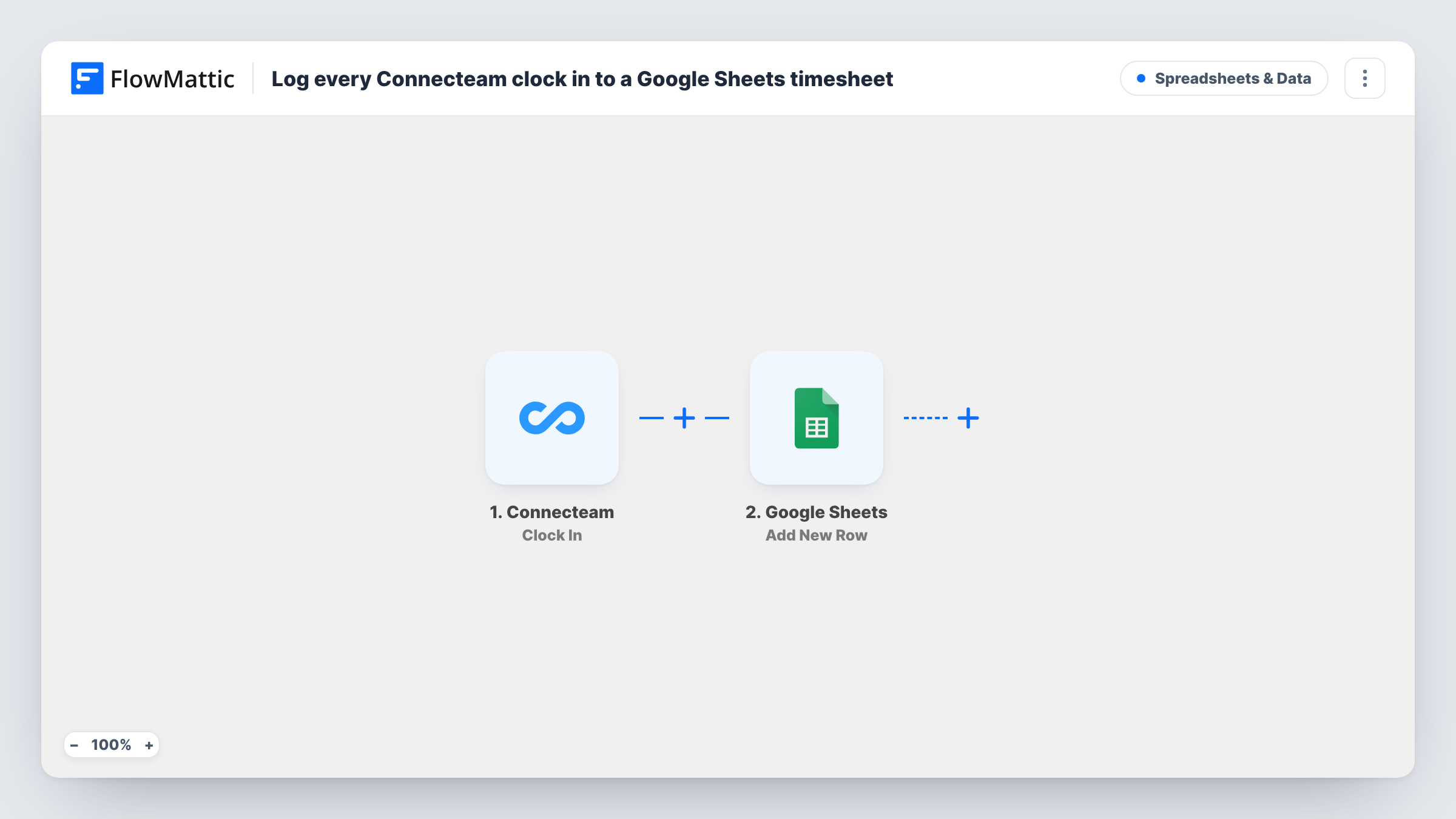
What this workflow does
Connecteam's time clock records shifts, but payroll and reporting often happen in a spreadsheet. Exporting clock data by hand each week leaves gaps and invites mistakes. This workflow writes each clock-in to Google Sheets as it happens.
When someone clocks in, the Connecteam Clock In trigger passes the time activity to FlowMattic. The Google Sheets step then appends a row to the timesheet you pick, with the details you map in the columns you choose.
This template records clock-ins only. Clock-outs, automatic clock-outs and admin edits are separate Connecteam triggers in FlowMattic, so they do not reach the sheet unless you add them. Fire a test clock-in after import to see which details Connecteam sends, then map them. Task History lists each run if a row ever seems to be missing.
Start-time log for payroll prep
A cafe owner keeps a sheet of every clock-in, then checks start times against the rota before running payroll each fortnight.
Late-arrival checks
A site manager sorts the sheet by date and employee to compare clock-in times with scheduled starts.
Sharing hours with an accountant
The bookkeeper gets view access to the Google Sheet instead of a Connecteam login, and reads clock-ins from there.
How this workflow runs
What happens at each step once the workflow is on, and what you need before you import it.
 Connecteam Clock In
Runs when a user clocks in on Connecteam's time clock. The clock-in details are passed on, ready to map into your timesheet columns.
- Google Sheets Add New Row
Appends a row to the Google Sheets timesheet you select, with the clock-in details you map. Pick the timesheet file and tab once your Google account is linked.
What you need
- FlowMatticCore
- Connecteam AccountAccount
- Google Sheets AccountAccount
After importing, map your own data. To keep the template universal, not every step is pre-filled. Open each step in the builder and connect your accounts and fields (channels, lists, sheets, recipients) before you switch the workflow on.
Make it yours
Changes worth making after you import it.
- Build a second workflow on Connecteam's Clock Out trigger that writes to another tab, so you can match each shift's start and end in the same spreadsheet.
- Add the Auto Clock Out trigger to that clock-out workflow too, so shifts Connecteam closes on its own also get recorded.
- Set up header names such as employee, date and time in the sheet first, which makes the column mapping quicker.
- Clock in once with a test user after import so FlowMattic captures the event data before you map the columns.
Questions about this workflow
Does this record Connecteam clock-outs as well?
No. It only uses the Clock In trigger. Clock Out and Auto Clock Out are separate Connecteam triggers that you can use in another workflow.
Will changes an admin makes in Connecteam update the sheet?
No. Admin edits fire their own Connecteam trigger, and this workflow only adds a row on each clock-in. Earlier rows stay as they were written.
Which clock-in details reach the Google Sheets timesheet?
Whatever the Clock In event includes. Run a test clock-in after import and the details appear in FlowMattic, ready to map.
Are past Connecteam shifts copied into the sheet?
No. Only clock-ins made after the workflow is turned on create rows.
More Spreadsheets & Data workflows
Other ready-to-import templates from the same category.




Import this workflow into your WordPress site
Download the JSON, import it from the Workflows screen and connect your accounts. Every run stays on your server, with no per-task fees.
30-day money-back guarantee Unlimited workflows and runs Self-hosted