

Send a Slack alert to managers when an employee clocks out
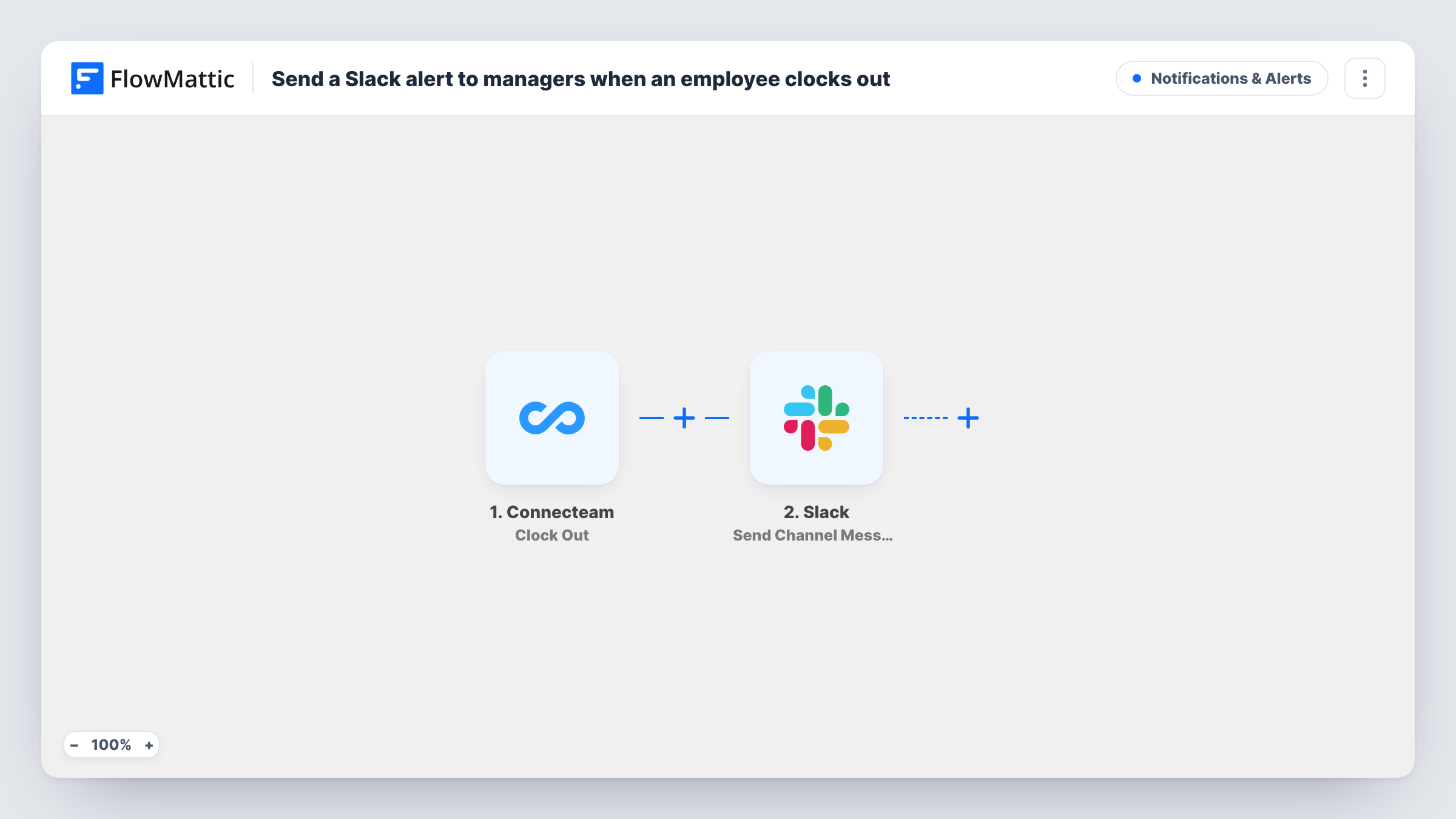
When an employee clocks out in Connecteam, FlowMattic posts a message to the Slack channel your managers use, so they can see who has finished their shift without opening the time clock.
 Connecteam
 Slack
2 steps Setup ~5 min Used on 2.7k sites Free to import
What this workflow does
Managers often need to know when people leave: to close up, to cover the next shift or to check hours. Watching the Connecteam time clock all day is not practical. This workflow sends each clock-out to a Slack channel they already read.
The Connecteam Clock Out trigger fires when a user clocks out. The Slack step then runs Send Channel Message, posting to the channel you pick. You write the alert and fill it with details from the clock-out, such as the employee's name if the event includes it.
Every clock-out sends a message, so a busy team produces a steady stream. Use a dedicated managers' channel, or add a Filter if only some staff matter. Automatic clock-outs are a separate Connecteam trigger in FlowMattic and do not start this workflow as imported.
Closing duty at a shop
The store manager sees each clock-out in Slack and knows when the last staff member has left for the night.
Shift handover on a building site
A site lead watches clock-outs arrive in the managers' channel to confirm the day crew has finished before the evening crew starts.
Overtime awareness
Managers glance at the clock-out messages to spot staff who stayed well past their scheduled end time.
How this workflow runs
What happens at each step once the workflow is on, and what you need before you import it.
 Connecteam Clock Out
Runs when a user clocks out on Connecteam's time clock. The clock-out details are passed on for the Slack message.
- Slack Send Channel Message
Sends an alert to the managers' channel in Slack. Write the message, insert clock-out details from Connecteam, and connect your Slack workspace.
What you need
- FlowMatticCore
- Connecteam AccountAccount
- Slack AccountAccount
After importing, map your own data. To keep the template universal, not every step is pre-filled. Open each step in the builder and connect your accounts and fields (channels, lists, sheets, recipients) before you switch the workflow on.
Make it yours
Changes worth making after you import it.
- Add Connecteam's Auto Clock Out as a second trigger so shifts closed by the time clock settings also alert managers.
- Add a Filter after the trigger if managers only need alerts for certain staff or jobs. Check a test clock-out first to see which values you can filter on.
- Add a Google Sheets row after the Slack step to keep a log of clock-outs alongside the alerts.
- Clock out once with a test user after import so FlowMattic captures the event fields to map into the message.
Questions about this workflow
Do automatic clock-outs in Connecteam send a Slack alert?
Not as imported. Auto Clock Out is its own Connecteam trigger in FlowMattic. Add it to the workflow as a second trigger if you want those alerts too.
Which Slack channel do the clock-out alerts go to?
The channel you pick in the Send Channel Message step once your Slack workspace is connected. A private managers' channel works if your connected account can post there.
Does every Connecteam clock-out post a message?
Yes. There is no Filter in the template, so each clock-out sends one Slack message.
Can the alert show the employee's name?
If the Connecteam clock-out event includes it, yes. Run a test clock-out to see the fields, then map the name into the message text.
More Notifications & Alerts workflows
Other ready-to-import templates from the same category.




Import this workflow into your WordPress site
Download the JSON, import it from the Workflows screen and connect your accounts. Every run stays on your server, with no per-task fees.
30-day money-back guarantee Unlimited workflows and runs Self-hosted