

Store new leads from Facebook Lead Ads in Notion databases
Each new lead from your Facebook Lead Ads forms is saved as an item in a Notion database, so your team can track and follow up on ad leads in the workspace they already use.
 Facebook Lead Ads
 Notion
2 steps Setup ~5 min Used on 2.0k sites Free to import
What this workflow does
Small teams often run their whole operation from Notion, including a simple lead tracker. Leads from Facebook ads don't land there on their own, so someone has to download them from Meta and paste them in. This workflow adds each lead to your Notion database as it is submitted.
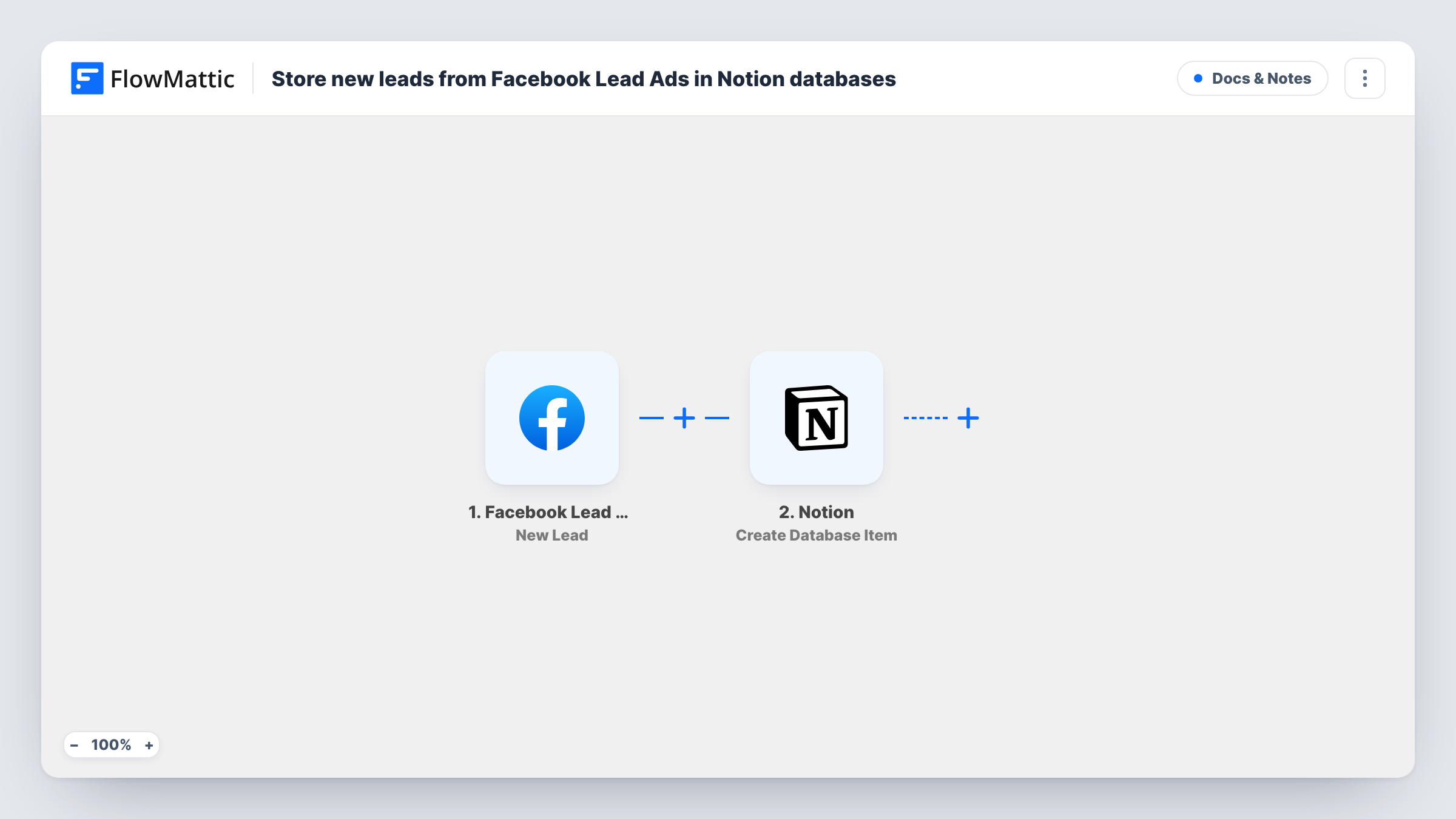
A run begins whenever a person completes your Facebook Lead Ads form and Meta records a new lead. FlowMattic receives the answers and hands them to Notion, whose Create Database Item action adds an item to the database you choose. You map each answer, like the name, email and any custom questions, to a property in that database.
Each lead becomes one new item. The workflow does not check whether the person is already in the database, so a repeat submission adds another item. From there your team can use Notion's own views, filters and assignments to work through the list. Task History records each run, which helps if a lead never shows up.
A lead board for a freelance studio
A design studio runs a lead ad for new projects. Each enquiry becomes a Notion item on a board grouped by status, from New to Proposal sent.
Tracking open-day sign-ups
A school collects open-day interest through a lead form, and staff see every family as a Notion item with their questions alongside.
Leads next to client notes
A consultant keeps client notes in Notion. New ad leads sit in a database in the same workspace, ready to link once they become clients.
How this workflow runs
What happens at each step once the workflow is on, and what you need before you import it.
 Facebook Lead Ads New Lead
Fires when someone submits the Facebook Lead Ads form you connect and a new lead is created. Their answers are passed on for the Notion step.
- Notion Create Database Item
Adds one item per lead to the Notion database you select. Map each Facebook answer to a matching property, and connect a Notion account that can access the database.
What you need
- FlowMatticCore
- Facebook Lead Ads AccountAccount
- Notion AccountAccount
After importing, map your own data. To keep the template universal, not every step is pre-filled. Open each step in the builder and connect your accounts and fields (channels, lists, sheets, recipients) before you switch the workflow on.
Make it yours
Changes worth making after you import it.
- Give the Notion database a Status property with a starting option, and set it in the mapping, so every new lead is marked as new when it arrives.
- Send a test lead through your form after import, then map its answers so each Notion property receives the right value.
- Add a Slack or email step after Notion to alert whoever handles new leads that an item was added.
Questions about this workflow
What happens if the same person submits my Facebook lead form twice?
A second Notion item is created. The template does not search the database first, so repeat submissions appear as separate items.
Why can't I see my Notion database when setting up the step?
The database must be shared with the Notion connection FlowMattic uses. Share it from Notion, then return to the Create Database Item step and pick it.
Do older Facebook leads get copied into Notion?
No. Only leads created after the workflow is active start a run. Leads collected before that stay in Meta's tools.
Which Facebook lead answers can I store in Notion?
Any answer your lead form collects, mapped to a property you pick. A test lead shows what arrives so you can match each one.
More Docs & Notes workflows
Other ready-to-import templates from the same category.




Import this workflow into your WordPress site
Download the JSON, import it from the Workflows screen and connect your accounts. Every run stays on your server, with no per-task fees.
30-day money-back guarantee Unlimited workflows and runs Self-hosted