

Create a Notion entry for every Synap Academy store purchase
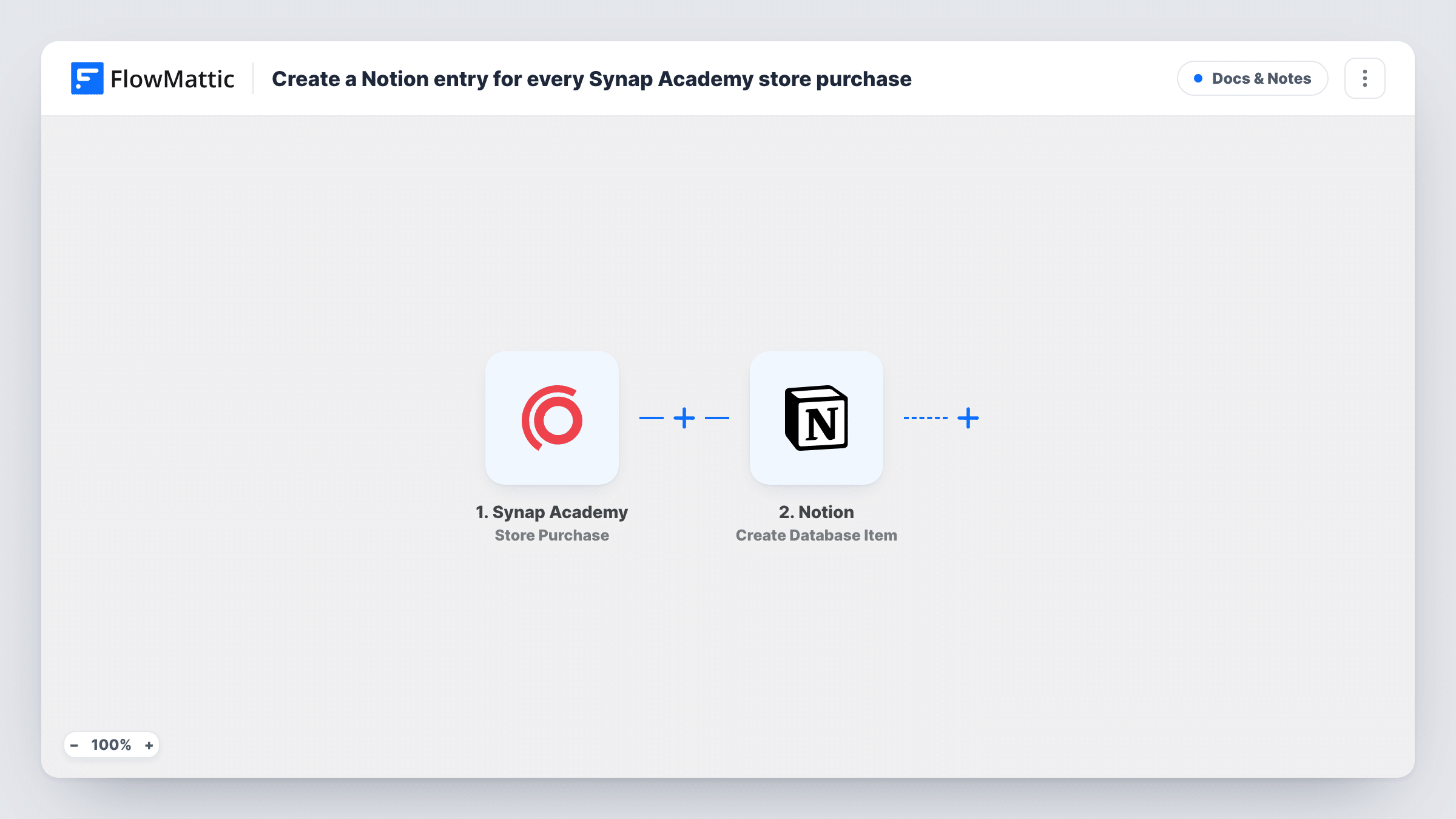
Every time a learner buys something in your Synap Academy store, this workflow creates an item in a Notion database with the purchase details you map, building a sales record your team can browse.
 Synap Academy
 Notion
2 steps Setup ~5 min Used on 3.4k sites Free to import
What this workflow does
If your team plans and reports in Notion, store sales from Synap Academy are one more thing to copy across by hand. A Notion database of purchases lets you add notes, link sales to projects, and filter by course or month, using views your team already knows. This workflow adds each purchase for you.
The Synap Academy trigger fires when a user makes a purchase in your Synap store. FlowMattic receives the purchase data and passes it to Notion, where the Create Database Item action adds an entry to the database you pick. You map the purchase values to that database's properties.
Each purchase becomes one new item. Nothing is edited later, so a refund is not reflected in Notion unless you change the item yourself. Task History records each run and what Notion returned.
Course sales tracker for a training company
Each Synap Academy store sale becomes a Notion item, and a board view grouped by product shows which courses sell.
Onboarding checklist per buyer
Your team opens the new Notion item for each purchase and adds notes or a checklist for welcoming that learner.
Monthly sales review
A Notion table filtered by month gives you the list of store purchases to go through in your monthly review.
How this workflow runs
What happens at each step once the workflow is on, and what you need before you import it.
 Synap Academy Store Purchase
Fires when a user makes a purchase in your Synap Academy store. The purchase data is passed to FlowMattic for the Notion step.
- Notion Create Database Item
Adds an item to the Notion database you choose for each purchase. Connect Notion, give the connection access to the database, and map the Synap Academy values to its properties.
What you need
- FlowMatticCore
- Synap Academy AccountAccount
- Notion AccountAccount
After importing, map your own data. To keep the template universal, not every step is pre-filled. Open each step in the builder and connect your accounts and fields (channels, lists, sheets, recipients) before you switch the workflow on.
Make it yours
Changes worth making after you import it.
- Build the Notion database and its properties before you map the step, so each purchase value has a property ready to receive it.
- Make a test purchase, or wait for a real one, after import. FlowMattic then shows the Synap Academy purchase data you can map.
- Add a Filter after the trigger with a condition on a purchase value if only certain products should be logged in this database.
Questions about this workflow
The Notion database for Synap Academy sales doesn't show up in the step. What do I do?
Notion only lets an integration reach the pages and databases you grant it. Give the FlowMattic connection access to that database in Notion, then try the step again.
Are past Synap Academy store purchases added to Notion?
No. Only purchases made after you turn the workflow on create Notion items.
Does a refunded Synap Academy purchase change the Notion item?
No. The workflow only reacts to purchases and creates items. Update or remove the item in Notion yourself if a sale is refunded.
More Docs & Notes workflows
Other ready-to-import templates from the same category.




Import this workflow into your WordPress site
Download the JSON, import it from the Workflows screen and connect your accounts. Every run stays on your server, with no per-task fees.
30-day money-back guarantee Unlimited workflows and runs Self-hosted