

Post to Slack channels for new items created in monday.com
Post a message in a Slack channel every time someone creates an item on monday.com, so people who live in Slack see new requests, tasks or leads without keeping the board open.
 Monday.com
 Slack
2 steps Setup ~5 min Used on 2.1k sites Free to import
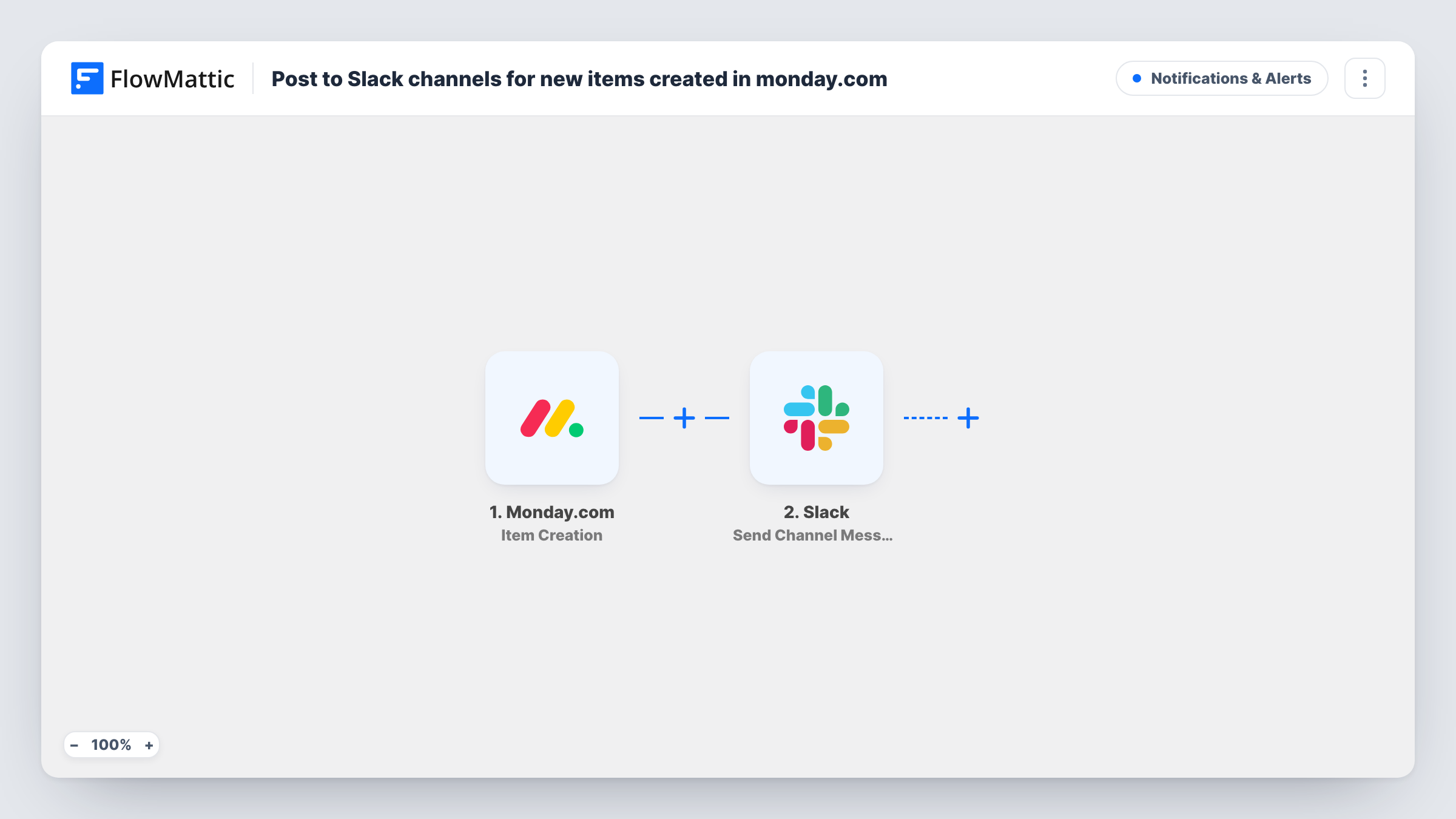
What this workflow does
A monday.com board only helps if people notice what lands on it. Many teams talk all day in Slack and check boards only now and then, so a new request can wait hours before anyone sees it. This workflow brings each new item into a Slack channel.
When an item is added to a board, the Monday.com trigger passes its data to FlowMattic. The Slack step, Send Channel Message, then posts in the channel you choose. You write the message and place item details in it, so readers know what was added before they click through.
The workflow posts once per new item, and every new item gets a post since nothing filters them. Edits to the item later on do not send another message. Each post is listed in Task History with the item data received.
Incoming requests for a design team
Requests added to the intake board appear in the design team's Slack channel, where someone claims them with a reaction.
New leads on a sales board
Sales reps working in Slack see each lead the moment it is added as a board item, without refreshing monday.com.
Bug reports for developers
When support adds a bug item to the board, the developer channel gets the summary straight away.
How this workflow runs
What happens at each step once the workflow is on, and what you need before you import it.
 Monday.com Item Creation
Fires each time a new item is added on monday.com. Its data is handed on so you can quote it in the Slack post.
- Slack Send Channel Message
Posts a message to the Slack channel you pick for each new monday.com item. Connect Slack, write the message and map the item details into it.
What you need
- FlowMatticCore
- Monday.com AccountAccount
- Slack AccountAccount
After importing, map your own data. To keep the template universal, not every step is pre-filled. Open each step in the builder and connect your accounts and fields (channels, lists, sheets, recipients) before you switch the workflow on.
Make it yours
Changes worth making after you import it.
- Add a Filter after the trigger if only items from one group, or with a chosen value, should reach Slack.
- Route items to different Slack channels with a Router whose conditions use distinct values from the item, one Slack step per route.
- Add a test item to your board after import so FlowMattic captures its fields, then build the Slack message from them.
Questions about this workflow
Does every new monday.com item post to Slack?
Yes, as imported. Nothing filters the items. Add a Filter after the trigger to limit which ones are posted.
Will Slack get a message when a monday.com item is updated?
No. This trigger fires on item creation only. FlowMattic offers other monday.com triggers, such as Column Change Detected, for a separate workflow.
Can the monday.com alert go to a direct message instead of a channel?
As imported, the Slack step is Send Channel Message, so monday.com alerts go to a channel. Check FlowMattic's Slack actions if you want a direct message instead, and swap the step.
More Notifications & Alerts workflows
Other ready-to-import templates from the same category.




Import this workflow into your WordPress site
Download the JSON, import it from the Workflows screen and connect your accounts. Every run stays on your server, with no per-task fees.
30-day money-back guarantee Unlimited workflows and runs Self-hosted